How to See Which AI Coding Agent Needs You Next
See which AI coding agent needs attention next with session states: waiting, blocked, errored, or done. CodeGrid keeps many sessions visible on macOS.
How to see which AI coding agent needs attention right now
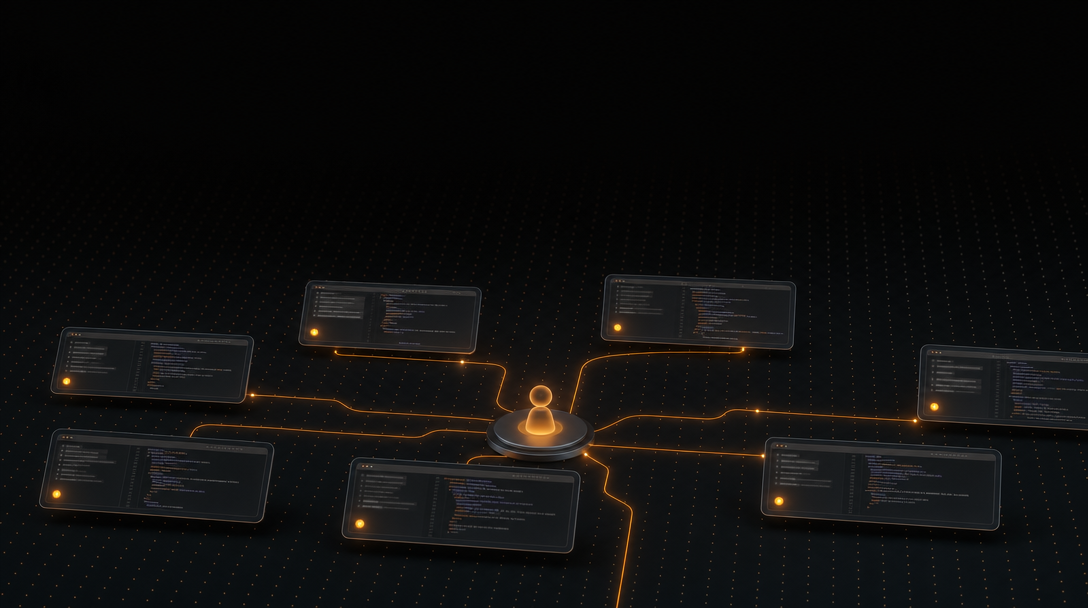
The agent that needs you next is the one marked waiting, blocked, errored, or newly done — not the quietest terminal. Agent attention is a session-state signal: each session reports its status, and you route to the states that block progress. In one documented tmux setup, Robert Travis Pierce ran 18 Claude Code agents across 6 tmux sessions and still needed a reliable way to know which one to touch first.
The mistake is treating attention as something you poll. You alt-tab through panes, skim scrollback, and hope you catch the one holding an approval prompt. That works at two agents. It collapses at ten.
A better model surfaces state directly. Each session reports whether it's actively working, waiting on your input, sitting idle, or in an error condition. You route your attention to the states that block progress — waiting and error — and ignore the ones that don't.
The next agent to touch is whichever one is waiting on you, because that's the session where work has already stalled. Working sessions don't need you; they're making progress. Idle sessions finished cleanly and can wait. But a waiting agent is dead in the water until you answer it, and every second it sits unanswered is throughput you're leaving on the table across the rest of your fleet.
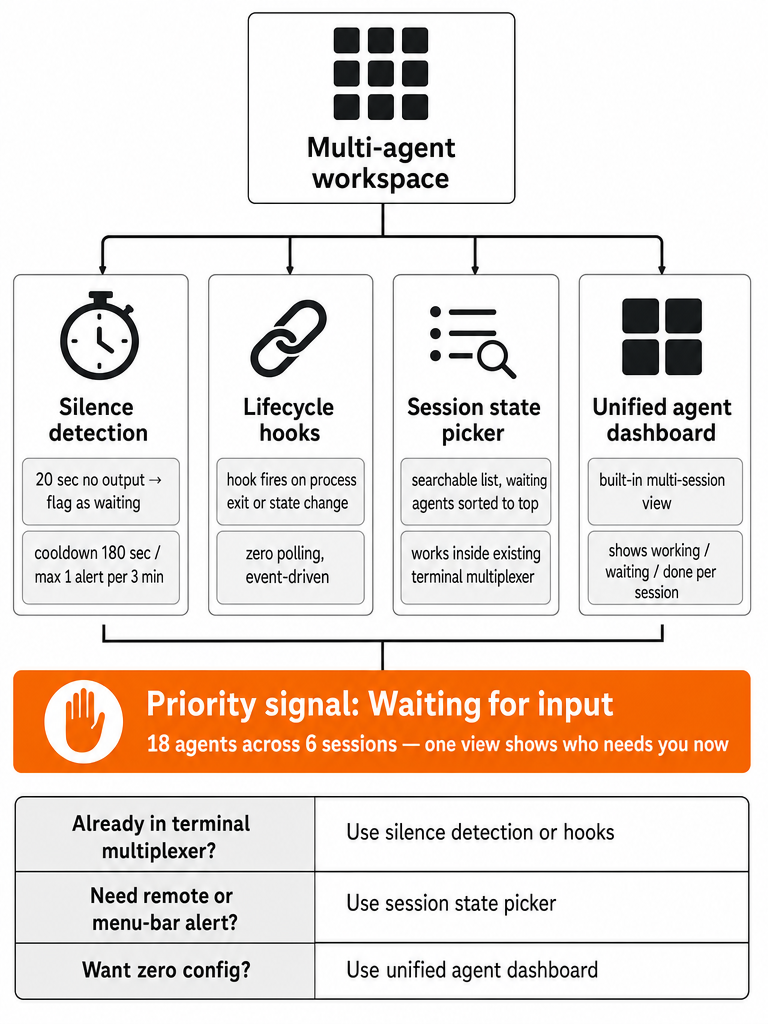
How to know which AI agent is waiting for input
The minimum status model for managing multiple agents is four states: working, waiting for you, idle, and error — with waiting treated as the highest priority. A lightweight tmux workflow described by Nick Liu surfaces live agent state with three of these — working, waiting for you, and idle — proving you don't need a heavy dashboard to know who's blocked.
Waiting ranks first because it's the only state where the agent has stopped and can't continue on its own. Working means the agent is fine. Idle means it finished. Error means something broke, but a broken run usually isn't holding your active attention the way an approval prompt is.
Here's the practical hierarchy:
| State | What it means | Your move |
|---|---|---|
| Waiting | Agent paused for input or approval | Answer now — work is stalled |
| Error | Run failed or hit a fault | Triage next — inspect, then rerun |
| Idle / done | Finished, no action pending | Review when you have a slot |
| Working | Actively executing | Leave it alone |
The signal that matters is the transition into waiting. An agent that asks for a file path, a tool approval, or a yes/no confirmation has halted. Everything downstream of that decision is frozen until you respond. Detecting that specific state — rather than reacting to any quiet pane — is what lets you route attention instead of hunting for it. Nick Liu's workflow was tested with Claude Code 2.1.x on macOS and Linux, so this is a running setup, not a sketch.
Why agent attention is a routing problem, not a tab problem
Managing many agents is a routing problem: getting your attention to the session that needs it, not opening more panes to check. Tabs and splits scale linearly — every new agent is one more thing you manually inspect. Routing scales differently, because state comes to you instead of you going to it.
Robert Travis Pierce framed this directly while describing his setup of 18 Claude Code agents across 6 tmux sessions. At that scale, the bottleneck isn't launching agents or reading their output. It's the human overhead of figuring out which one to look at next. That's an attention allocation problem, and tabs don't solve it.
Think of it the way you'd think about an event loop. You don't busy-poll every socket; you register interest and get woken when something's ready. Multi-agent work wants the same shape. Each agent emits a state change — became waiting, errored, finished — and you react to the highest-priority event instead of scanning a list.
The biggest UX problem in a multi-agent setup is knowing which agent is waiting for you.
This reframing tells you what to build or buy. If attention is routing, then the useful tooling is whatever turns agent activity into a ranked, glanceable signal: a status picker that sorts waiting sessions to the top, a hook that fires on silence, a dashboard that flags who needs input. The number of panes is irrelevant. The quality of the signal is everything.
Silence detection vs lifecycle hooks vs status pickers vs agent dashboards
Four detection surfaces show up across the sources, and they trade off reliability against setup cost. Silence detection is the easiest to wire and the noisiest; lifecycle hooks and dashboards are the most precise. Pick based on how many false positives you can tolerate.
| Surface | How it detects "needs you" | Reliability | Setup cost |
|---|---|---|---|
| Silence detection | No output for N seconds → likely waiting | Medium — a pause isn't always a block | Low — tmux monitor-silence |
| Lifecycle hooks | Agent fires an event on stop/wait | High — reports actual state | Medium — per-agent config |
| Status picker | Live session list, sorted by state | High — depends on state source | Medium — install a picker |
| Agent dashboard | Built-in screen shows all sessions | High — vendor-maintained | Low — already in the tool |
Silence detection infers state from the absence of output. Pierce uses tmux monitor-silence with a 20-second timeout to flag a quiet pane as likely waiting. It's cheap and tool-agnostic, but it can't tell a genuine approval prompt from an agent that's thinking.
Lifecycle hooks report the actual state instead of guessing at it. When an agent emits an event, a monitor can normalize it — the tmux-agent-state project maps lifecycle events into working, blocked, and idle, then renders that in tmux, Zellij, or Ghostty.
Status pickers combine state with a searchable list. tmux-claude-session-manager shows each session's status and sorts the ones needing attention to the top.
Agent dashboards are the built-in path: Claude Code's Agent View shows what each session is doing, which need input, and which are done, all from one screen.
How to see what each tmux window is doing
tmux surfaces agent state by turning activity into visible window status. The mechanics: monitor-silence flags a window after a period of no output and fires a hook, so a quiet pane becomes a visible signal instead of something you have to notice yourself. Pierce sets that silence timeout to 20 seconds in his setup.
The workflow has four moving parts:
- Enable
monitor-silenceon agent windows so tmux watches for output gaps and marks the window when one goes quiet. - Fire a hook on that silence event to update the window's visible status — working, waiting, or idle.
- Render status in the status bar so every window's state shows at a glance without switching to it.
- Add a searchable picker for live sessions.
tmux-claude-session-managerlists sessions with status and sorts the ones needing attention to the top.
Nick Liu's published setup binds this to two keys: prefix + y to launch or jump to a session, and prefix + u to open the live status picker. That's the routing loop — one key to see who's waiting, one key to jump there.
The catch is that tmux gives you the plumbing, not the answer. You assemble the silence detection, the hook scripts, the status rendering, and the picker yourself. For a stable setup you rebuild rarely, that's fine. If you've hit the point where tmux and iTerm2 break down when you're managing AI agents, the assembly cost is exactly where the friction lives.
How to monitor multiple Claude Code sessions
Claude Code Agent View is a built-in screen for background sessions that shows which ones need attention from one place. It lists what every session is doing, which ones need your input, and which ones are done — so you step in only when a session needs you or has a result, rather than watching all of them.
That's the case for a built-in view over hand-wired indicators. When your agents run inside a single tool that already reports state, the dashboard is maintained for you and reports actual lifecycle events, not inferred silence. Agent View is designed for exactly this: several independent tasks running in the background that you check when one surfaces a result or a prompt.
Wire your own hooks when your agents span tools that don't share a status model, or when you run plain shells alongside them. Use a built-in dashboard when everything lives in one CLI that already exposes session state.
| Situation | Better fit |
|---|---|
| All sessions in one tool with a status screen | Built-in agent dashboard |
| Mixed agents + raw shells | Hand-wired hooks + status bar |
| Sessions on remote machines | Terminal-native monitoring |
A built-in view maintained by the vendor works well when your agents share one status model. The moment they don't — mixed tools, raw shells, or sessions the dashboard can't see — hand-wired indicators become the only surface that covers everything. If you're running many sessions across repos and tools, the harder version of this problem is covered in how to run multiple Claude Code sessions at once without losing track of them.
How to avoid false positives when a terminal goes quiet
Silence isn't the same as blocked, so silence-based detection needs guardrails. A pane can go quiet because the agent is thinking, streaming slowly, or finished cleanly — none of which means it's waiting on you. Left untuned, silence detection alerts on all of them and you learn to ignore the signal.
Four failure modes and their fixes:
- Thinking mistaken for waiting. Tune the threshold. Pierce's 20-second
monitor-silencetimeout is long enough that a brief pause won't trip it, but short enough to catch a real stall. - Repeated alerts on the same silence. Rate-limit. Pierce caps notifications at 1 per agent per 3 minutes, implemented as a 180-second cooldown that checks when the last notification for that agent fired.
- Non-agent windows polluting status. Exclude them. Your editor pane or a log tail will sit silent forever and shouldn't be flagged as a waiting agent.
- Finished-but-not-waiting states. Distinguish idle from waiting. A done agent is quiet but needs nothing; a waiting agent is quiet and blocking work. Only the second one earns an alert.
Threshold, cooldown, and window filtering together are what turn silence detection from a noise generator into a signal you'll actually act on.
What changes when agents run over SSH or on remote machines
Remote agents flip which monitoring approach works. Terminal-native monitoring survives SSH because tmux runs on the remote host — the silence detection and status hooks execute where the agent lives, not on your laptop. A GUI monitor running locally can't see agents on another machine at all.
Nick Liu makes this split explicit: tmux-based monitoring works over SSH because the session state is computed on the remote side, while a local GUI manager has no visibility into what's happening on a remote host.
| Approach | Local agents | Remote agents over SSH |
|---|---|---|
| tmux status + hooks | Works | Works — runs on the host |
| macOS menu bar monitor | Works | Blind to remote sessions |
| Full-screen picker in tmux | Works | Works over the SSH session |
For local work, a native macOS menu bar monitor is convenient. AgentPet, for example, shows every running agent, its state, what it's doing, and a live timer, with an at-a-glance indicator when one needs input. That's a strong glanceable surface — as long as the agents run on the same machine. The rule is simple: put the monitoring where the agents are. If they live on a remote box, monitor from the remote box, because a laptop GUI can't watch what it can't reach.
How to manage multiple AI agents without terminal chaos
Managing many agents without chaos means keeping sessions visible and routing waiting work to the top — not cycling through hidden panes. The moment state lives behind a tab you have to click, you're back to polling. The fix is to keep every session's status glanceable and let the ones that need you rise to the front.
Three habits keep it sane:
- Keep sessions visible, not stacked. Hidden panes hide their state. A tmux status bar, a picker, or a canvas where each agent has its own pane all solve this — the point is that state is never more than a glance away.
- Sort waiting work to the top.
tmux-claude-session-managerdoes this in its picker; a menu bar monitor like AgentPet does it with an at-a-glance indicator. Either way, you look at the highest-priority state first. - Stop cycling. Alt-tabbing through every pane to check status is the exact overhead routing is meant to eliminate. If you're cycling, your setup isn't surfacing state.
CodeGrid is one native macOS take on this: each agent session gets its own pane on a free-form 2D canvas with live status indicators — running, waiting, idle, error — visible even when zoomed out, so a waiting pane stands out without opening it. Visible state plus priority ordering is the whole point; every tool in this article, hand-wired or built-in, is just a way to deliver it. If tabs are your current bottleneck, terminal tabs vs a 2D canvas for AI coding work walks through the tradeoff.
How to triage idle, running, waiting, and error sessions fast
Fast triage follows a fixed action order: answer waiting, inspect error, review idle, ignore running. State is only useful when it maps to a next move, so commit the order to muscle memory and stop re-deciding it per session.
The default move for each state:
- Waiting — respond now. This session is blocking its own progress and possibly downstream work. Highest priority, always.
- Error — inspect, then decide. Read the fault, fix the input or config, rerun. Don't let a failed run sit; it produces nothing while it waits.
- Idle / done — review the result when you have a slot. No urgency, but don't forget it — a finished agent's output still needs a human check before you merge.
- Running — leave it. Interrupting a working agent costs you its progress.
That ordering is the payoff of everything above: silence detection, hooks, pickers, and dashboards all exist to tell you which bucket each session is in, fast enough that triage becomes reflex.
For the deeper version of this loop, see how to triage idle vs running AI agent sessions fast. If your triage keeps stalling because layout evaporates on restart, how to restore a multi-agent terminal workspace on macOS covers getting sessions and directories back. And when the output you're reviewing is five agent branches at once, how to review 5 AI agent branches without merge chaos picks up where triage ends.
Frequently asked questions
how to see which AI coding agent needs attention right now
Route to the session marked waiting first — that's the only state where the agent has stopped and can't continue on its own. A four-state model (working, waiting, idle, error) makes this mechanical: waiting ranks highest because work is stalled until you respond, error comes next for triage, idle can wait, and working sessions need nothing from you. Sorting by state rather than by which pane last printed output is what turns attention management into a reflex.
best app for orchestrating AI coding agents on macOS
CodeGrid is a native macOS workspace built for exactly this — running many agent sessions in parallel on a free-form 2D canvas, with live per-pane status indicators (running, waiting, idle, error) visible even when zoomed out. At roughly 10 MB, built with Tauri rather than Electron, it launches instantly. Each pane is a real PTY you can drag and resize; a single Cmd+B broadcast sends one command to every terminal at once, eliminating the repetitive retyping that breaks multi-agent flow.
how do I know which tmux window has an agent waiting for input
Enable tmux's monitor-silence on agent windows and fire a hook when a window goes quiet. In one documented setup, a 20-second silence timeout flags the pane and updates its visible status in the status bar — working, waiting, or idle. A searchable session picker like tmux-claude-session-manager then sorts waiting sessions to the top, so a two-key sequence (see status, jump there) replaces cycling through every pane manually.
why does silence detection give false positives when monitoring AI agents
Silence can mean thinking, slow streaming, or a clean finish — not just a blocked approval prompt. Three guardrails reduce noise: a long enough timeout (20 seconds is the documented threshold that avoids tripping on brief pauses), a per-agent cooldown of 180 seconds between repeat notifications, and explicit exclusion of non-agent windows like editors or log tails. Without all three, silence detection alerts on everything quiet and you stop acting on it.
what is the right triage order for idle vs running vs waiting vs error agent sessions
Answer waiting first, inspect error second, review idle when you have a slot, and leave running sessions alone. Waiting is the only state where the agent has halted and downstream work is frozen. Error produces nothing while it sits uninspected. Idle finished cleanly and can wait for a human review before merging. Interrupting a running agent costs its progress — there's no useful action there until its state changes.
does tmux-based agent monitoring work over SSH on remote machines
Yes — tmux runs on the remote host, so silence detection and status hooks execute where the agent lives, not on your laptop. A macOS GUI monitor, by contrast, is blind to sessions on any machine it can't reach directly. The rule is: put the monitoring where the agents are. For remote work, a terminal-native setup (tmux status bar plus a picker) is the only surface that covers all sessions regardless of where they run.
Sources
- AI coding and agents, which is best? : r/ChatGPTCodingwww.youtube.com
- I'm Confused After Trying Every AI Coding Agentmartinterhaak.medium.com
- Best AI Coding Agents Summer 2025 - Mediumwww.vellum.ai
- The most popular AI coding skills right nowabstracta.us
- Best AI Agent for Coding? First Check Your Quality Intelligence - Abstractaroberttravispierce.com