2D Terminal Canvas for macOS: What to Look For
Evaluate a 2D terminal canvas macOS workflow with PTY-backed panes, session status, broadcast commands, and layout persistence for agent work.
What Is a 2D Terminal Canvas on macOS?
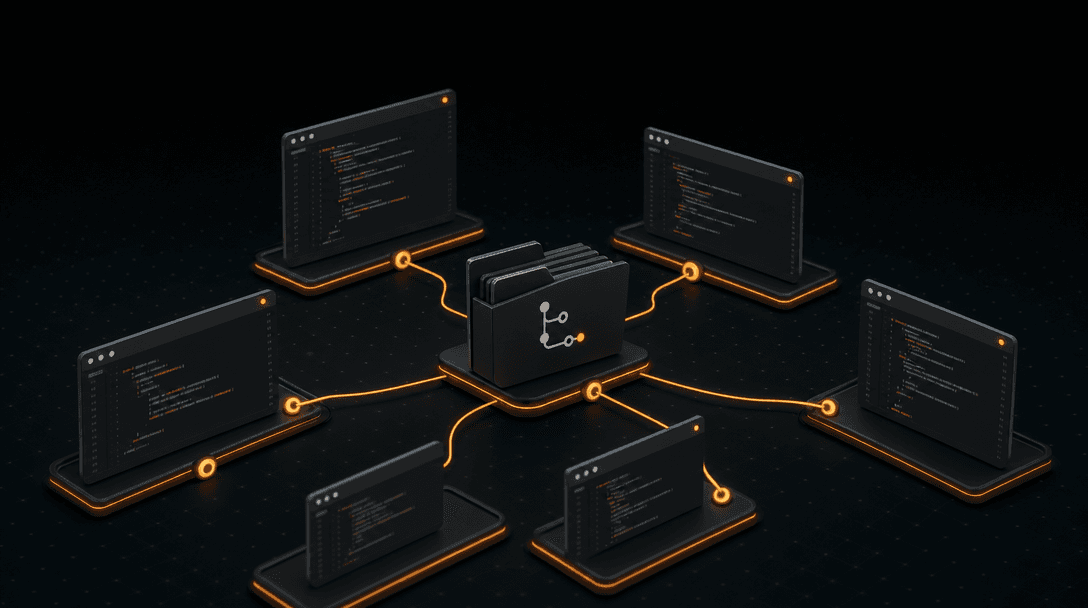
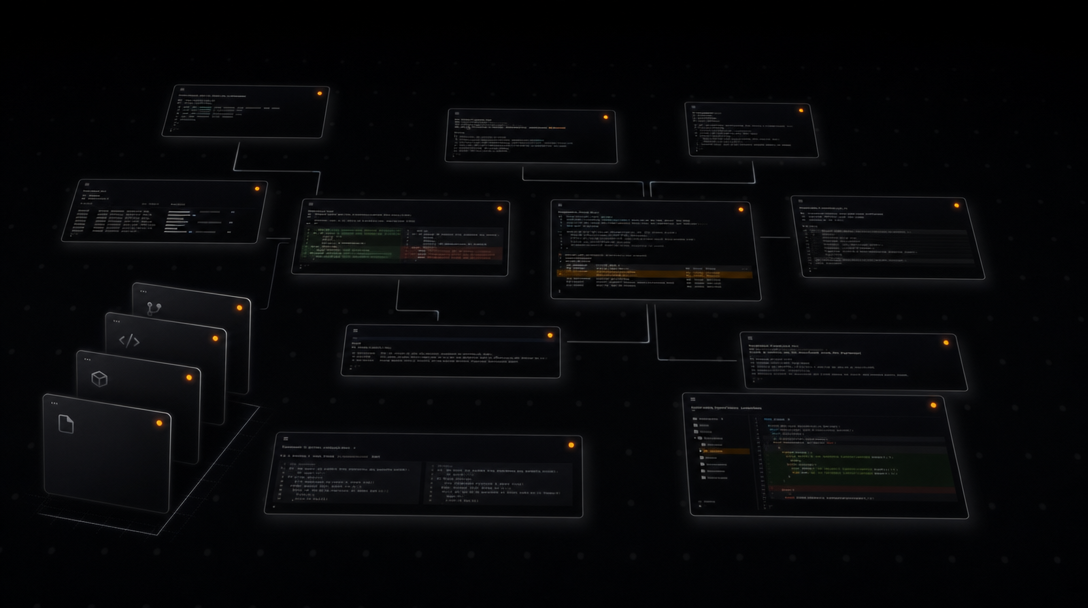
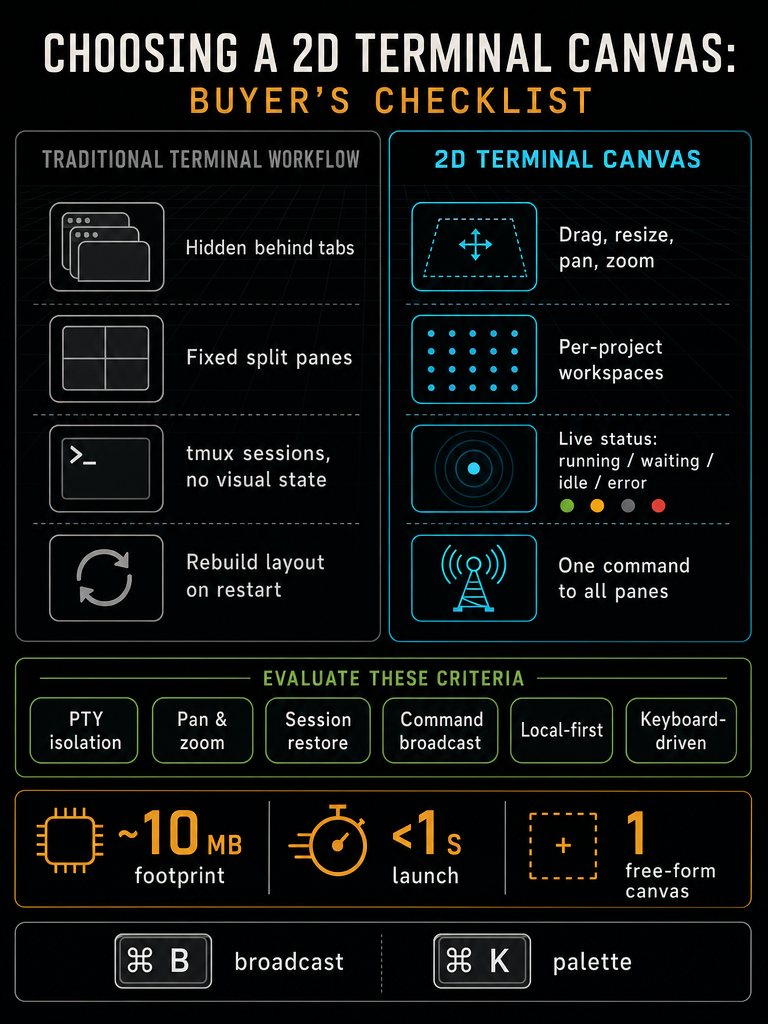
A 2D terminal canvas on macOS is a free-form workspace where each PTY-backed shell session lives in its own movable, resizable pane that you can drag, zoom, and pan across an infinite plane — instead of stacking sessions behind tabs or locking them into fixed splits. Think of it as a whiteboard for terminals: every Claude, Codex, or plain zsh session is a tile in space, not a hidden tab.
The shift matters once you start orchestrating more than two or three agent CLIs at once. With tabs, only one session is visible. With tmux, you trade visibility for keystroke gymnastics. A 2D canvas keeps every session simultaneously visible at the zoom level you choose, so coordination becomes a spatial problem instead of a memory problem.
For developers running multiple terminal-based coding agents across several repos, this is the difference between watching ten workers and remembering ten workers. CodeGrid implements this model as a native macOS app, treating each session as a first-class pane on a single free-form 2D canvas (Source: CodeGrid).
Who Needs a 2D Terminal Canvas Instead of a Normal Terminal?
You need a 2D terminal canvas if you routinely run four or more concurrent terminal sessions — particularly agent CLIs that block on prompts or run long tasks. If your daily work is one repo, one shell, one task at a time, a normal macOS Terminal or iTerm2 setup is fine.
The reader profiles where a canvas pays off:
- Multi-agent developers running Claude, Codex, Gemini, or shell-driven agents in parallel across several repos.
- Indie hackers and solo founders keeping three to six side projects warm at once.
- Agencies and freelancers juggling isolated client codebases that each need their own git context and layout.
- Engineering leads evaluating local-first, privacy-respecting tooling for agent-heavy workflows.
- Automation tinkerers scripting their environment via external control APIs.
If you fit none of these profiles, a 2D canvas is overkill. Stick with what works.
How Is a 2D Terminal Canvas Different From Terminal Tabs, Split Panes, and tmux?
Tabs, splits, and tmux all assume you want one session in focus at a time. A 2D canvas assumes you want many sessions visible at once, at variable scale, with their state legible without switching focus.
Here's how they compare for multi-session AI agent work:
| Approach | Concurrent Visibility | Pane Scale | Project Isolation | Session State Visible |
|---|---|---|---|---|
| Terminal tabs | One at a time | Fixed | Manual per window | No |
| Fixed splits (iTerm2) | 2–4 practical | Equal/fixed | Manual per window | No |
| tmux | 4–8 practical | Equal/fixed | Per session, keyboard-driven | No |
| 2D terminal canvas | Dozens, at varying zoom | Drag/resize per pane | Per-project workspaces | Yes (status indicators) |
The practical differences:
- Visibility scales with zoom, not screen real estate. Zoom out to see twenty panes' status at a glance; zoom into one to read its output.
- Pane size encodes priority. A long-running agent gets a big pane; a passive watcher gets a small one. Tabs and tmux can't express that.
- Project context travels with the workspace. Each project keeps its own canvas, panes, and working directories.
Tabs and tmux remain perfectly adequate for single-project, single-session work — the canvas only earns its place when you're running many agents concurrently. If you live in one repo with one shell, none of this matters.
What Should You Look For in a 2D Terminal Canvas for macOS?
The buyer checklist for evaluating a 2D terminal canvas comes down to seven concrete capabilities. Anything missing here forces a workaround.
- Real PTY isolation per pane. Each session must be a full pseudo-terminal, not a rendered transcript. Agent CLIs,
vim,htop, and TUI tools should all behave normally. - Drag, resize, pan, and zoom. Pane management has to be direct manipulation, not config files. Resizing a pane should be a mouse drag, not a keymap.
- Per-project workspaces. Switching from Client A to Client B should restore an entirely separate canvas with its own panes, directories, and git context.
- Compatibility with existing shells and agent CLIs. The canvas should run your existing
zsh,fish, and any agent binary unchanged. If it requires a custom shell or wrapper, walk away. - Session status indicators. Each pane should display whether it's running, waiting for input, idle, or errored — visible even when zoomed out.
- Keyboard-first control. A command palette (
Cmd+K), broadcast input (Cmd+B), and quick workspace switching are non-negotiable for power users. - Native macOS behavior. Proper window management, Mission Control integration, energy efficiency, and Retina-correct rendering — not a web app in a wrapper.
See what a canvas-first agent workspace feels like on macOS — Download CodeGrid for macOS.
A useful disqualifier: if the tool ships as a heavyweight Electron bundle, expect slow launches and high memory use across many panes. Native architecture matters more here than in single-pane terminals because you'll be running 10–30 sessions concurrently.
What macOS Terminal Canvas Features Prevent Missed Prompts?
Session awareness is the single feature that determines whether a 2D terminal canvas is usable for AI-agent orchestration. When ten agents are running in parallel, you cannot watch all ten outputs — you need the workspace to tell you which ones need you.
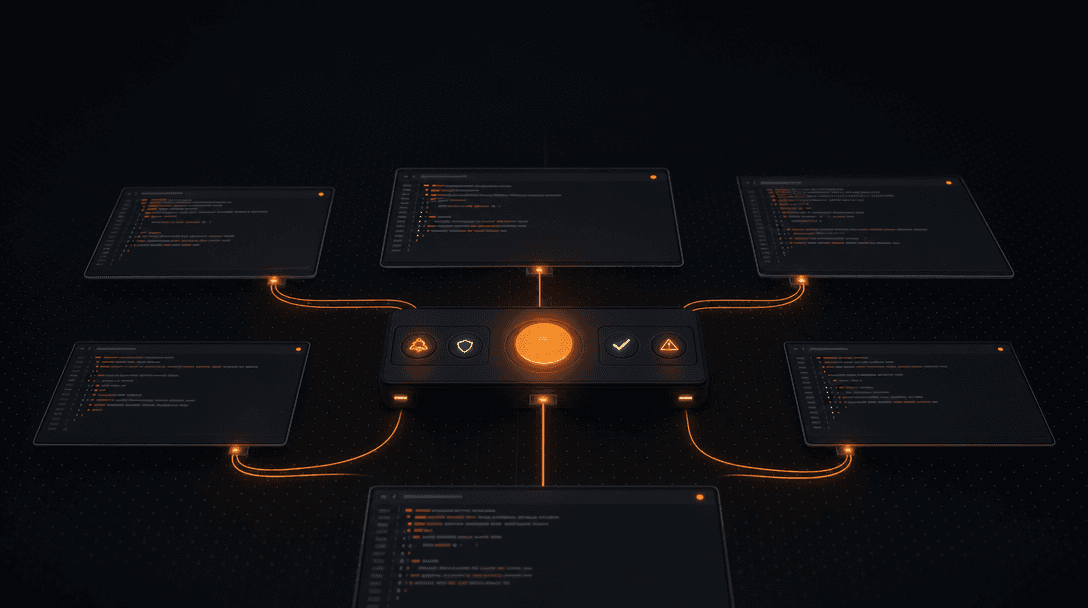
The minimum status states each pane should expose:
- Running — the session is executing, no input needed.
- Waiting — the agent has asked a question and is blocked on your reply.
- Idle — the prompt is back, no activity.
- Error — the last command failed or the agent crashed.
These indicators must be legible at low zoom. If you have to zoom into a pane to know whether it needs attention, you've reintroduced the tab problem at a larger scale. CodeGrid renders these states on each pane so the canvas itself becomes a status dashboard — you can keep twenty panes zoomed out, and a waiting agent is immediately obvious (Source: CodeGrid).
How Do You Set Up a 2D Terminal Canvas Workflow Step by Step?
A canvas workflow rewards a small amount of upfront structure. The setup that consistently works:
- List your active repos. Anything you'll touch this week. Three to eight is typical.
- Create a workspace per project. One canvas per repo or client. Don't mix unrelated projects on the same canvas — the spatial metaphor breaks down when contexts collide.
- Place a primary terminal per pane role. Common roles: agent driver, test runner, dev server, ad-hoc shell, log tail. Give each its own pane.
- Group spatially by intent. Cluster related panes — e.g., dev server and log tail side by side; agent and test runner stacked. The canvas's geography becomes muscle memory.
- Size by attention demand. Make the panes you watch large, and the panes you only check small. Resize freely.
- Use broadcast input for cross-project commands. Running
git pull,npm install, or the same prompt across five repos? Broadcast it once instead of typing it five times. - Keep Git and file context one zoom away. Place the git manager or file tree adjacent to its terminal, not in a separate app.
| Step | Time Investment | Payoff |
|---|---|---|
| Workspace per project | ~30 seconds each | Instant context switch |
| Spatial grouping | ~2 minutes | Muscle memory in a day |
| Broadcast setup | One keypress | Eliminates repeat typing |
Once the layout exists, persistence handles the rest.
Can a 2D Terminal Canvas Restore Sessions and Layouts After Restart?
Yes — and if it can't, it's not worth using. Layout persistence is what separates a canvas from a fancy tiling window manager. Every morning, after a system update, or following a crash, the workspace should come back exactly as you left it: same panes, same positions, same working directories, same workspace organization.
What good persistence looks like:
- Pane positions and sizes restored on the canvas.
- Working directory restored per session.
- Per-project workspaces remembered separately.
- Shell history and scrollback preserved where the shell supports it.
CodeGrid restores sessions, directories, and layout after closing the app, so you don't rebuild the workspace each morning (Source: CodeGrid). The practical effect: you stop being defensive about quitting the app, which means you actually let your laptop sleep, restart for updates, and reboot without dread.
How Should Command Broadcast and Automation Hooks Work?
Command broadcast should send one keystroke to every selected pane at once, and automation hooks should expose a local interface — a Unix socket, a CLI, or both — that lets external tools drive the workspace without a network round-trip. Those two capabilities are what turn a canvas from a viewer into a controller.
Command broadcast lets you type one command and dispatch it to every selected terminal simultaneously. CodeGrid binds this to Cmd+B (Source: CodeGrid). The common uses:
- Running the same
git pullacross every repo on the canvas. - Sending the same prompt to several agent sessions to compare outputs across models.
- Restarting dev servers in bulk after a shared dependency change.
External automation hooks let other tools drive the workspace. CodeGrid exposes an external control API over a local Unix socket, which means Alfred workflows, shell aliases, or IDE extensions can spawn panes and send commands without any cloud round-trip (Source: CodeGrid).
A command palette invoked with Cmd+K rounds this out — it's the keyboard surface for everything you'd otherwise hunt for in menus (Source: CodeGrid).
What Local Developer Context Should Live Beside the Terminals?
Bundle the adjacent tools you alt-tab to five times an hour — Git UI, file explorer, lightweight editor, browser pane, repo browser, MCP manager — and leave your primary editor where it is. The canvas should reduce context switching, not replace your IDE.
The adjacent context worth bundling:
| Adjacent Tool | Why It Belongs on the Canvas |
|---|---|
| Git UI (status, diff, stage, commit) | Eliminates jumping to a separate Git GUI |
| File explorer | Quick navigation without ls/cd ceremony |
| Lightweight code editor | Quick edits during agent supervision |
| Dependency graph | Visualizing import relationships in the active repo |
| Browser pane | Reading docs or watching localhost without leaving the workspace |
| GitHub repo browser | Cloning, browsing, or opening repos directly |
| MCP server manager | Visual config of MCP servers instead of hand-editing JSON |
CodeGrid includes all of the above plus workspace switching and a command palette (Source: CodeGrid). The principle: anything you check in a sibling app five times an hour belongs on the canvas. Anything you live in for hours — your primary editor, your design tool — stays where it is.
The MCP server manager deserves a specific call-out: most developers configure MCP servers by hand-editing config files. A visual manager removes a real source of friction, especially when you're testing multiple servers against multiple agents.
What Performance, Privacy, and Trust Signals Matter on macOS?
Evaluate a macOS terminal canvas on six signals: native architecture (Tauri/Rust over Electron), app size under ~20 MB, sub-second launch, local-first operation, zero telemetry, and a source-available license. A canvas designed for many concurrent panes compounds every cost in that list, so the architecture choice shows up in your daily experience within a week.
The concrete signals to evaluate:
- App size. CodeGrid is roughly 10 MB (Source: CodeGrid). Electron-based competitors typically ship at 150–500 MB.
- Launch time. CodeGrid launches in under a second (Source: CodeGrid). Slow launches discourage quitting, which discourages restarts, which builds up resource leaks.
- Memory under load. Test with 10+ panes open before committing.
- Local-first operation. Does the core workflow require network access? It shouldn't.
- Telemetry. Does the app phone home? CodeGrid collects nothing (Source: CodeGrid).
- License and source availability. CodeGrid is open source under the MIT license (Source: CodeGrid), which means you can audit it and you're not locked into a vendor's roadmap.
For developers running agent CLIs that already process source code on your machine, a local-first, no-telemetry workspace is the appropriate trust posture. The tooling layer shouldn't add a new data exhaust on top of whatever your agents are already doing.
If you're evaluating a 2D terminal canvas for macOS, the practical next step is to install one and run your real workload through it for a week. Download CodeGrid for macOS and try it against the checklist above — PTY isolation, status indicators, broadcast input, layout persistence, adjacent context, and native performance — using your own repos and your own agents.
Frequently asked questions
Does a 2D terminal canvas work with TUI tools like vim and htop?
Yes, as long as each pane runs a real PTY rather than a rendered transcript. Full pseudo-terminal isolation means ncurses-based tools, interactive REPLs, and agent CLIs all behave exactly as they would in a standard terminal — no wrappers or compatibility shims required.
How many terminal sessions can you realistically run on a 2D canvas before it slows down?
That depends almost entirely on the app's architecture. A native Rust/Tauri binary like CodeGrid stays lean across 10–30 concurrent panes; an Electron-based tool will compound memory and CPU costs quickly at that scale. Test your real workload — 10+ panes open simultaneously — before committing to any tool.
Can you use a 2D terminal canvas alongside your existing editor, or does it replace it?
It works alongside your primary editor, not instead of it. The canvas handles terminal sessions, Git context, file navigation, and light edits during agent supervision — your main editor stays where it is. The goal is reducing alt-tab frequency, not consolidating every workflow into one app.
What happens to your canvas layout if the app crashes or you restart your Mac?
A well-built canvas persists pane positions, sizes, working directories, and per-project workspace organization so the layout is restored exactly on relaunch. If a tool can't do this, you'll spend real time rebuilding your setup after every restart or system update.
How does broadcasting a command to multiple terminals actually work?
Broadcast sends a single keystroke or command string simultaneously to every selected pane — useful for running the same git pull, dependency install, or agent prompt across several repos at once without retyping it. CodeGrid binds this to Cmd+B, targeting whichever panes you've selected on the canvas.