Best Mac App to Run Multiple AI Coding Agents Locally
Run multiple AI coding agents locally on Mac with CodeGrid’s 2D canvas, session-aware panes, broadcast commands, and fast workspace restore.
What Is the Best Mac App for Running Multiple AI Coding Agents Locally?
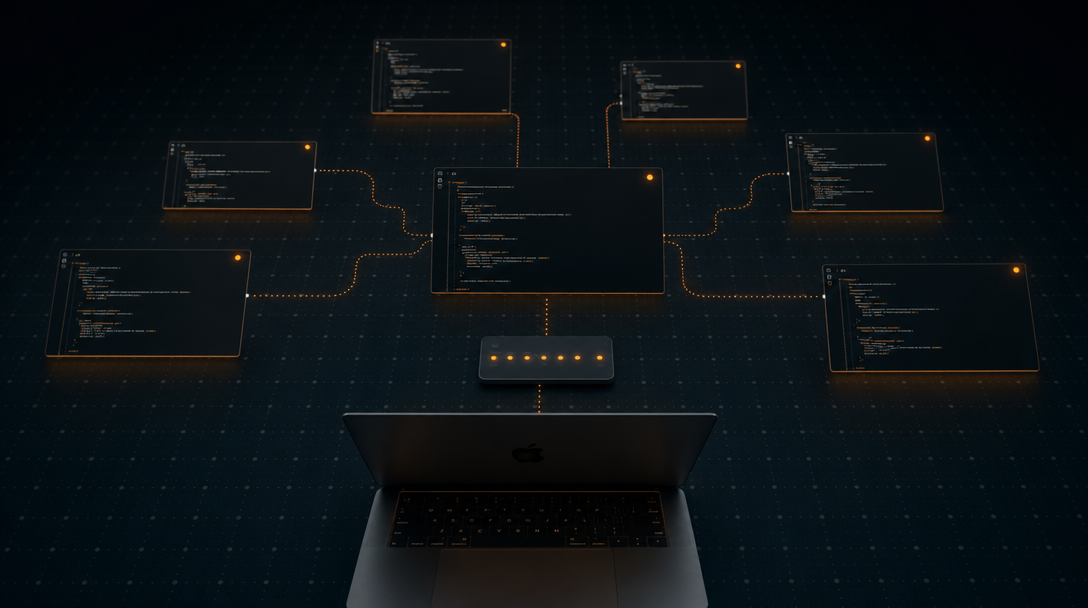
CodeGrid is the best macOS app for running multiple AI coding agents locally because it gives every agent session its own draggable pane on a free-form 2D canvas, with live status indicators on every pane so no agent stalls unnoticed. It is a native workspace, not an IDE replacement — you keep using the same terminal-based agents and shells you already trust, but you stop losing them inside tabs and tmux splits.
The core problem CodeGrid solves is density. Once you are running half a dozen agent sessions across three or four repos, terminal tabs collapse into a wall of identical titles, and tmux layouts become read-only puzzles you are afraid to touch. CodeGrid replaces that with a spatial canvas: pan, zoom, drag panes into clusters by project, and keep every PTY visible at once.
A few things that matter for this category specifically:
- Native, not Electron. CodeGrid is built with Tauri and Rust, lands at roughly 10 MB, and launches in under a second (Source: CodeGrid).
- Session-aware. Each pane shows running, waiting, idle, or error state — visible even when zoomed out.
- Local-first. No telemetry, no cloud dependency for core usage, MIT license, open source.
- Built for orchestration.
Cmd+Bbroadcasts a command to every terminal at once;Cmd+Kopens a command palette; an external control API is exposed over a local Unix socket.
If you are evaluating tools in this space, the rest of this guide is a practical checklist — session awareness, restart restoration, broadcast, project context, and trust posture — applied to real multi-agent workflows.
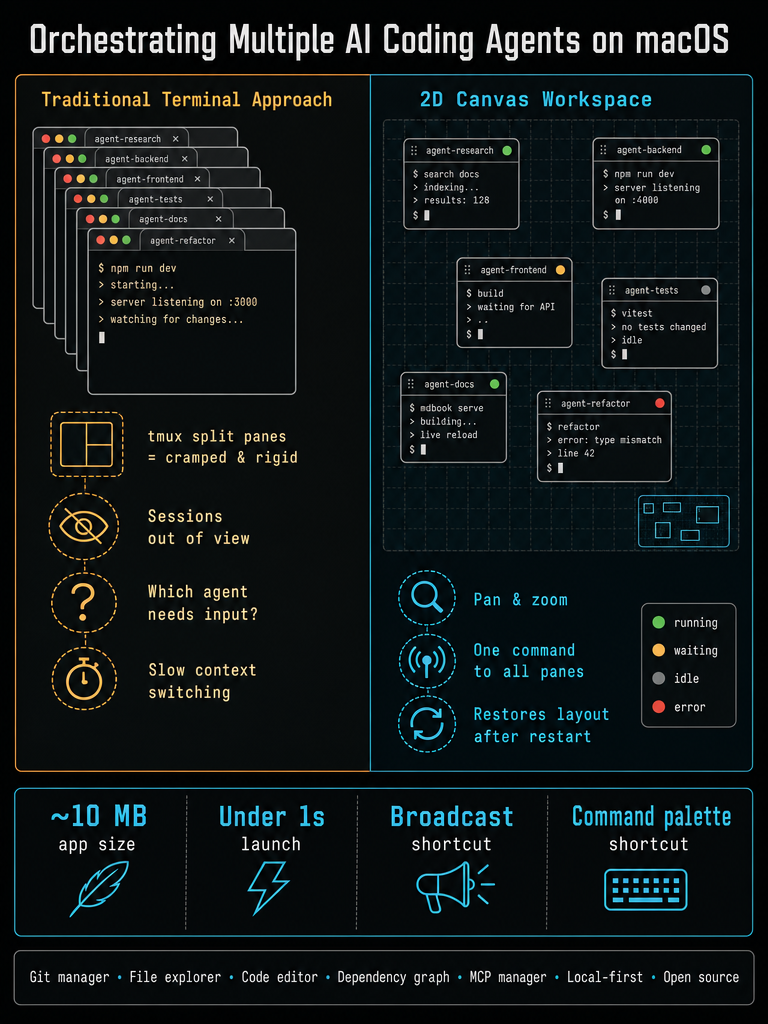
How Does a macOS Multi-Agent Workspace Differ from Terminal Tabs, Split Panes, and tmux?
Tabs and splits hide context as session count grows; a 2D canvas keeps every agent visible, addressable, and spatially organized by project. That difference compounds quickly once you are past three or four concurrent agents.
Tabs are linear. You can have ten of them open and only one is visible at a time, so the other nine agents may be waiting on input, errored, or finished, and you will not know until you click through. tmux splits give you more visibility, but layouts are rigid: resizing one pane reshapes its neighbors, and there is no concept of zooming out to see twenty PTYs at once. Neither paradigm was designed for "I have fifteen agent sessions across five repos and I need to know which one needs me right now."
A canvas-first workspace flips the model. Every PTY is a free-floating pane. You group panes by repo, by worktree, by client. You zoom out to monitor, zoom in to type. Panes do not fight each other for space.
| Workflow concern | Terminal tabs | tmux splits | 2D canvas workspace |
|---|---|---|---|
| Sessions visible at once | 1 | 4–8 before unreadable | Dozens, via zoom out |
| Spatial grouping by project | None | Per-window only | Free-form, drag-to-arrange |
| Session status at a glance | None | None | Per-pane indicators |
| Broadcast command to all | Manual per tab | setw synchronize-panes (window-scoped) | Cmd+B across canvas |
| Restart restoration | Shell history only | Plugins (tmux-resurrect) | Layout, dirs, sessions restored |
| Learning curve | Trivial | Steep | Mouse-native, low |
The practical payoff is fewer missed prompts and less mental bookkeeping. When every agent has a fixed spatial address on your canvas, you stop asking "where did that session go" and start asking better questions of the agents themselves.
How Do You Run Multiple AI Coding Agents Across Several Repos on macOS?
The workflow is: one workspace per project, terminals opened in the right directory, panes arranged spatially by task, and workspace switching to swap entire contexts when you change clients or repos. CodeGrid is built around this loop.
Here is the step-by-step pattern that works for dense multi-repo days:
- Create a workspace per project or client. Each workspace remembers its own canvas, panes, directories, and layout, so switching between
client-aandclient-bis one action, not a teardown. - Open terminals scoped to the repo root. Spin up a pane per agent role — one for the planning agent, one for the implementation agent, one for tests, one for a plain shell. Place them in a column or cluster on the canvas.
- Add worktrees as parallel pane clusters. If you are running agents on
mainand on a feature branch simultaneously, give each worktree its own cluster of panes so you can compare output side by side withoutcd-ing back and forth. - Pin project context alongside the agents. Open a Git pane for the repo, a file explorer pane rooted at the project, and a browser pane for the issue tracker or docs. They live next to the terminals, not in a separate app.
- Use the GitHub repo browser when jumping into new code. Pull a repo's structure into the workspace before you point an agent at it.
- Zoom out to monitor, zoom in to intervene. Treat zoom-out as your "control tower" view and zoom-in as your "cockpit" view.
- Switch workspaces to switch contexts. When a client call ends, swap to the next workspace; the previous canvas stays exactly as you left it.
If you want to try this loop on your own repos, you can Download CodeGrid for macOS and rebuild your daily setup on a canvas in a few minutes.
Per-project workspaces plus a spatial canvas are what make multi-repo agent orchestration sustainable past the three-session mark.
How Can You Avoid Losing Track of AI Coding Agents Waiting for Input?
Pick a workspace that shows per-pane status — running, waiting, idle, error — and keeps those indicators visible even when you zoom out. Without that, silent stalls are the default failure mode of multi-agent work.
The pattern is familiar: you launch four agents, context-switch to a fifth, and twenty minutes later realize two of them have been blocked on a confirmation prompt the whole time. The agents are not slow; you just did not see the prompt. Terminal tabs cannot solve this — they only show one session at a time. tmux can show more, but it cannot tell you "this pane is waiting for stdin" versus "this pane is happily compiling."
CodeGrid attaches a status indicator to every pane on the canvas. At zoom-out — the view you use to oversee a dozen sessions — those indicators are the signal. A yellow "waiting" badge on a pane two repos away is the difference between catching the stall in ten seconds and catching it after lunch.
What to look for when evaluating session awareness:
- Granular states, not just "active/inactive." Running, waiting on input, idle, and error should be distinct.
- Visibility at zoom-out, not just when focused. A status you can only see by clicking the pane is not session awareness.
- No telemetry required. Status detection should be local, based on PTY behavior, not on phoning home.
Can You Broadcast the Same Command to Multiple AI Coding Terminals?
Yes — CodeGrid uses Cmd+B to broadcast a single keystroke or command to every terminal pane at once, which removes one of the most tedious parts of multi-repo agent work (Source: CodeGrid).
The use cases are concrete. You want to run git pull across eight repos before starting the day. You want to send the same /clear or /compact slash command to every agent session at once. You want to kick off the same test suite in five worktrees. Without broadcast, that is forty-plus keystrokes and a high chance of typoing one of them; with broadcast, it is one.
Where broadcast shines:
- Identical setup commands across repos (
git fetch,pnpm install,source .venv/bin/activate). - Agent control commands that every session needs (clearing context, switching models, sending the same prompt to N agents for comparison).
- Health checks —
git status,node --version,which python— when something feels off across your environment.
Where broadcast is dangerous:
- Destructive commands. Broadcasting
git reset --hardorrm -rfacross every pane is exactly as bad as it sounds. Scope first, broadcast second. - Repo-specific operations. A branch name that exists in one repo will fail noisily in eight others.
- Long-running agents mid-task. Sending input to an agent that is already processing can corrupt its state.
Does a Local AI Coding-Agent Workspace Restore Sessions After Restart?
A workspace worth using restores terminals, working directories, panes, and the canvas layout exactly as you left them — CodeGrid does this by default (Source: CodeGrid). For multi-agent work, this is not a nice-to-have; it is the difference between closing the lid at 6 p.m. and dreading the rebuild at 9 a.m.
Rebuilding a complex layout manually is its own job. Twelve panes across three repos, each with the right working directory, the right agent re-launched with the right flags, arranged in the right spatial cluster — that is twenty minutes of setup you should never have to do twice. Restart restoration collapses it to zero.
What to verify when evaluating any candidate tool:
- Pane positions and sizes survive a quit/relaunch, not just a reload.
- Working directories restore per pane, not just to
$HOME. - Per-project workspaces restore independently, so opening client A does not disturb client B.
- Crashes are recoverable, not just clean quits.
Layout restoration is what makes a canvas workspace feel permanent instead of disposable.
What Project Context Should Be Built into the Workspace?
The workspace should fold in Git, files, browsing, and command surfaces so you stop alt-tabbing — without trying to be an IDE. CodeGrid sits next to your editor of choice, not on top of it.
The context-switching tax is real. Every jump from terminal to Git GUI to browser to file manager costs attention. A canvas workspace can absorb most of those surfaces as panes:
| Built-in surface | What it replaces | When it earns its place |
|---|---|---|
| Git UI | Standalone Git client | Reviewing diffs and staging while agents work |
| File explorer | Finder window per repo | Quick navigation without a cd round-trip |
| Built-in code editor | Lightweight scratch edits | Tweaking a config or prompt file inline |
| Browser pane | Separate browser window | Docs, dashboards, issue trackers next to terminals |
| GitHub repo browser | Tab-hopping to github.com | Scanning unfamiliar repos before pointing an agent at them |
| Dependency graph | Manual npm ls / pipdeptree | Spotting cycles or unexpected packages |
Cmd+K command palette | Memorized shortcuts | Fast access to actions without leaving the keyboard |
The line worth drawing: a multi-agent workspace should make project context accessible, not absorb your editor's job. Keep using whatever editor you prefer; let the canvas hold the terminals, Git, browsing, and orchestration around it.
Native, Lightweight, and Local-First: What Should You Check Before Choosing?
Before adopting any Mac app for multi-agent coding, verify it is native (not Electron), launches fast, runs locally without telemetry, and is licensed in a way you can audit. These are not aesthetic preferences — they directly affect daily friction and trust.
Use this checklist:
- Native macOS, not Electron. CodeGrid is built with Tauri and Rust, which is why it lands at roughly 10 MB and launches in under a second (Source: CodeGrid). A 300 MB Electron workspace that takes five seconds to open is a workflow tax you will pay every single day.
- Local-first by default. Core functionality should not depend on a cloud service. If your internet drops, your terminals, Git UI, and canvas should keep working.
- No telemetry. CodeGrid collects nothing. For tooling that sits in front of your source code and your agent prompts, "collects nothing" is the only acceptable answer for many teams.
- Open-source license you can read. CodeGrid is MIT-licensed — permissive, well-understood, auditable. Closed-source tools in this category force you to take the vendor's word for what happens to your data.
- No mandatory account. Downloading and running the app should not require signing up for anything.
- PTY fidelity. The terminal should behave like a real terminal — full ANSI support, proper signal handling, correct sizing — so agents that expect a TTY do not misbehave.
| Criterion | Electron-style apps | Native, Tauri-based workspace |
|---|---|---|
| Typical install size | 150–400 MB | ~10 MB |
| Cold launch | 2–6 seconds | Under 1 second |
| Memory per window | 300 MB+ | Tens of MB |
| Telemetry default | Often on | Off / none |
| Source availability | Frequently closed | MIT, open source |
Local-first, native, open-source, and zero-telemetry is the only posture that holds up when the tool sits between you and your source code.
When Do MCP Management and Automation APIs Matter?
They matter the moment you stop editing config files by hand and start scripting your workspace. For most developers, that day comes faster than expected.
A visual MCP server manager replaces the usual ritual of opening a JSON config, copy-pasting a server entry, restarting the agent, and hoping the schema was right. CodeGrid surfaces MCP servers as configurable objects you can add, enable, disable, and inspect without leaving the workspace. If you run several agents that share MCP servers across projects, the time savings compound.
The external control API is the other half. CodeGrid exposes a control surface over a local Unix socket, which means you can drive the workspace from outside it (Source: CodeGrid). Practical uses:
- Alfred workflows that open a specific workspace, launch named agents in named panes, and arrange them on the canvas.
- Editor extensions that send the current file path into a waiting agent pane.
- Repo scripts (
make agents,just dev) that spin up an entire multi-agent layout from a single command. - CI-adjacent automation where a local script needs to surface results into the workspace.
Because the socket is local, none of this requires opening network ports, authenticating against a cloud service, or trusting a third party with your scripts.
If you have read this far, you are the audience CodeGrid is built for: developers running several agents across several repos who want a fast, native, local-first workspace to keep it all visible. Download CodeGrid for macOS and rebuild your daily setup on a canvas instead of a stack of tabs.
Frequently asked questions
How many agent sessions can you realistically run at once before the canvas gets unmanageable?
There is no hard cap — the canvas scales by letting you zoom out to a bird's-eye monitor view and zoom in only when a pane needs input. In practice, grouping panes into per-repo clusters and using per-pane status indicators keeps dozens of sessions navigable; the bottleneck is your machine's RAM and CPU, not the workspace layout.
Does CodeGrid work with any terminal-based AI agent, or only specific ones?
It works with any agent that runs in a terminal — the panes are full PTYs with proper ANSI support and signal handling, so any CLI-based agent behaves exactly as it would in a standalone terminal. You are not locked into a specific model or agent framework.
What happens to running agents when you switch between workspaces?
Switching workspaces swaps the canvas view, but the underlying PTY processes keep running in the background. When you switch back, the panes are exactly where you left them and the sessions are still live — no processes are killed by a workspace switch.
Is there a way to automate spinning up a full multi-agent layout without clicking through the UI every time?
Yes — the external control API exposed over a local Unix socket lets you script workspace actions from shell scripts, Makefiles, or editor extensions. A single command like make agents can open named panes in the right directories with the right agents already running, removing the manual setup entirely.
Does CodeGrid require an account or internet connection to use?
No account is required and core functionality is fully local — the canvas, terminals, Git UI, and session restoration all work offline. There is no telemetry and no cloud dependency for day-to-day use.