Claude Code vs Codex vs Gemini CLI vs Cursor: Which AI Coding Agent Should You Use in 2026?
Compare Claude Code vs Codex and decide by workflow: CLI vs editor, parallel repos, setup effort, and what you need to ship faster.
What Is the AI Coding Agent Decision in 2026, and Why Does the Comparison Matter?
The "which AI coding agent should I use" question is a buyer-style decision about which workflow fits your day — not a benchmark race. Each major agent on the market is a different interface to a different model family, and the right pick depends on where you work (terminal vs editor), how many repos you touch in parallel, and how much setup you tolerate.
This guide treats the comparison honestly. Most of the available web research for this query consists of placeholder pages and AEO snippets that misframe the topic as a generic business practice rather than a tool selection. None of those sources substantiate pricing claims, model-quality rankings, plan limits, or "best overall" verdicts. So instead of inventing numbers, this article separates what's verifiable from what isn't, and recommends by workflow.
The useful frame is not "which agent wins" but "which agent fits this developer's loop — and what do you need around it when you run several at once."
Five evaluation axes carry the decision:
- CLI-first agent sessions vs editor-native usage
- Git, repo, and worktree context handling
- Setup effort (auth, MCP, project config, environment)
- Long-running task and waiting/error visibility
- Parallel orchestration across repos and client projects
The last axis is the one most comparison posts skip. A great single-agent interface still leaves you juggling tabs once you're running five or ten sessions across worktrees — which is a separate problem from picking the agent itself.
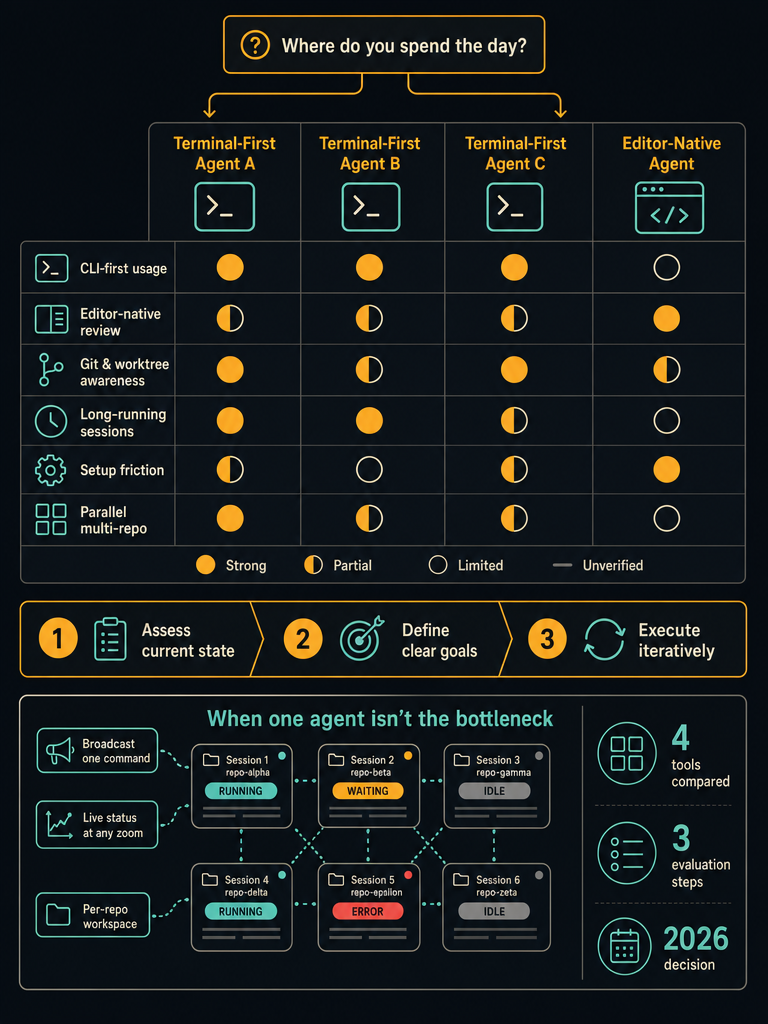
Which AI Coding Agent Should You Use in 2026?
Choose by where you spend the day, not by which model topped a benchmark last week. Model rankings change month to month; your workflow doesn't.
A practical fast matrix:
| If your day looks like… | Lean toward |
|---|---|
| Living in shells, Git, scripts, worktrees | A CLI-first agent (terminal-based) |
| Inline review, hover-to-edit, single-repo focus | An editor-native agent |
| Many repos open at once, agents running in parallel | Any CLI agent plus a workspace layer |
| Heavy MCP / external tool use | Whichever agent has the cleanest MCP setup for your stack |
| Long-running tasks you check on periodically | A CLI agent with persistent sessions you can leave running |
A few honest caveats no source overrides:
- No reliable evidence supports a universal "best" claim across agents. Anyone telling you one agent beats another on every task is generalizing from a few prompts.
- Plan limits, usage caps, and pricing change frequently. Check each vendor's current page before committing.
- Editor-based and CLI-based workflows aren't mutually exclusive. Many developers use both — an editor agent for narrow edits in a single repo and CLI agents for longer autonomous tasks across many repos.
For dense multi-session users — anyone running more than three or four agents at once — the agent choice matters less than the orchestration around it. That's where terminal tabs and tmux panes start hiding state, and where a session-aware workspace earns its keep regardless of which CLI tool you launch inside it.
How Do the Major AI Coding Agents Compare?
The market splits cleanly into two interface camps: CLI-first agent sessions and editor-native agents. That single split drives most of the practical differences.
Comparing along verifiable dimensions:
| Dimension | CLI-first agents | Editor-native agents |
|---|---|---|
| Primary surface | Terminal / PTY session | IDE window |
| Long-running tasks | Natural — leave the session running | Tied to editor lifecycle |
| Git context | Whatever your shell sees | Built into the editor UI |
| Worktree awareness | You manage it via shell | Usually one repo per window |
| Parallel sessions | Scales with terminal management | Scales with window management |
| Review surface | Diff in shell or external tool | Inline in editor |
| Scriptability | Direct — it's a CLI | Via extensions / APIs |
Where claims should be tested rather than trusted:
- Model quality — no public benchmark holds up across the variety of real codebases. Run your own task tests on your own code.
- Plan limits and usage caps — verify on the current vendor pricing pages.
- Telemetry and data handling — read each tool's current privacy documentation; this can shift between versions.
- MCP support depth — varies by tool and changes quickly. Test with the specific MCP servers you actually need.
What's reliably true regardless of which agent you pick: terminal-based agents create PTY sessions that need somewhere to live, and once you have more than a few, that "somewhere" becomes the limiting factor. A waiting prompt buried in a hidden tab is a stalled task. An errored agent in a backgrounded tmux pane is silent dead time. The agent doesn't know it's invisible.
How Should Developers Choose Between a CLI Coding Agent and an Editor-Based Coding Tool?
Pick the interface that matches where your hands already are. If you spend the day in shells, Git, and scripts, a CLI agent slots in. If you spend the day in an editor reviewing diffs line by line, an editor agent slots in. The wrong interface adds friction on every single task.
CLI-first agents fit when:
- You already work in tmux, multiple terminals, or split panes
- You want to leave an agent running on a long task and come back later
- You script things — Git hooks, CI helpers, repo bootstrapping
- You touch many repos in a day rather than living deep in one
- You want the agent to use the same shell, env vars, and tooling you do
Editor-based agents fit when:
- You're working narrow and deep in a single codebase
- Inline diff review matters more than autonomous task length
- You prefer a GUI for Git, file tree, and search
- Your work is mostly inside one project at a time
Neither interface alone solves the orchestration problem — keeping many active sessions visible, scoped to the right repo, and recoverable after a restart. That's an axis above the agent choice. A developer running ten CLI agent sessions across ten client repos has the same workspace problem regardless of which agent they chose, and switching agents won't fix it.
The honest answer for many readers: use a CLI agent for parallel autonomous work and an editor agent for focused single-repo edits, and stop trying to force one tool to do both. If you want to run any CLI agent across many repos on a single 2D canvas, Download CodeGrid for macOS — it sits above your existing tools rather than replacing them.
What Are the Trade-offs in Cost, Complexity, and Time-to-Value?
The real trade-off isn't subscription price — it's how long it takes to go from install to a merged change you trust. That's the time-to-value number worth measuring.
Evaluate each option against verifiable inputs rather than vendor marketing:
- Account and auth setup — How many steps from install to first successful prompt? Personal account, org account, API key, or all three?
- Usage caps — Check the vendor's current pricing page on the day you evaluate. These change.
- Project config — Does the tool need a config file per repo? Environment variables? A specific shell setup?
- MCP / external tools — How is MCP server config managed? Hand-edited JSON, or a UI?
- Repo permissions — Does it work on private repos out of the box? Need a token?
- Review workflow — How do you see and accept changes? Inline, via Git diff, via PR?
- First merged change — From cold install to a real PR landing, how long?
Cost has two sides: subscription cost (what the vendor charges) and developer time cost (config wrangling, missed prompts, rebuilding lost context after a crash). The second number is usually larger. Cutting tab sprawl and layout rebuilds saves more time than picking the marginally cheaper plan.
How to Compare Two AI Coding Agents Step by Step
Pick one repo, define one task, and run both agents on equivalent branches. That's the whole methodology — everything else is bookkeeping.
A reproducible evaluation workflow:
- Pick a real repo — not a toy. Something with tests, a non-trivial dependency graph, and at least one tricky module.
- Define one task and its acceptance criteria — e.g. "add rate limiting to the public API endpoints, with tests, without breaking existing routes." Write the criteria before you start.
- Create equivalent branches or worktrees — one per agent.
git worktree addkeeps the working directories isolated. - Use identical prompts — same wording, same context files attached, same constraints.
- Record setup friction — minutes from install to first agent response, count of config files touched.
- Track prompt turns — how many back-and-forth turns to reach a working solution.
- Note stalls and errors — every time the agent waited for input, errored, or you had to intervene.
- Compare Git diffs — line count, files touched, whether the change matches the acceptance criteria.
- Run the test suite — does it pass without manual fixes?
- Score review effort — how long does a careful diff review take?
Repeat on a second task type. One-shot code generation and long autonomous refactors are different workloads — an agent that wins one can lose the other.
Don't skip the long-running and multi-repo test. The whole point of an agent is partial autonomy. Run something that takes 20+ minutes and let it sit. Run it in parallel with a second agent in a second repo. That's where session management, status visibility, and layout persistence become the bottleneck — and where most comparison reviews stop measuring.
Can You Run Multiple Agents in Parallel Without Losing Track of State?
Yes, but the limiting factor stops being the agent and becomes your terminal. Each terminal-based agent is a PTY session. One or two fit comfortably in tabs. Five become hard to scan. Ten in tmux panes is a guessing game about which one is waiting.
The failure modes are predictable:
- Missed prompts — an agent is waiting for "y/n" in a hidden tab; nothing happens for an hour until you check.
- Silent errors — a backgrounded session crashed; the work it was doing is gone and you didn't notice.
- Wrong-directory mistakes — you ran a command in the wrong pane because tabs look identical.
- Lost layouts on restart — close the app, lose the whole arrangement of which agent was where.
- Retyping the same prompt — you want to run "run the test suite and fix failures" in eight project directories; tabs make you do it eight times.
These aren't agent problems. They're workspace problems. Switching from one CLI agent to another doesn't fix them. Switching from iTerm to a different tabbed terminal doesn't fix them either — both still hide what's not in the foreground.
The structural fix is to make every session visible at once and labeled by status. A 2D canvas where every PTY-backed pane shows running / waiting / idle / error state means you spot a stalled agent without alt-tabbing. A broadcast input means one prompt reaches every pane.
For deeper workflow treatments, see Running 10+ AI Coding Agents in Parallel, Terminal Tabs vs a 2D Canvas for AI Coding Work, and One Workspace for Every Repo.
When Do You Need an Orchestration Workspace Like CodeGrid Instead of Another Single-Agent Interface?
You need an orchestration workspace when the bottleneck stops being "which agent should I launch" and becomes "where do all these agents live." That's a separate layer from the agent itself, and switching agents won't move the needle.
CodeGrid is a native macOS workspace built for that layer. It runs your existing CLI agents and plain shells, and gives each one a draggable, resizable pane on a free-form 2D canvas. Every pane is a real PTY. The point is not to replace the agent; it's to make many of them visible, scoped, and recoverable at once.
What CodeGrid adds on top of the CLI tools you already use:
- Free-form 2D canvas — drag, resize, zoom, and pan panes; arrange by project, by client, or by task type
- Session awareness — live running / waiting / idle / error indicators visible even when zoomed out
Cmd+Bbroadcast — send one command to every selected terminal at once- Built-in Git UI — diffs, branches, and worktrees alongside the agent pane
- Browser panes and GitHub repo browser — read docs or browse repos without leaving the workspace
- Per-project workspaces — each project keeps its own layout, directories, and sessions
Cmd+Kcommand palette — keyboard-first navigation- MCP server manager — visual config instead of hand-editing JSON
- External control API — a local Unix socket for scripts, Alfred workflows, and IDE extensions
- Layout restore — close it, reopen it, every session and directory is back where it was
The trust details matter for developers working on proprietary code:
- Built with Tauri and Rust, not Electron
- Roughly 10 MB, launches in under a second
- Local-first, collects nothing
- Open source under the MIT License
If you're choosing an agent for a single repo, you don't need a workspace layer. If you're running multiple agents across ten repos, the workspace is the decision.
Stop rebuilding tab layouts every morning and stop missing prompts buried in hidden panes. Download CodeGrid for macOS and run your existing CLI agents on a canvas built for parallel work.
Frequently asked questions
Can I use more than one AI coding agent at the same time across different repos?
Yes — CLI-based agents each run as independent PTY sessions, so there's no technical barrier to running several in parallel across separate repos or Git worktrees. The practical limit is visibility: once you have more than a few sessions open, tabs and tmux panes start hiding state, and a waiting or errored agent becomes easy to miss.
Does switching to a better AI coding agent fix the problem of losing track of running sessions?
No — missed prompts, silent errors, and lost layouts are workspace problems, not agent problems. Swapping one CLI agent for another leaves the underlying terminal management exactly the same; the fix is making every session visible by status at once, which is a layer above the agent itself.
How do I fairly test two AI coding agents against each other?
Use one real repo with a clearly defined task and acceptance criteria written before you start, isolate each agent to its own Git worktree with identical prompts, then measure setup time, prompt turns to completion, stalls or errors, and whether the test suite passes without manual fixes. Run at least two different task types before drawing any conclusions, since agents that excel at one-shot generation often behave differently on long autonomous refactors.
What's the difference between a CLI coding agent and an editor-based coding tool?
CLI agents run as persistent terminal sessions you can leave running for long tasks, script against, and launch across many repos in a single day; editor-based tools tie into an IDE window and are better suited for narrow, inline work within a single codebase. Many developers use both — a CLI agent for autonomous multi-repo tasks and an editor tool for focused diff review.
How do you handle MCP server configuration across multiple AI coding agents?
Most CLI agents require hand-editing JSON config files per project, which gets error-prone as the number of servers and repos grows. A visual MCP server manager — like the one built into CodeGrid — lets you configure and toggle servers without touching config files directly, which reduces setup friction when you're managing several agents across distinct projects.