How to Run Claude Code Sessions Without Tab Sprawl
Run multiple Claude Code sessions on a session-aware 2D canvas to avoid tab sprawl, catch waiting agents, and keep parallel work in sync.
What does it mean to run multiple terminal-based coding agents without tab sprawl?
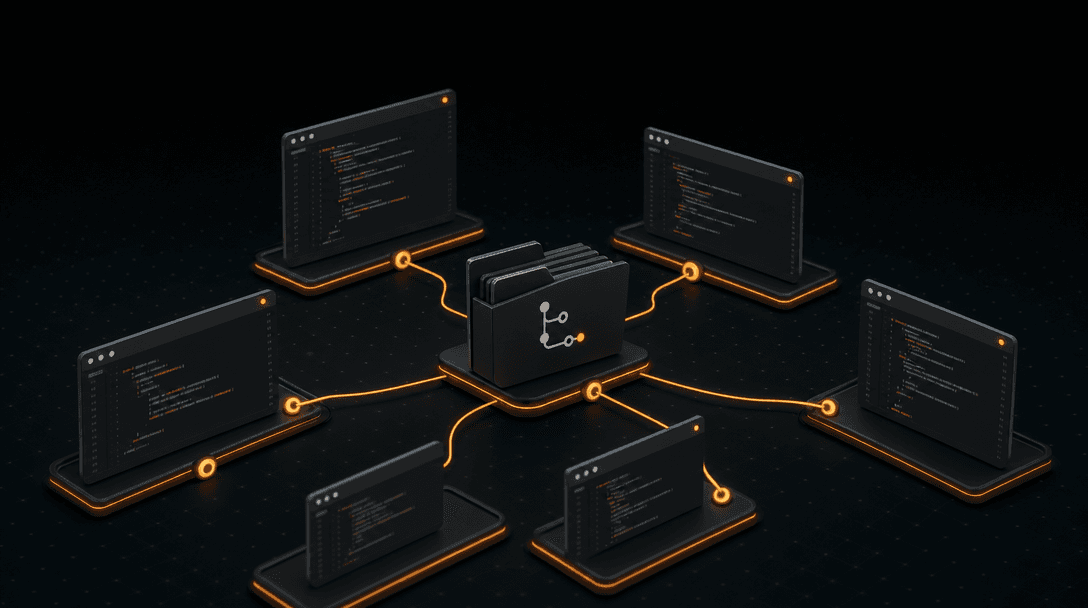
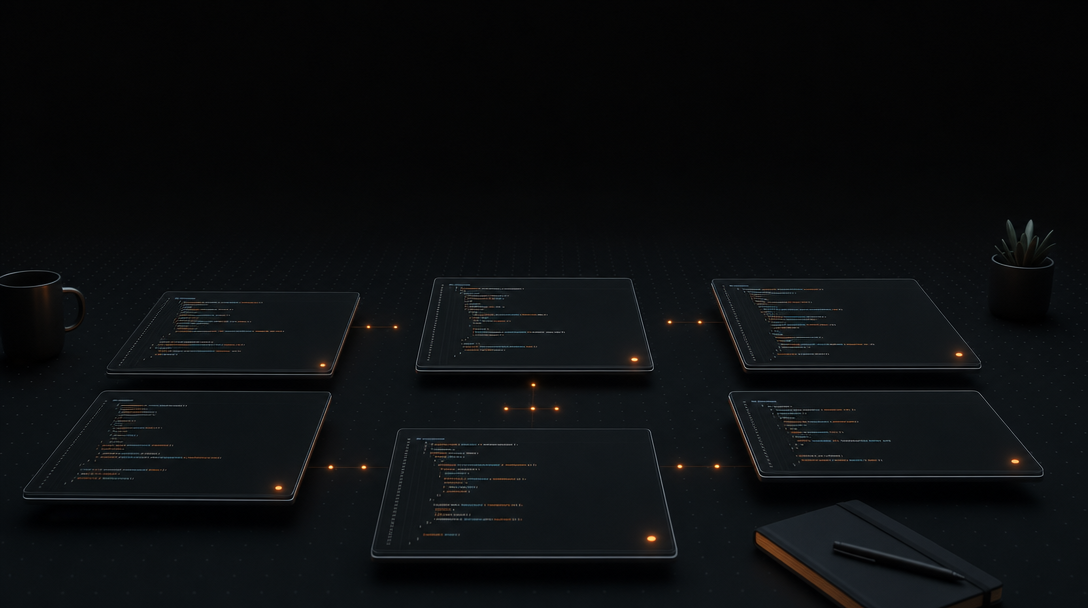
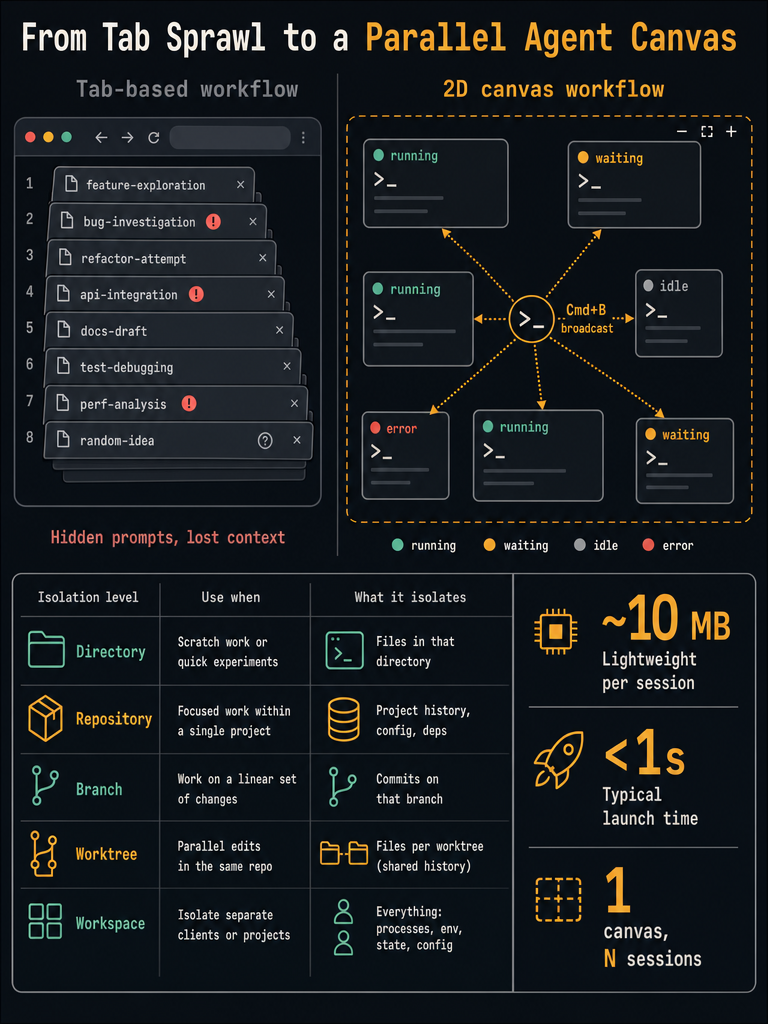
Running many terminal-based AI coding agents without tab sprawl means giving each agent its own session-aware PTY — scoped to a specific repo, directory, branch, or worktree — and arranging those sessions spatially on a persistent canvas instead of stacking them behind terminal tabs. Each pane keeps its own working directory, Git context, and live status, and stays exactly where you put it.
The reason this matters shows up the moment you go past three or four concurrent agents. Tabs hide state by design: you can't see which session is waiting on your input, which one errored ten minutes ago, and which is still grinding through a task. Tab-based terminals optimize for one foreground session at a time, which is the exact opposite of what parallel agent work needs. Missed prompts turn into silent stalls. Stale context creeps in when you can't remember which tab is on which branch. Cross-repo commands get run in the wrong directory.
CodeGrid is a native macOS workspace built for this operating model — a free-form 2D canvas where each terminal pane holds one agent or shell, with live indicators visible even when zoomed out. It doesn't replace your existing agents or your shell. It hosts them, keeps them visible, and gives every session a clear filesystem and Git identity.
How do you run multiple coding agent sessions step by step?
Start by inventorying the work, not by opening terminals. The generic three-step advice — assess current state, define goals, execute iteratively — only becomes useful when you map it onto concrete sessions, directories, and Git targets.
Here is the working loop:
- Inventory the repos and tasks. Write down every project you're touching this session and the specific task each one needs (refactor, test pass, dependency bump, feature spike). One task per session is the unit.
- Assign a directory and Git target to each task. Every session needs an unambiguous answer to "where am I?" and "which branch will this write to?" Decide before you launch the agent, not after.
- Open one pane per session. On a 2D canvas, each pane is a PTY with its own working directory. Don't reuse a pane for a second task — open a new one.
- Group panes spatially by project or workflow. Put all panes for the same repo in a cluster. Put unrelated client work on the other side of the canvas. Spatial memory does the work that labels can't.
- Launch the agent or shell in each pane. Start your coding agent, a test runner, a git watcher, a log tail — whatever the session is for.
- Label and color-code where it helps. A pane title like
api / feat-authbeats a generic tab number when you're scanning twelve sessions. - Monitor status before adding more. Don't open session thirteen until you've checked the first twelve. Waiting and error states get cleared first; running sessions are left alone.
The point of this sequence isn't ceremony. It's that every session has an obvious identity before any agent starts writing files, so when something goes wrong an hour later, you can find the right pane in two seconds.
Should each session use a directory, repository, branch, worktree, or workspace?
Pick the smallest isolation unit that prevents collisions. Over-isolating (one worktree per tiny task) creates filesystem clutter; under-isolating (two agents on the same branch) corrupts history.
| Isolation level | Best for | Risk if you skip it |
|---|---|---|
| Plain directory | Scratch work, exploration, throwaway scripts | None — but don't run agents that commit |
| Repository | A single project stream where only one task runs at a time | Cross-repo commands run in the wrong place |
| Branch | Linear changes in one repo, one agent at a time | Branch-switch mid-task loses uncommitted state |
| Git worktree | Multiple sessions changing the same repo in parallel | Two agents fight over the working tree and index |
| Workspace | Switching between clients, products, or unrelated codebases | Client A's context bleeds into client B's session |
Git worktrees are the unlock for parallel agent work in a single repo — each worktree is a separate checkout sharing one .git, so two agent sessions can edit main and feat-billing simultaneously without stepping on each other.
Workspaces operate one level up. An agency developer juggling three clients shouldn't see all three on one canvas; a per-project workspace keeps each client's panes, layouts, and Git context isolated, and switching between them is a single shortcut.
How do you know which session is running, waiting, idle, or errored?
Status visibility is the bottleneck once you pass roughly six concurrent sessions. You can't click through twelve tabs every minute to check who needs you, and you won't — which is exactly why agents stall silently.
A workable scan loop assumes per-pane state is visible without focusing the pane:
- Scan for error states first. A failed agent that's been sitting for ten minutes is the most expensive thing on the canvas.
- Clear waiting states next. These are agents asking for your input — every minute they wait is wasted budget.
- Leave running sessions alone. If it's working, don't poke it.
- Triage idle panes last. Idle means the task finished or the agent dropped out. Review the output, then either restart with a new task or close the pane.
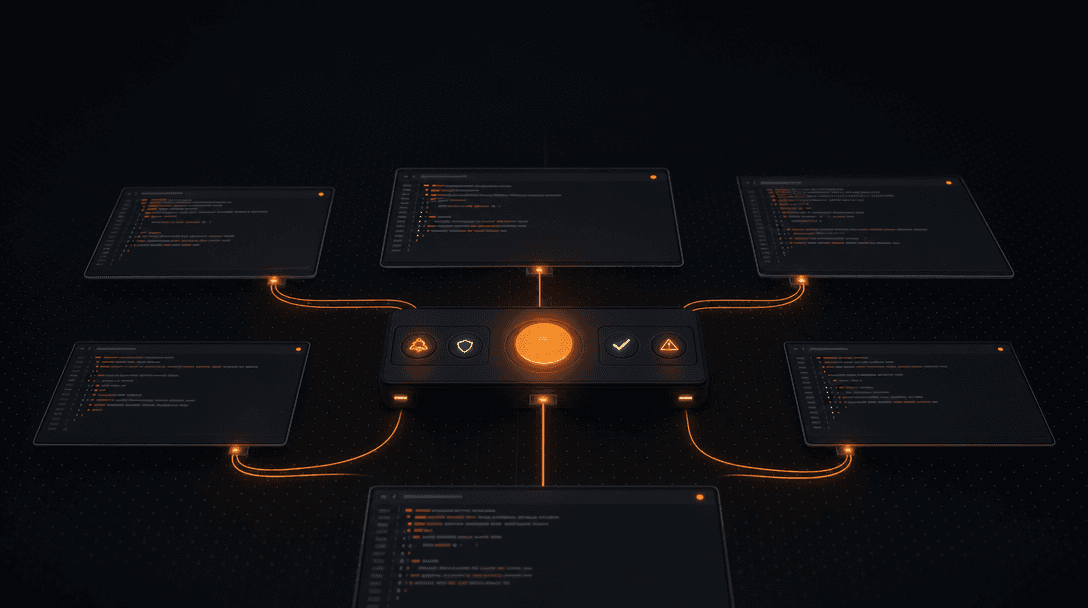
According to CodeGrid's product documentation, every pane carries a live indicator for running, waiting, idle, and error states, and those indicators stay legible when you zoom out to see the whole canvas. From a bird's-eye view, a wall of green panes with one red dot tells you everything you need to know in half a second.
Stop losing track of which agent needs your input — Download CodeGrid for macOS and see every session's status at a glance.
The practical outcome: fewer missed prompts, no silent stalls, and a workflow where adding a thirteenth session doesn't proportionally increase the cognitive load.
How can you broadcast the same command without creating a mess?
Broadcasting is a fan-out tool, not a default. Cmd+B in CodeGrid sends one command to every visible terminal at once, which is enormously useful for repetitive operations and dangerous for anything that assumes shared state.
Safe broadcast use cases:
git statusorgit fetchacross every repo to see what's driftednpm installorpnpm installafter pulling dependency updates- Running the same test command in every project to confirm nothing's red
- Asking the same prompt to several agent sessions to compare responses
- Tailing logs or checking versions during an incident sweep
Risky uses to avoid unless every session is intentionally aligned:
git push,git rebase, orgit reset --hard— branch state differs per session- Database migrations or destructive scripts
rm -rfanything- Commands that assume a specific branch, working tree, or environment
A reasonable habit: use broadcast for read-only and idempotent commands freely; for anything that writes, narrow the broadcast scope or run the command session by session.
How do you preserve sessions, directories, and layout after restart?
A scalable multi-session workflow has to survive a restart. If quitting the app means rebuilding twelve panes, twelve working directories, and a spatial layout from memory, you'll stop quitting — and accumulate weeks of stale processes.
The minimum bar is: when you reopen the app, every pane returns to the same position, the same working directory, and the same session intent. The agent processes themselves are gone (PTYs don't persist across reboots), but the scaffolding is back in seconds.
CodeGrid restores sessions, directories, and canvas layout exactly as you left them. For solo founders running three side projects, agencies juggling four clients, or freelancers context-switching between contracts, per-project workspaces keep those layouts separate — open the "Client A" workspace and only Client A's panes appear, with Client B's twelve-pane setup intact and untouched until you switch back.
| Workflow | Workspace strategy |
|---|---|
| Solo founder, 2–3 products | One workspace per product |
| Agency dev, 4+ clients | One workspace per client, sub-grouped by repo |
| Freelancer with active contracts | One workspace per contract, archived when finished |
| Single large monorepo | One workspace, sessions grouped by service or team |
The practical test: can you close the app at 6 p.m. on Friday and pick up exactly where you left off on Monday morning without thinking? If not, the layout isn't really persistent.
How do you keep Git and repo context visible while agents change files?
Git visibility is the control plane for multi-agent work. When several sessions are writing to disk in parallel, the terminal output alone is not enough — you need to see file changes, diffs, and branch state without leaving the workspace.
The working loop looks like this:
- Agents work in isolated panes, each scoped to one repo or worktree.
- A built-in Git UI shows live changes per repo — staged, unstaged, and untracked files update as agents write.
- The file explorer and code editor let you inspect any change without context-switching to a separate GUI.
- You review the diff before staging and committing — never let an agent commit blind.
- The dependency graph and GitHub repo browser surface what a change actually touches downstream.
- Browser panes hold docs, issue trackers, or live previews next to the code, so the whole loop stays on one canvas.
The moment you can no longer answer "what did this agent just change?" in one glance, you've lost the multi-session workflow. Folding the Git UI, file tree, editor, and browser into the same workspace as the terminal panes is what keeps that answer one click away.
This is also why an IDE replacement framing misses the point. You're not abandoning your editor — you're putting the orchestration layer (terminals, agents, Git, file context) in one place so the editor stays focused on the file you're actually reading.
Running multiple agent sessions vs alternatives: which is right for you?
Terminal tabs and tmux still work — for a point. Below roughly four concurrent sessions, tabs are fine, tmux is excellent, and a single-agent terminal flow is often the right answer. The trade-offs shift once you cross into many-repo, many-branch, parallel-prompt territory.
| Approach | Scales to | Strengths | Where it breaks |
|---|---|---|---|
| Terminal tabs | 2–4 sessions | Native, zero learning curve | No status visibility; identity gets lost |
| Fixed splits (iTerm, etc.) | 4–8 sessions | All visible at once | Rigid layout; no zoom; no per-pane state |
| tmux panes/windows | 8+ sessions | Scriptable, remote-friendly, keyboard-driven | Steep config; no spatial layout; status is text-only |
| Single-agent terminal flow | 1 agent | Simple mental model | Wastes wall-clock when one task blocks |
| Canvas-first workspace | 10+ sessions | Spatial layout, per-pane status, broadcast, persistence | Native macOS only; new mental model |
For technical readers, the trade-offs that matter beyond layout:
- Footprint and speed. According to CodeGrid's site, the app is roughly 10 MB, built on Tauri and Rust instead of Electron, and launches in under a second. If your workspace tool takes longer to open than your agents take to respond, the tool is the bottleneck.
- Local-first and privacy. CodeGrid is a native macOS app with no telemetry and no cloud dependency for core usage, per the project's own description. Source is released under the MIT license and published openly.
- Extensibility. A visual MCP server manager replaces hand-editing config files, and an external control API over a local Unix socket lets you script the workspace from Alfred workflows, IDE extensions, or shell aliases.
If you're running one or two agents in a single repo, stay with what you have. If you're orchestrating six, ten, or twenty terminal-based agent sessions across multiple repos every day, the canvas-first model is the one that actually scales.
Download CodeGrid for macOS to try the workflow on your own repos — it's open source, around 10 MB, and you can have it running on your canvas in under a minute.
Frequently asked questions
When should I use a Git worktree instead of a separate branch or clone for parallel agent sessions?
Use a worktree whenever two or more agents need to write to the same repository simultaneously. A worktree gives each session a separate checkout that shares one .git directory, so agents can work on different branches without corrupting the index or stomping each other's uncommitted changes — something a second tab on the same checkout cannot guarantee.
Does the canvas layout and session state survive if I force-quit or reboot?
The canvas layout, pane positions, and working directories are restored on next launch; the PTY processes themselves do not survive a reboot since they are OS-level processes. The practical result is that you reopen the app, see your exact spatial layout with the correct directories, and relaunch agents in a few seconds rather than rebuilding everything from scratch.
How do I scope a broadcast command so it only hits a subset of panes, not every terminal on the canvas?
Organize panes that should receive the same command into their own workspace or spatial cluster before broadcasting, then switch to that workspace before firing Cmd+B. Because broadcast acts on all terminals in the active workspace, keeping unrelated sessions in separate workspaces is the cleanest way to avoid accidental fan-out to sessions on different branches or environments.
Is CodeGrid usable on Linux or Windows, or is it macOS only?
CodeGrid is currently a native macOS application. The draft's comparison table notes this explicitly — if your workflow is Linux- or Windows-based, tmux or fixed-split terminals remain the practical alternatives for high-session-count work.
What does the external control API let you do that you can't do from inside the app?
The API exposes the workspace over a local Unix socket, so external tools — Alfred workflows, shell aliases, IDE extensions — can open panes, send commands, or switch workspaces without you touching the GUI. This is useful for scripted bootstraps: one shell command that provisions a full multi-pane layout for a project rather than clicking through it manually each time.