How to Run Multiple Claude Code Sessions at Once (Without Losing Track of Them)
Learn how to run multiple Claude Code sessions at once in a session-aware 2D canvas, with visible status, broadcast commands, and workspace restores.
How do you run multiple Claude Code sessions at once without losing track of them?
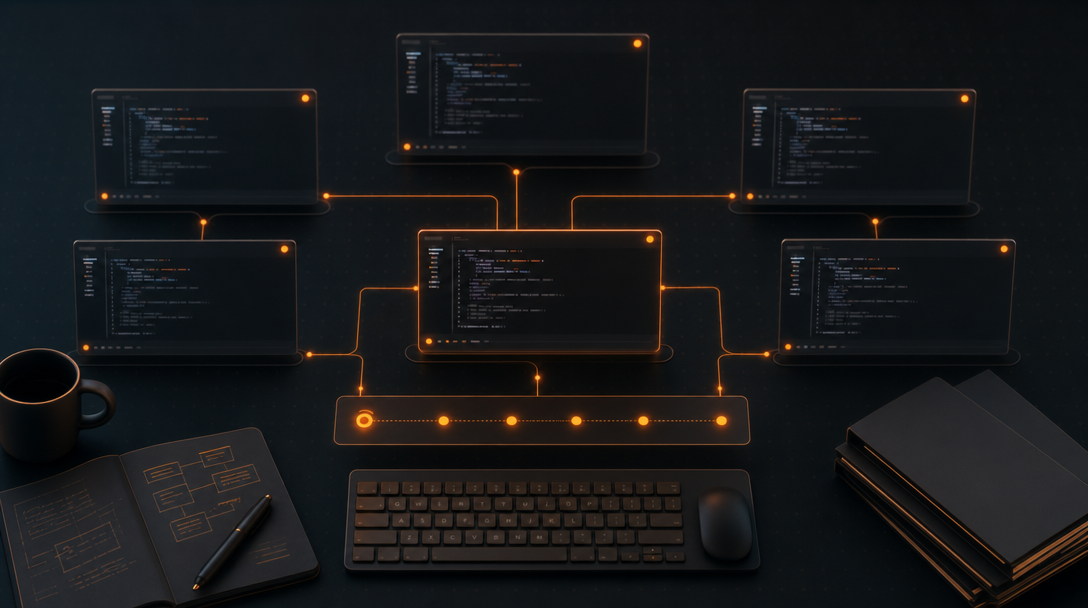
Run each agent session in its own visible, repo-scoped pane on a single 2D canvas instead of burying them in terminal tabs. That one change — visibility over stacking — is what separates a controlled multi-agent workflow from a pile of forgotten PTYs.
The failure mode with tabs is predictable: you spawn six agents across four repos, alt-tab away to review a diff, and twenty minutes later realize three of them have been waiting for input the whole time. Tabs hide state. tmux panes scale to a handful before the layout becomes unreadable. Neither tells you, at a glance, which agent is working and which is stuck.
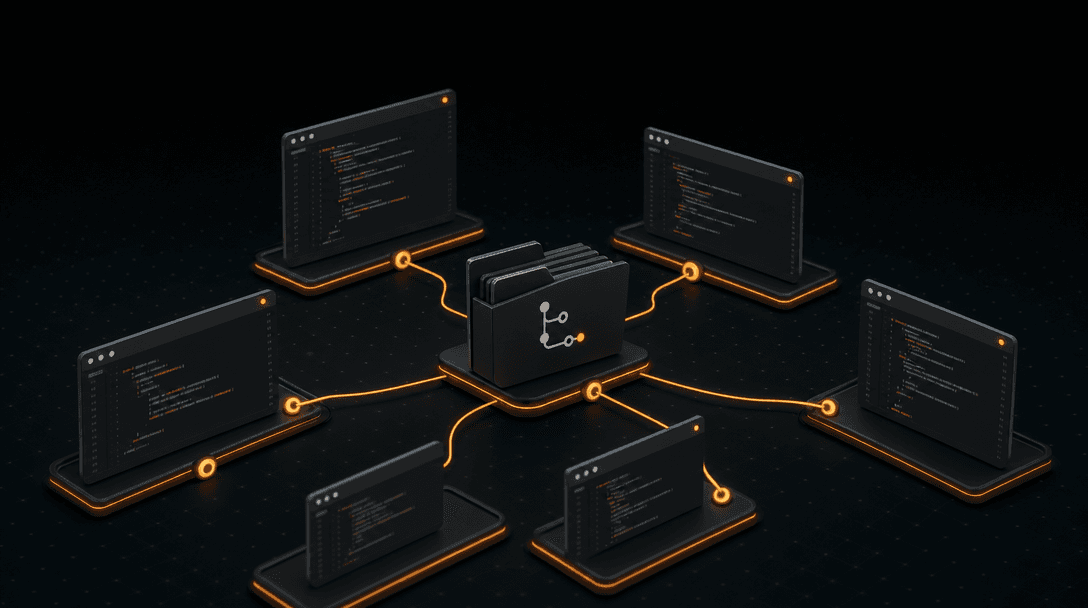
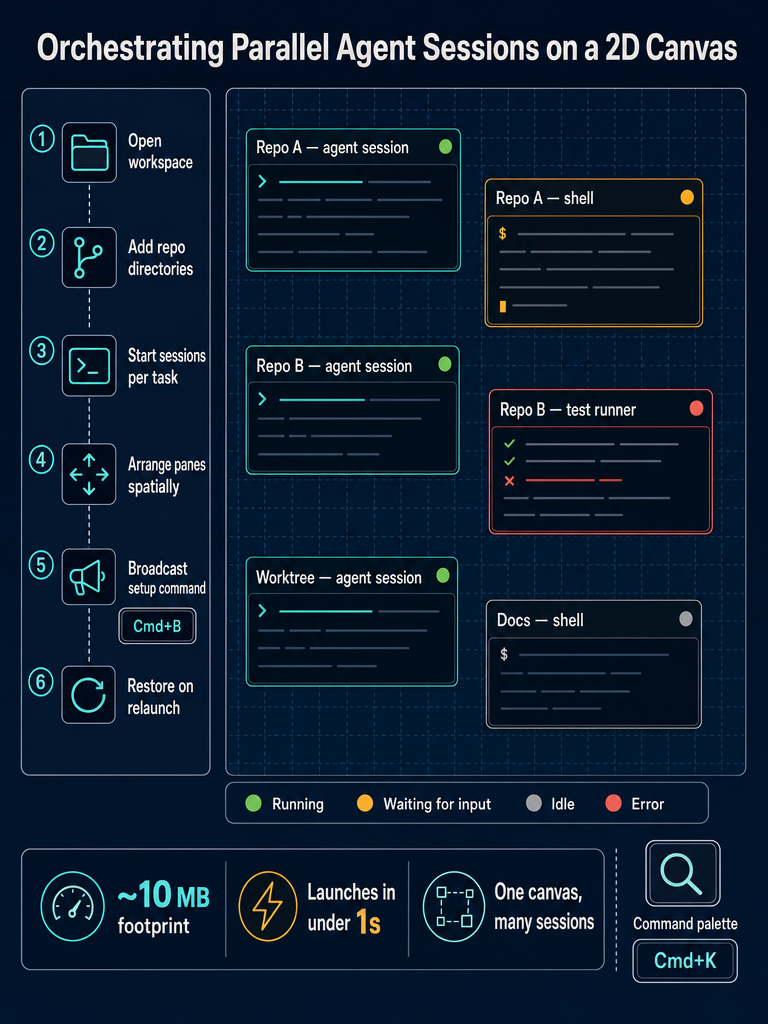
The right model for parallel agent work is a spatial one: every session is a pane you can see, every pane carries its own status, and the layout survives a restart. That is what CodeGrid is built for — a native macOS workspace where every terminal-backed coding agent and plain shell lives in its own draggable, resizable pane on a free-form 2D canvas. You zoom out to see everything, zoom in to interact, and never lose the mental map of which session owns which repo.
The rest of this guide is the operations playbook: how to lay out panes, how to read session status without clicking through tabs, how to broadcast setup commands across every terminal, and how to keep Git, files, and editor context next to the sessions that need them.
What workspace layout works better than stacking terminal tabs or tmux panes?
Group panes spatially by repo or task, keep long-running sessions in fixed positions, and rely on zoom and pan instead of tab cycling to navigate. Spatial memory is the feature; tabs deliberately hide it.
A layout that holds up under real multi-session load looks roughly like this:
- Cluster by repository. Each repo gets a region of the canvas. Within that region, place the primary agent pane, a shell for manual commands, and any auxiliary panes (logs, test runner) close together.
- Pin status-critical panes to the edges. Long-running sessions you need to monitor go where your eye lands when you pan. Short-lived shells go in the middle.
- Use zoom levels as a triage tool. Zoomed out, you see status indicators across every pane. Zoomed in, you work normally.
- Resize by importance, not by content. The pane handling the active task gets more area; idle sessions shrink without disappearing.
| Layout approach | Sessions before it breaks | What you lose |
|---|---|---|
| Terminal tabs | 3–4 | Visibility — hidden tabs hide state |
| tmux panes / splits | 6–8 | Readability — text gets unreadable, layout rigid |
| 2D canvas | dozens | Nothing structural; you pan instead of cycle |
For a deeper comparison of why tab-based and tmux workflows hit a wall once many agent sessions are in play, see Terminal Tabs vs a 2D Canvas for AI Coding Work and Why tmux and iTerm2 Break Down When You're Managing AI Agents.
How do you know when an agent session is waiting for input or has errored?
You watch the pane's status indicator directly — running, waiting, idle, or error — without having to click into the session. Session awareness, not session count, is what determines whether parallel agent work stays productive or quietly stalls.
The operator loop with tabs is reactive: you remember to check, or you don't, and silent waits cost minutes per session per hour. The loop with visible status is glance-driven. You pan across the canvas, scan the colored states, and act only on panes that need you.
CodeGrid surfaces four states on every pane, visible even when zoomed all the way out:
- Running — the session is actively producing output.
- Waiting — the session is blocked on your input (a confirmation, a clarifying answer, a
y/n). - Idle — the session is alive but no command is running.
- Error — the last command exited non-zero or the agent reported a failure.
In practice this changes how you allocate attention. Instead of context-switching through tabs every few minutes "just to check," you work on whatever pane is in front of you and only break focus when a status indicator demands it.
How to run multiple sessions step by step
Here is the concrete workflow for spinning up and managing several terminal-backed agent sessions in parallel without losing track of them:
- Create or open a workspace. Each workspace in CodeGrid is scoped to a project or client. Use one workspace per top-level context — don't mix unrelated repos.
- Add the repo directories you'll work in. Point the workspace at each repository or worktree. Each will get its own working-directory-aware panes.
- Open a pane per session. For every parallel session you need, open a new terminal pane and set its working directory to the matching repo. If you're running sessions against multiple worktrees of the same repo, give each its own pane.
- Start your coding agent in each pane. Launch your terminal-based coding agent in each pane the way you normally would. Plain shells for git, builds, or manual commands stay in their own panes.
- Arrange panes spatially by task. Cluster panes that belong to the same repo or feature branch. Keep the primary working session in your default view; place secondary sessions adjacent.
- Add context panes. Open the built-in Git UI for the active repo, a file explorer pane, and a browser pane for docs or the running app. Keep them next to the sessions that need them.
- Broadcast safe setup commands. Use
Cmd+Bto send shared setup (e.g.,git status,nvm use, a test command) to every selected terminal at once. See the next section for what's safe to broadcast and what isn't. - Verify working directories before letting sessions run. Before issuing destructive or repo-modifying prompts, confirm each pane is in the correct directory. The status bar on each pane shows the cwd.
- Monitor by status, not by clicking. Let the running/waiting/idle/error indicators drive your attention. Pan the canvas; don't cycle tabs.
- Close the app when you're done. CodeGrid restores the workspace — sessions, directories, layout — the next time you open it.
Naming every pane is the single highest-leverage habit for keeping a dense canvas readable. A pane labeled api · refactor-auth is instantly readable at zoom-out; an unnamed pane is just one of twelve identical rectangles.
How do you send the same command to many terminal sessions without retyping it?
Use command broadcast. In CodeGrid, Cmd+B sends whatever you type into one input to every selected terminal pane simultaneously — no AppleScript, no per-pane retyping.
Good broadcast targets:
- Status checks —
git status,git fetch,pwd,node -v. - Environment setup — activating a virtualenv, switching Node versions, exporting an env var across all panes.
- Test or lint commands — running the same test suite across multiple worktrees.
- Identical agent kick-off prompts — when you want the same instruction issued to every coding-agent pane at once.
Targets to keep manual:
- Destructive commands —
rm -rf, force pushes, database migrations. One mistyped path multiplied by ten panes is ten problems. - Anything path-specific — broadcasting a command that assumes a specific file or branch state will silently misbehave in panes where that assumption doesn't hold.
- Interactive prompts that diverge per repo — let those happen pane-by-pane.
Broadcast is a coordination tool, not an automation tool: use it to align state across sessions, not to replace careful per-repo work. For a fuller breakdown of patterns and pitfalls, see Broadcast One Prompt to Every Agent: How Parallel AI Coding Actually Works.
Terminal tabs vs tmux vs a 2D canvas: which is right for parallel agent work?
It depends on how many concurrent sessions you actually run and whether you need persistent visibility. Tabs are fine for one or two shells. tmux is excellent for remote and keyboard-only workflows. A 2D canvas is the right primitive when you're orchestrating many agent sessions that each need visible state.
| Approach | Best for | Where it breaks |
|---|---|---|
| Terminal tabs (iTerm2, Terminal.app) | 1–3 shells, single-task focus | No session status; hidden tabs hide problems |
| tmux | Remote work, keyboard-driven shell management | Rigid grid; no per-pane status; awkward for many concurrent sessions |
| 2D canvas (CodeGrid) | Many parallel agent sessions across repos | Local desktop only; not a replacement for tmux on remote hosts |
A few honest distinctions:
- CodeGrid is not an IDE replacement. It's a workspace for orchestrating terminal-backed sessions and the context around them. Keep using your editor of choice — or use the built-in editor pane when you just need to read or tweak a file.
- CodeGrid doesn't replace your agents either. Your existing terminal-based coding agents and plain shells all run as PTYs inside panes. The workspace coordinates them; it doesn't reimplement them.
- tmux still has a place. If you're SSH'd into a remote box, tmux is the right tool. CodeGrid is for the local macOS workspace where you're managing many sessions at once.
The decision rule is simple: if you can count your concurrent sessions on one hand and none of them block on input, tabs are fine — beyond that, the cost of missed prompts and lost layout starts to exceed the cost of switching tools.
How do you keep Git, files, browser panes, and editor context together?
Put them on the same canvas, next to the sessions that need them. Parallel agent work is not just terminals — it's terminals plus the Git state being modified, the files being edited, the docs you're reading, and the running app you're testing.
CodeGrid bundles the adjacent context directly into the workspace:
- Built-in Git UI — view diffs, stage hunks, browse branches, and inspect history without leaving the canvas. Each repo's Git state is one pane away from the session working on it.
- File explorer — browse and open files from any repo in the workspace.
- Code editor pane — read or make small edits inline without alt-tabbing to your main editor.
- Interactive dependency graph — see how files in the project relate, which is useful when a change touches shared modules.
- Browser panes — keep API docs, a staging URL, or the local dev server visible next to the terminal running it.
- GitHub repo browser — open a repo's GitHub view without leaving the workspace.
- Command palette (
Cmd+K) — jump to any pane, workspace, or action by name.
The point is not to replace your editor or your Git GUI — it's to keep review, file scope, and runtime state one glance away from the terminal that produced them. When a change finishes, you can review the diff in the adjacent Git pane, glance at the file tree to confirm scope, and check the running app in a browser pane — all without breaking the visual context of which pane did what.
How do you switch between projects or client codebases without rebuilding context?
Use per-project workspaces and let the app restore them. Each workspace in CodeGrid holds its own panes, directories, layout, and sessions — switching between them is a single action, and reopening one restores it exactly as you left it.
For agency and freelance work, this maps cleanly: one workspace per client, each with the client's repos, the sessions you typically run, and the layout that fits that project. Close the app at the end of the day, open it the next morning, and your client-a workspace is exactly where it was — same panes, same working directories, same session history visible.
For indie founders running several products in parallel, the same pattern applies per product. A workspace for the main app, another for the marketing site, another for an experimental side project. No more tmux session files, no more shell scripts to recreate your layout, no more "wait, which repo was I in?"
For a longer treatment of the multi-repo workflow, see One Workspace for Every Repo: Managing Multiple Projects with AI Agents.
What changes with a local-first, open-source setup?
You keep the orchestration layer on your machine, and you can verify what it does. CodeGrid is open source under the MIT license, collects nothing, and runs entirely locally — the canvas, the PTYs, the Git UI, all of it.
A few practical consequences:
- No telemetry to audit or block. The app doesn't phone home.
- MCP server management is visual, not manual. Configure and manage Model Context Protocol servers from a UI instead of hand-editing config files.
- External control API over a local Unix socket. Scriptable from Alfred workflows, shell scripts, or your own tools — handy if you want to spawn panes, run commands, or trigger workspace switches from outside the app.
- Source is auditable. If you need to understand what's happening with your sessions or extend the app, the code is there.
For developers who care about toolchain fit — small binary, fast launch, no cloud dependency for core usage, open source — CodeGrid is built to be the kind of tool you'd want running all day.
If you're orchestrating many terminal-backed coding sessions and shells across several repos and you're tired of losing track of which one is waiting on you, download CodeGrid for macOS and try the canvas layout against your current workflow.
Frequently asked questions
Does each agent session get its own isolated working directory, or do they share state?
Each pane runs a fully independent PTY scoped to whatever working directory you set for it, so sessions don't share shell state, environment variables, or cwd unless you explicitly broadcast a command to align them. This is what makes running agents against separate repos or worktrees safe in parallel.
What happens to my sessions if the app crashes or I force-quit it?
CodeGrid persists the workspace layout, pane positions, and working directories, so reopening the app restores the canvas exactly as you left it. The underlying PTY processes terminate when the app closes, so long-running agent commands won't survive a crash — but you won't have to rebuild your layout from scratch.
Can I use git worktrees with this, or does it only work with separate repo clones?
You can point any pane at a worktree directory the same way you'd point it at a full clone — the file explorer, built-in Git UI, and session status all work off the pane's working directory regardless of whether it's a worktree or a standalone repo.
Is there a way to script or automate pane creation without clicking through the UI every time?
CodeGrid exposes an external control API over a local Unix socket, so you can spawn panes, send commands, and switch workspaces from shell scripts, Alfred workflows, or any tool that can write to a socket — no GUI interaction required.
Does CodeGrid work on macOS Intel, or is it Apple Silicon only?
CodeGrid is a native macOS app built on Tauri and Rust, and it targets macOS broadly rather than Apple Silicon exclusively — the ~10 MB binary runs on both Intel and Apple Silicon Macs.