One Workspace for Every Repo: Managing Multiple Projects with AI Agents
See how CodeGrid gives each repo its own session on a 2D canvas, with status-aware panes, broadcast commands, and restored layouts.
What does "one workspace for every repo" mean for AI-agent development?
"One workspace for every repo" means every repository you touch gets its own scoped, persistent terminal session — with its own working directory, Git state, and visible status — laid out on a single canvas you can see at a glance. It's the operational answer to running multiple AI coding agents and plain shells across five or ten repos at the same time without losing track of which session is doing what.
The traditional setup breaks down fast. Tabs hide nine sessions behind whichever one is focused. Tmux panes shrink each terminal until you can't read the prompt waiting for your input. IDE windows balloon into a dock of identical icons. When you're orchestrating multiple AI agents in parallel, the bottleneck isn't compute — it's your ability to see what every agent is doing and respond when one stalls.
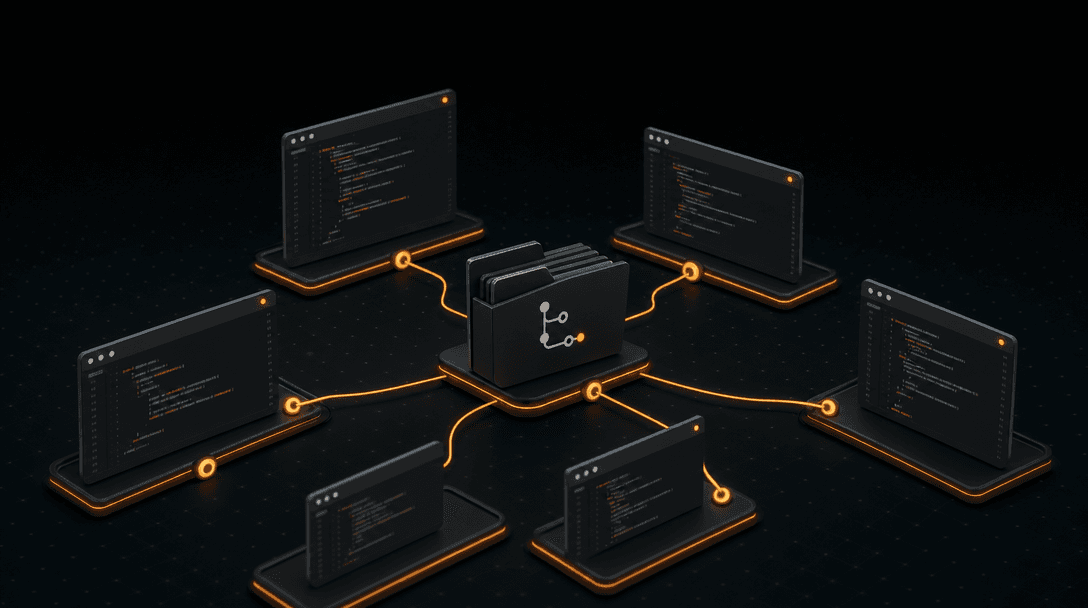
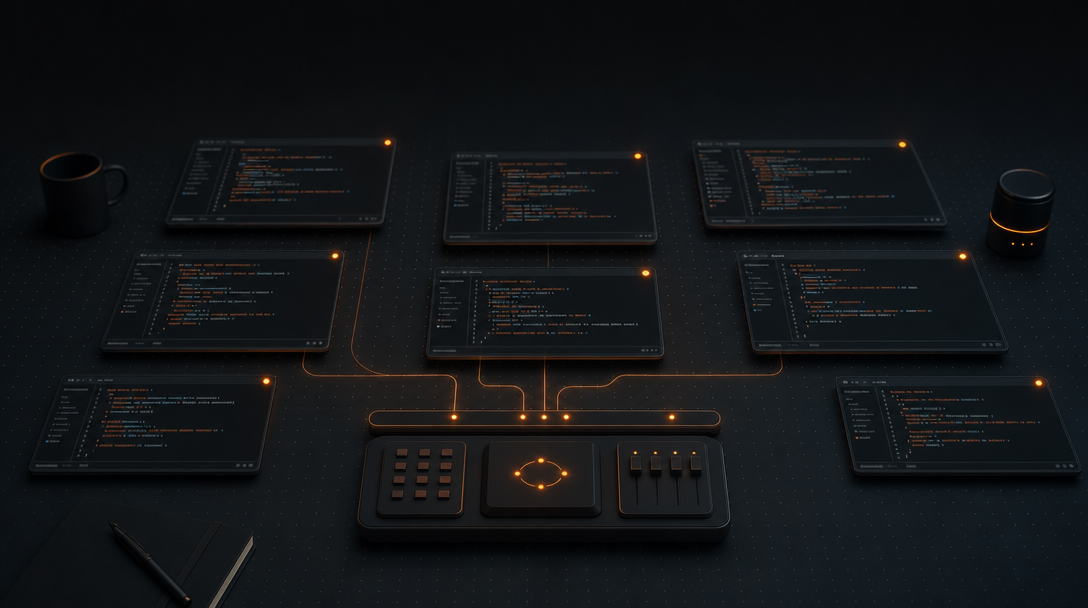
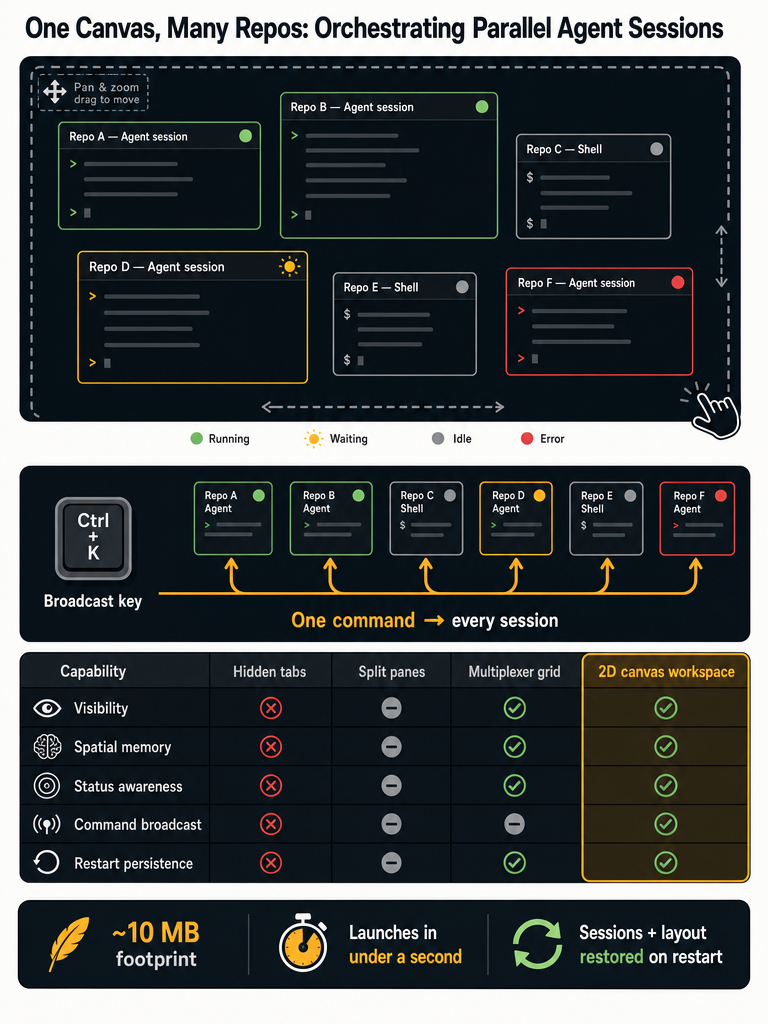
CodeGrid approaches this by giving every session a pane on a free-form 2D canvas. Each pane is a real PTY tied to a specific repo's working directory. Each workspace can hold one repo or a group of related ones. You drag, resize, and zoom the layout to match how you actually work — backend repo on the left, two frontend agents top-right, a long-running migration script in the corner where you can still see its status light.
How do you keep many repo-specific sessions visible without tab sprawl?
You make them spatial. Instead of stacking sessions behind tabs, lay every terminal out as a draggable pane on a 2D canvas and use position, size, and zoom to encode meaning. Active agents go big and center. Idle build watchers shrink to a corner. A whole client project clusters in one quadrant.
Tabs and tmux both fail the same way at scale: they assume a fixed grid. Tabs hide everything but one session. Tmux panes split a single rectangle until each terminal is twelve lines tall. Neither lets you say "this repo's agent matters right now, that one is background."
A canvas-first model fixes that with three moves:
- Spatial memory. You remember "the auth service is bottom-left" the same way you remember where files are on your desk.
- Variable density. Zoom out to see many panes and their status lights; zoom in on the one waiting for a code-review prompt.
- Pan, not switch. Moving across projects is a trackpad gesture, not a
Cmd+Tabchain through identical windows.
| Layout model | Sessions visible at once | Status visibility | Scales past ~8 sessions |
|---|---|---|---|
| Terminal tabs | 1 | None | Poor |
| Tmux splits | 4–8 | None | Cramped |
| One IDE window per repo | 1 active | None | OS-level clutter |
| 2D canvas | All, at chosen zoom | Per-pane indicator | Designed for it |
For the deeper mechanics, see How to Run Multiple Agent Sessions Without Tab Sprawl and 2D Terminal Canvas for macOS: What to Look For.
How does the workspace keep directories, Git state, sessions, and layout separate?
Per-pane PTYs handle session-level isolation; per-project workspaces handle repo-group isolation. Each pane in CodeGrid holds its own working directory, shell history, environment, and Git context. Each workspace holds its own set of panes, layout, and active repos — so switching from Client A to Client B is one keystroke, not a teardown.
The rule of thumb: one workspace per mental project, multiple panes per workspace for the repos that belong together. A monorepo with three services? One workspace, three or four panes. Five unrelated client codebases? Five workspaces. A side project plus its docs site plus its infra repo? One workspace, because you context-switch between them constantly.
| Scenario | Workspace setup |
|---|---|
| Solo product with frontend + backend + infra | One workspace, 3–5 panes |
| Agency with 6 client codebases | One workspace per client |
| Monorepo with several services | One workspace, one pane per service |
| Experimental repo, separate from main work | Its own workspace so it doesn't pollute layout |
How can you tell which agent is running, waiting, idle, or errored?
Live per-pane status indicators. Each pane in CodeGrid shows whether the session inside it is actively running output, waiting for input (the agent is asking you something), idle, or in an error state — and the indicator remains legible when you zoom out to see the whole canvas.
This matters because the failure mode of running many agents in parallel isn't crashes — it's silent stalls. An agent finishes its run and waits for "do you want to apply this diff?" You don't notice. Twenty minutes later you check and three agents are sitting on prompts.
Session awareness turns the canvas into a dashboard: a glance tells you which pane needs you next. No need to click through tabs or cycle tmux panes to find the one with the cursor blinking.
For more on supervising parallel agents this way, see Best Mac App to Run Multiple AI Coding Agents Locally.
How do you send the same command across multiple project terminals?
Use command broadcast. In CodeGrid, Cmd+B sends the next command you type to every selected pane simultaneously. Each pane still executes in its own repo's working directory, so the command applies to that repo's context.
This pays off for the commands you'd otherwise retype ten times:
- An agent CLI to start a session in every repo at once
git statusorgit pullacross a group of related servicesnpm installafter a dependency bump that affects multiple projects- A shared instruction to every running agent ("run the test suite and report failures")
Use broadcast deliberately, though. Because each pane is still its own repo, a destructive command (rm, git reset --hard) runs everywhere you've selected. Broadcast is for additive or read-only actions by default; treat anything mutating as a per-pane decision unless you're sure.
What happens to sessions and layout after restart?
The workspace restores everything. According to CodeGrid's product documentation, reopening the app restores each pane's working directory, the canvas layout, zoom level, and the session itself — your multi-pane workspace comes back in the same arrangement you left it in.
This is non-negotiable for AI-agent work. Agent sessions accumulate context — files reviewed, decisions made, work-in-progress — and rebuilding that context from scratch every morning is the productivity killer no one talks about. Restart persistence means:
- Long-running work survives quitting the app. Close at 6pm, resume at 9am.
- Layout is institutional memory. "Auth pane is always top-left" stays true across days.
- Switching workspaces is cheap. Move from Client A to Client B and back without reconstructing either.
The workspace you build once is the workspace you keep. That's what makes spatial layout worth investing in — it compounds, instead of being thrown away every restart.
How does a 2D canvas compare to tabs, splits, tmux, and one window per repo?
For dense, parallel, session-aware orchestration across many repos, a 2D canvas is the only layout model that handles all of visibility, spatial memory, status awareness, broadcast, and restart persistence in one place. Each older approach optimizes for something narrower.
| Criterion | Tabs | Tmux splits | One window per repo | 2D canvas |
|---|---|---|---|---|
| Visibility of all sessions | One at a time | Cramped grid | OS-level clutter | All, scalable via zoom |
| Spatial memory | None | Limited | Window position only | Strong |
| Density at scale | Hidden | Squeezed | Alt-Tab fatigue | Native |
| Per-session status indicator | No | No | No | Yes |
| Command broadcast | No | Yes (tmux) | No | Yes (Cmd+B) |
| Restart persistence | Partial | Plugin-dependent | Manual | Built-in |
| Context switching cost | High | Medium | High | Low |
Tabs are fine for one session. Tmux is great when you live in one terminal emulator and don't mind plugin glue. Per-repo windows work until you have six of them open. None of these were designed for "supervise a dozen agents across five repos and don't miss a prompt."
The canvas isn't a replacement for your terminal or your IDE — it's the layer above them that makes parallel work legible.
How should Git, files, browser context, and terminals fit into the same workspace?
Fold them into the same canvas, but don't pretend you're replacing the tools developers already use. CodeGrid bundles a Git manager, file explorer, built-in code editor, interactive dependency graph, browser panes, GitHub repo browser, and a Cmd+K command palette — all as panes on the same canvas as your terminals.
The point isn't to be an IDE. The point is to stop alt-tabbing between five apps to do one task. When you're reviewing what an agent just changed, you want:
- The terminal pane where the agent is running
- The Git diff for the files it touched
- The file in the editor pane next to it
- A browser pane on the relevant docs or PR
All visible at once, all scoped to the same repo. When you switch workspaces, that whole composition switches with you.
Cmd+K ties it together: jump to a file, open a Git view, spawn a new terminal, switch workspaces — without leaving the keyboard. Keep using your real IDE for deep editing work. The canvas is where you orchestrate; the IDE is where you write.
What privacy, MCP, and automation requirements matter for a local agent workspace?
Four things matter when the workspace is running agents that touch your code: it should be native, local, inspectable, and scriptable.
- Native, not Electron. According to CodeGrid's product documentation, the app is built with Tauri and Rust, ships at roughly 10 MB, and launches in under a second. That's not a vanity metric — it's whether the app gets in your way when you open it many times a day.
- Local-first, no telemetry. Core usage requires no cloud account. According to CodeGrid's documentation, nothing about your repos, sessions, or commands is reported anywhere. For agency and client work especially, this is the difference between "can use" and "cannot use."
- Open source, MIT licensed. You can read the code, fork it, audit what it does on your machine. Important when the app sits in front of AI agents writing to your filesystem.
- Visual MCP server manager. Instead of hand-editing JSON config files for each agent's MCP servers, manage them from a UI. Less drift, fewer typos, faster setup across projects.
- External control API over a local Unix socket. Drive the workspace from Alfred, scripts, or your own tooling — spawn panes, broadcast commands, switch workspaces programmatically. Keyboard-first users can wire CodeGrid into the rest of their automation stack.
A local agent workspace earns trust by collecting nothing, staying small, and exposing its own internals — not by adding cloud features.
Ready to put one workspace behind every repo? Download CodeGrid for macOS or read the source on GitHub before you install it. Either way, the goal is the same: every agent visible at once, every repo isolated, every layout restored exactly where you left it.
Frequently asked questions
How many workspaces should I create — one per repo or one per project?
Use one workspace per mental project, not per repository. A monorepo with three services fits comfortably in one workspace with multiple panes; five unrelated client codebases warrant five separate workspaces. The rule is whether you context-switch between the repos constantly — if yes, keep them together.
Does command broadcast run in each repo's own directory or a shared one?
Each pane executes the broadcast command inside its own working directory, so the command applies to that repo's context independently. This means git status or an agent startup command runs correctly per-repo, but destructive commands like git reset --hard will also run everywhere selected — treat broadcast as opt-in for mutating operations.
What gets restored when I reopen the app after quitting?
CodeGrid restores each pane's working directory, the canvas layout, zoom level, and the session itself — the workspace comes back in the same arrangement you left it. This means long-running agent context and spatial layout both survive a restart without manual reconstruction.
Can I script or automate CodeGrid from outside the app?
Yes — CodeGrid exposes an external control API over a local Unix socket, so you can spawn panes, broadcast commands, and switch workspaces programmatically from Alfred workflows, shell scripts, or custom tooling without touching the UI.
Is CodeGrid only for macOS, and why isn't it an Electron app?
Currently macOS only. It's built with Tauri and Rust rather than Electron, which keeps the binary around 10 MB and makes it launch in under a second — a meaningful difference when you open and switch the app dozens of times a day across parallel agent sessions.