Running 10+ AI Coding Agents in Parallel: A Practical Workflow
Learn running 10 ai coding workflows with a 2D canvas, live session status, broadcast commands, and restart-safe workspaces in CodeGrid.
What does running 10+ AI coding agents in parallel mean?
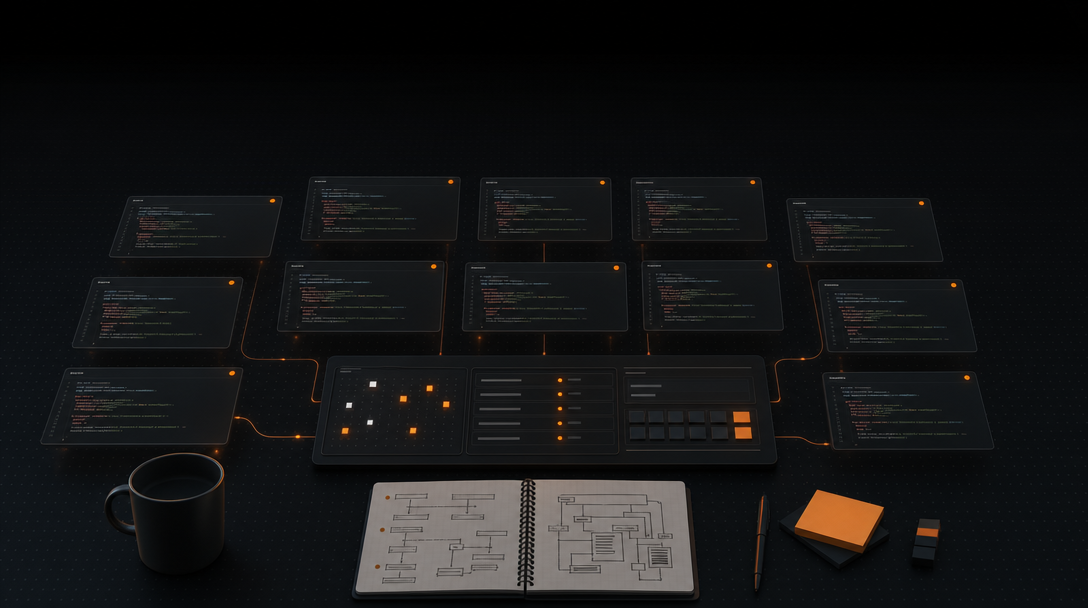
Running 10+ AI coding agents in parallel means keeping ten or more terminal-based coding sessions active at once, each with its own repository, branch, working directory, prompt state, and review loop. It is not about launching agents — spawning processes is trivial. The hard part is orchestration: knowing which agent is waiting for input, which one errored five minutes ago, and which one just finished a 40-minute refactor that needs review before the next prompt.
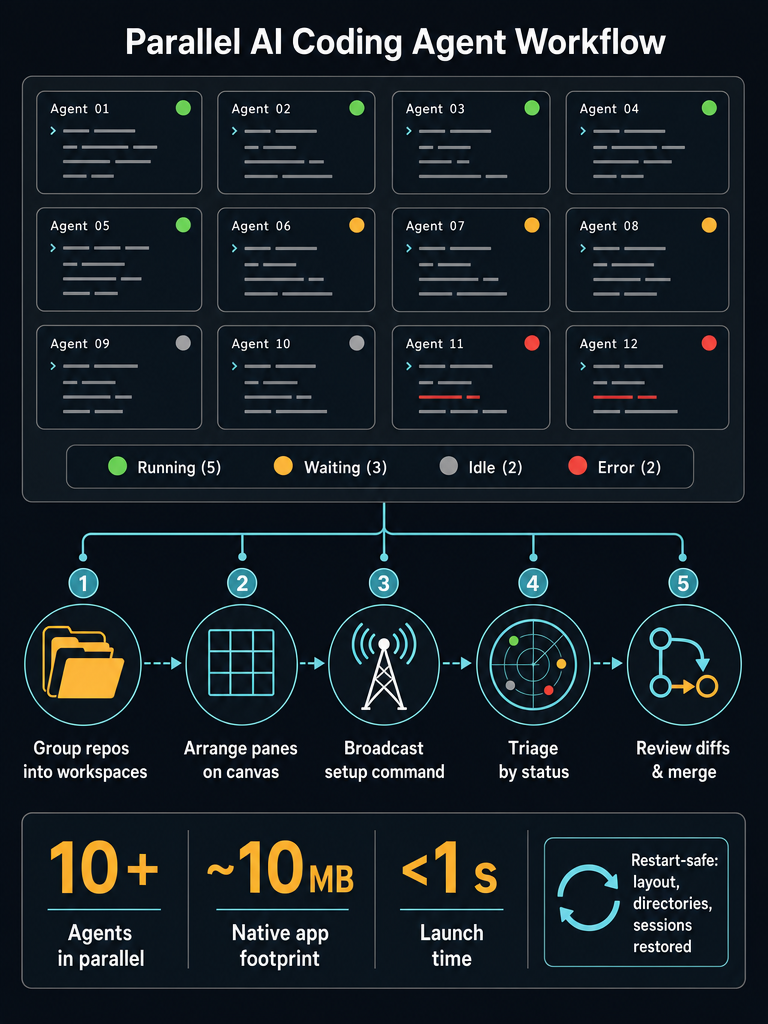
The practical operating model has five moving parts:
- Visible panes — every session stays on screen so nothing stalls silently.
- Project grouping — sessions for the same repo or task cluster spatially.
- Status triage — running, waiting, idle, and error states are scannable at a glance.
- Git review — diffs get inspected before any agent output is merged.
- Restart-safe state — closing the laptop doesn't destroy the layout you just spent an hour building.
At ten or more concurrent agents, orchestration overhead — not model quality — becomes the bottleneck. Tabs and tmux panes were designed for humans typing into one shell at a time, not for supervising a fleet of autonomous coding processes. CodeGrid is one example of a native macOS workspace built around this pattern: a free-form 2D canvas where each PTY-backed session is a draggable, resizable pane with live status indicators. It is not an IDE replacement — your editor, your shell, your agents stay the same. It is the layer that makes ten of them legible at once.
How do you run 10+ AI coding agents in parallel step by step?
Run 10+ AI coding agents in parallel by isolating each agent in its own working directory, grouping panes spatially by project, and establishing a status-triage loop before you ever broadcast a command. The workflow below assumes you already have agents installed and authenticated — the focus is orchestration.
- Pick your isolation unit. Decide whether each agent gets its own repository clone, its own Git worktree (recommended for parallel branches against the same repo), or its own sub-task inside a shared checkout. Worktrees are the cleanest option when multiple agents touch the same codebase, because each one has an independent working tree and HEAD with no
git stashdance. - Create one workspace per project. In CodeGrid, per-project workspaces keep canvases separate so a 12-agent refactor on Project A doesn't visually collide with three review sessions on Project B. Workspace switching is faster than rearranging panes by hand.
- Open one PTY-backed pane per agent. Each pane is a real terminal — same shell, same env, same authentication as if you ran the agent directly. Set its working directory to the worktree or repo clone for that agent before starting the session.
- Arrange the canvas by intent, not by launch order. Group related panes spatially: a column per repo, a row per task type (feature work, test runs, doc generation), or a quadrant per project. Spatial memory replaces tab labels.
- Launch agents from the correct directory. Verify
pwdandgit statusin each pane before the first prompt. A single agent operating in the wrong worktree can pollute three branches before you notice. - Label or zone the panes. Use shell prompts that show repo and branch, or rely on the canvas position itself as the label. Zoom out periodically to see the whole fleet at once.
- Keep context panes nearby. A browser pane on the GitHub PR view, a file explorer on the target directory, and the built-in Git UI on the active branch reduce the need to leave the workspace mid-task.
- Set review checkpoints. Decide upfront when you'll stop and review — every N prompts, every completed sub-task, or every
waitingstatus. Do not let agents auto-accept their own diffs into mainline branches.
If this is the workflow you're trying to make sustainable, Download CodeGrid for macOS — it's the native workspace built specifically for orchestrating PTY-backed agent sessions on a 2D canvas.
How do you avoid terminal sprawl when running many AI coding agents?
Avoid terminal sprawl by keeping every session spatially visible instead of stacking them behind tab labels or fixed splits. Tabs scale poorly past five or six sessions because the label is the only thing identifying which agent is in which tab — and the label rarely tells you which repo, branch, or task the agent is working on. tmux helps for power users but flattens everything into a grid that wasn't designed for asymmetric panes or zoom-out scanning.
A 2D canvas inverts the model. Each PTY-backed session is a pane you can drag, resize, zoom into, and pan across. The spatial position of a pane becomes its identity — left column is Project A, top-right cluster is the test runners, the big pane in the middle is whatever you're actively reviewing.
| Approach | Scales past 10 sessions? | Status visible without focus? | Spatial memory? |
|---|---|---|---|
| Terminal tabs | No — labels collapse | No | Weak |
| tmux fixed splits | Partially | No | Medium |
| Multiple windows | No — alt-tab hell | No | Weak |
| 2D canvas | Yes | Yes | Strong |
The practical payoff is fewer missed prompts and clearer project context. When a pane needs input, you see it on the canvas. When an agent errors, the pane's status color flips while you're working in another corner of the workspace. For deeper reading on this tradeoff, see Terminal Tabs vs a 2D Canvas for AI Coding Work and One Workspace for Every Repo.
How do you know when an AI coding agent is waiting for input or has errored?
You know by reading pane status indicators while zoomed out, not by tabbing through every terminal. The failure mode at scale isn't an agent crashing — it's an agent quietly waiting for confirmation while you work on something else. Ten agents × five minutes of unnoticed waiting = nearly an hour of wasted parallelism per work session.
According to CodeGrid's product description, each pane exposes four live states, visible even when the canvas is zoomed out:
- Running — the agent is actively generating or executing.
- Waiting — the agent is paused for user input (a confirmation, a clarifying answer, a permission prompt).
- Idle — the session is alive but the agent has finished and is awaiting your next prompt.
- Error — the agent or shell returned a non-zero exit or hit a tool failure.
The triage loop is simple: scan the canvas at intervals, prioritize error panes (they're done producing value until you intervene), then waiting panes (they're blocking forward progress), then idle panes (they have output ready for review). Leave running panes alone unless one has been running suspiciously long.
The cost of a missed prompt isn't the prompt itself — it's the wall-clock time that agent sits idle instead of doing the next unit of work. Status awareness is what converts ten parallel agents from a theoretical fleet into actual throughput. For more on this loop, see Best Mac App to Run Multiple AI Coding Agents Locally.
How do you broadcast commands across multiple AI coding sessions safely?
Broadcast commands when the action is identical and idempotent across panes — not when the command depends on per-repo state. In CodeGrid, Cmd+B sends one keystroke or command to every selected terminal at once, which eliminates the retype-the-same-prompt-twelve-times problem.
Safe broadcast cases:
- Setup commands —
npm install,uv sync,git fetch --allacross a set of repos with the same toolchain. - Test commands — running the project's test script in every pane after a coordinated change.
- Prompt scaffolds — sending the same opening instruction to multiple agent sessions ("Read CONTRIBUTING.md, then summarize the test strategy") when each pane is already in the correct repo.
- Cleanup —
clearor interrupting (Ctrl+C) a known-stalled group.
Unsafe broadcast cases:
- Destructive commands —
rm,git reset --hard,git push --force. One typo, twelve mistakes. - Repo-specific assumptions —
cd packages/api && pnpm devwhen only some panes have that path. - Prompts that reference filenames — agents will hallucinate around missing files instead of erroring loudly.
The guardrail: before broadcasting, verify pwd in each pane (broadcast pwd itself first — it's free reconnaissance), exclude any pane you're unsure about, and inspect results pane by pane before broadcasting the next step. Broadcast amplifies whatever discipline you already have — it does not create it. For the deeper workflow, see Broadcast One Prompt to Every Agent.
How should Git review and merge work when multiple agents change code?
Git review with parallel agents requires hard branch isolation and a deliberate merge order — the same hygiene you'd use with ten human contributors, just compressed into one developer's afternoon. The single most common failure mode is letting two agents edit the same files on the same branch and discovering the conflict at merge time.
The working pattern:
- One branch per agent, or one worktree per agent. Worktrees are stronger isolation — separate working directory, separate index, no chance of stash collisions.
- Review diffs before any merge. Use the built-in Git UI to inspect changes pane-by-pane. Agents are confident writers; they will sometimes refactor code you didn't ask them to touch.
- Run tests per pane. Don't trust an agent's claim that "all tests pass." Run them yourself in the pane, ideally as a broadcast across all changed worktrees.
- Resolve conflicts deliberately. When two agents touched overlapping code, don't ask a third agent to merge — read both diffs and decide.
- Merge in dependency order. Land the foundational change first (the one others build on), then the dependent changes. Use the interactive dependency graph to see which files cross between branches.
A built-in Git UI, file explorer, code editor, dependency graph, and GitHub repo browser inside the same workspace cuts the context-switching tax: you can review a diff, open the file in the editor, check the PR thread in a browser pane, and run a test — all without leaving the canvas or losing your place. None of this replaces your review responsibility. It just removes the friction that makes developers skip review when the agent count gets uncomfortable.
| Workflow stage | Per-agent | Per-branch | Per-merge |
|---|---|---|---|
| Isolation | Worktree | Branch | — |
| Verification | Tests in pane | Diff review | CI green |
| Conflict handling | — | Rebase early | Manual resolution |
| Approval | Author check | Review checkpoint | Merge gate |
How do you restore a multi-agent coding workspace after restart?
Restore a multi-agent workspace by relying on persistence, not muscle memory. Rebuilding twelve panes across three repos, each with the right working directory and the right agent invocation, takes long enough that most developers either skip restarts entirely (leaving a laptop on for days) or lose the layout permanently.
CodeGrid persists the canvas as first-class state. According to the CodeGrid site, sessions, working directories, and layout come back after a restart in the same spatial arrangement. The agents themselves don't resume mid-prompt — no tool can recover a remote model's conversation state from a killed PTY — but the scaffolding is intact: panes are positioned, directories are set, workspaces are switchable, and you re-prompt where each agent left off.
The command palette (Cmd+K) becomes the entry point for navigation: jump to a workspace, open a repo, focus a pane, switch projects. Restart resilience is what makes long-running multi-agent work sustainable across days and weeks, not just within a single uninterrupted session. Without it, every reboot is a tax that discourages parallelism.
For agency or freelance developers juggling multiple client codebases, workspace switching matters more than layout restore: each client gets its own canvas, restored independently, with no risk of cross-contaminating Git context.
When is a 2D canvas workspace better than tabs, splits, or a single-agent workflow?
A 2D canvas workspace is better when you're coordinating roughly ten or more concurrent sessions, multiple repos, frequent agent prompts, and Git review in the same hour. Below that scale, a single terminal with a couple of tabs is genuinely fine — adding a canvas would be overhead without payoff.
Use this decision frame:
| Situation | Best fit |
|---|---|
| 1–2 agents, one repo | Single terminal |
| 3–5 agents, one or two repos | tmux or terminal tabs |
| 6–10+ agents, multiple repos | 2D canvas workspace |
| Long-running agents you can't watch live | Canvas + status indicators |
| Frequent broadcast of identical commands | Canvas with broadcast input |
| Strict privacy / no-telemetry requirement | Local-first native app |
The tooling specifics matter at the high end. The CodeGrid site lists the app as a native macOS build using Tauri and Rust instead of Electron, weighing roughly 10 MB, and launching in under a second — meaningful when you open and close the workspace many times a day. CodeGrid is also distributed under the MIT License, collects no telemetry, and ships with a visual MCP server manager so agent tool configuration isn't a manual JSON-editing exercise.
For automation enthusiasts, CodeGrid's external control API runs over a local Unix socket, which makes it scriptable from Alfred workflows, IDE extensions, or any shell script — useful when you want a keyboard shortcut to spawn a pre-configured set of panes for a known task.
If terminal sprawl, missed prompts, and rebuilding layouts after every restart are the friction points slowing down your agent fleet, a session-aware 2D canvas is the layer worth adding. If they're not, stick with what you have.
Ready to try the workflow on your own setup? Download CodeGrid for macOS — it's free, open source, and a 10 MB install.
Frequently asked questions
How many AI coding agents can you realistically supervise at once?
The practical ceiling isn't a fixed number — it's determined by how quickly you can triage agent states and review diffs. With status indicators visible at a glance and spatial grouping by project, developers routinely manage 10–15 sessions; beyond that, Git review speed becomes the bottleneck, not the terminal setup.
Do Git worktrees actually help when multiple agents work on the same repo?
Yes — each worktree gives an agent its own working directory and HEAD, so two agents can be on different branches of the same repo without stash collisions or accidental cross-contamination. It's cleaner than cloning the repo multiple times and keeps disk usage reasonable.
What happens to agent sessions when you close the app or restart your machine?
The agents themselves can't resume a live model conversation after a killed PTY, but CodeGrid restores the full canvas — pane positions, working directories, and workspace assignments — so you re-prompt each agent exactly where it left off rather than rebuilding the layout from scratch.
Is it safe to use broadcast input across all terminals at once?
Safe for idempotent, side-effect-free commands like npm install, git fetch, or a shared opening prompt — but not for destructive operations like git reset --hard or rm, where one wrong assumption across twelve panes causes twelve mistakes. Broadcasting pwd first is a quick sanity check before any real command.
How is a 2D canvas different from just using tmux with many panes?
tmux enforces a fixed grid where every pane competes for the same screen real estate and there's no zoom-out view of the full fleet. A 2D canvas lets you drag and resize panes freely, pan across a larger-than-screen workspace, and see live status colors on every session without focusing each one individually.