Stop Juggling Cursor Windows and Terminal Tabs: A Canvas for AI Coding
Stop juggling cursor windows with a 2D, session-aware macOS workspace for parallel AI coding agents, live status, Git, and broadcast commands.
What is "stop juggling editor windows" for AI coding?
"Stop juggling editor windows" means abandoning the scattered pile of editor windows, terminal tabs, and tmux panes you use to run AI coding agents, and moving to a session-aware workspace where every agent has a fixed, visible place on a single canvas. For developers running Claude-style CLIs, plain shells, and other terminal-backed agents in parallel, the phrase is shorthand for ending the hidden-PTY problem: sessions you can't see, can't triage, and can't remember the state of.
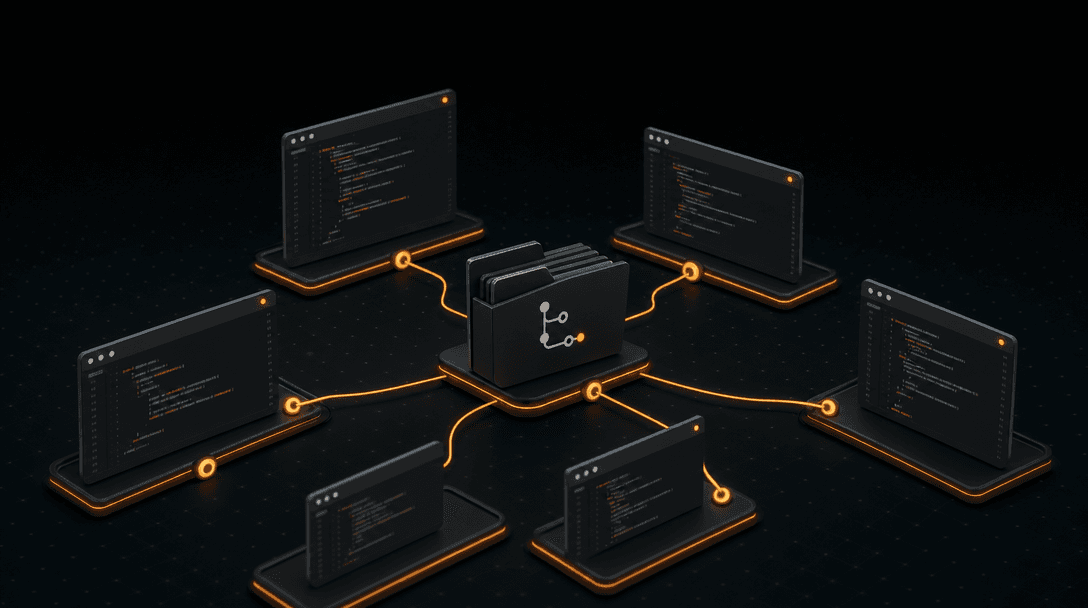
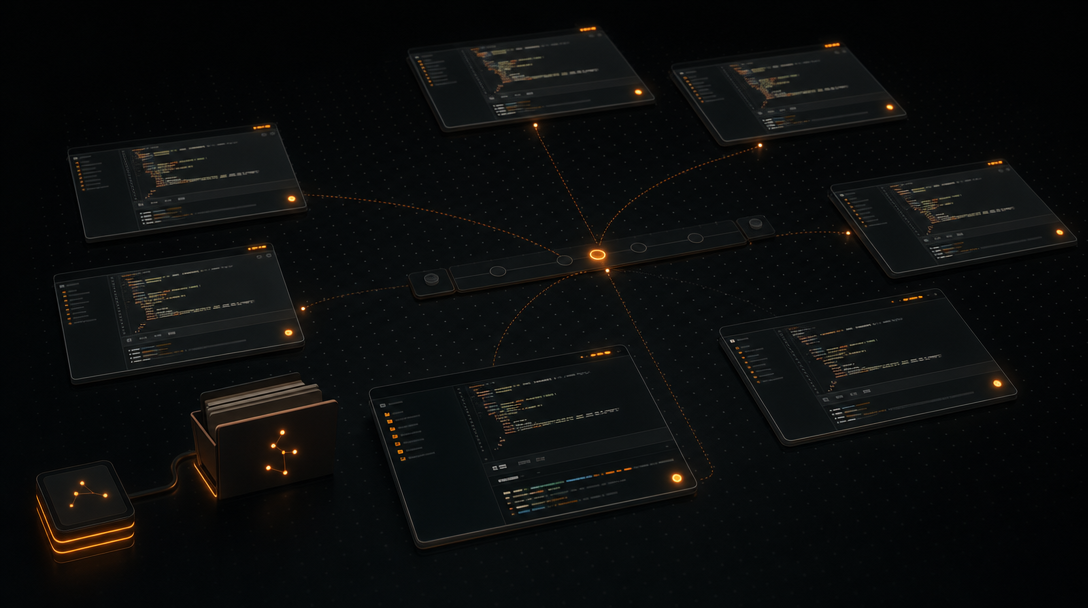
CodeGrid is a native macOS workspace for running multiple terminal-based AI coding agents and shells in parallel on a free-form 2D canvas, with each session in its own draggable, resizable, zoomable pane. Instead of stacking sessions behind window chrome, the canvas gives every agent a persistent spatial address — a location your eyes and muscle memory can rely on.
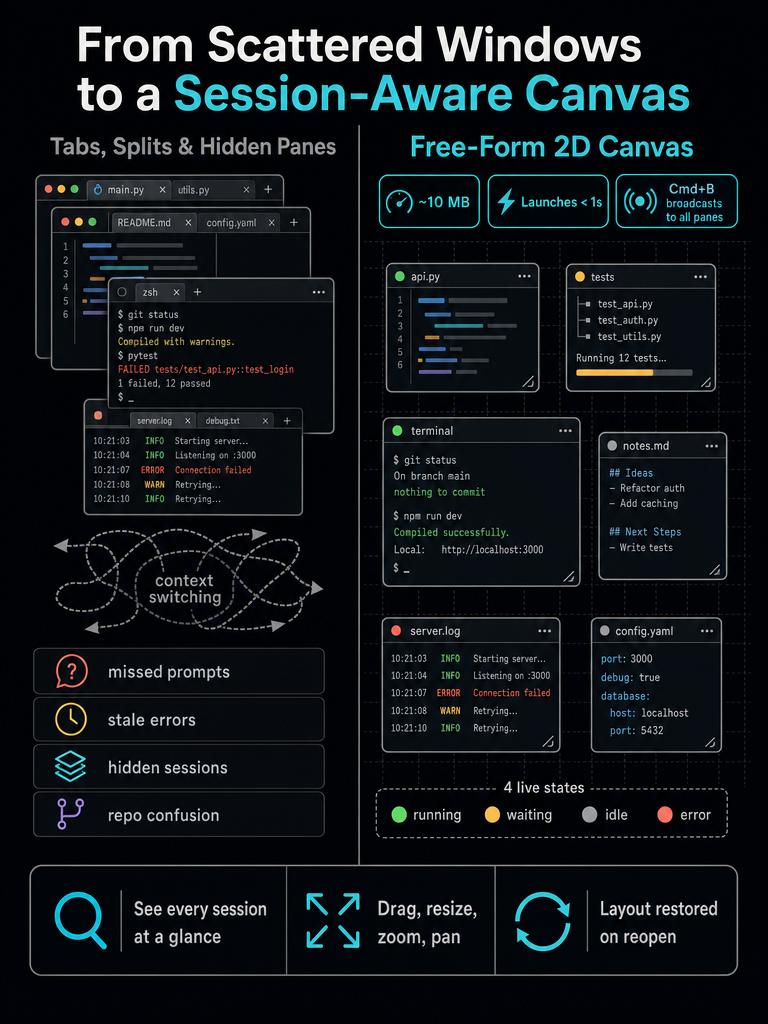
That spatial model matters because dense agent work is fundamentally a visibility problem, not a window-count problem. With a canvas, you can see ten PTY-backed sessions at once, watch their status indicators change, and zoom into the one that needs you. Repo context, worktree, and momentum stay attached to the pane rather than disappearing into a tab strip you have to click through.
Why do terminal tabs, editor windows, and tmux panes stop scaling?
Tabs, splits, and tmux panes scale fine for one or two sessions. They break the moment you have a dozen PTYs distributed across multiple repos and worktrees, because the interface was designed for sequential focus, not parallel observation.
Three failure modes show up consistently:
- Hidden state. A tab strip shows titles, not status. An agent waiting for input looks identical to an agent generating code. You only discover the stall when you cycle through tabs minutes later.
- Repo and worktree confusion. Each pane's working directory is invisible until you focus it and type
pwd. With four clients or five feature branches open, you start running commands in the wrong place. - Repeated context switching. You jump from terminal to Git GUI to file browser to editor to docs in the browser, then back. Every switch costs working memory.
A canvas-first model fixes this by making position itself meaningful: the top-left cluster is Client A, the right side is the experimental branch, the bottom is your shell scratchpad. You don't navigate to a session — you look at it. For a longer treatment of this contrast, see Terminal Tabs vs a 2D Canvas for AI Coding Work.
| Workflow shape | Sessions visible at once | Status awareness | Spatial memory |
|---|---|---|---|
| Terminal tabs | 1 (active tab) | None — titles only | None |
| tmux panes | 4–8 before unreadable | None by default | Per-window only |
| Single editor window | 1 buffer focused | N/A | None |
| 2D canvas (CodeGrid) | All, zoomable | Per-pane status indicator | Free-form, persistent |
How to stop juggling editor windows step by step?
Treat the migration as a layout exercise, not a tool swap. The goal is to make every active session visible and addressable before you start optimizing.
- Inventory what's actually running. List the repos, worktrees, and agents you touch in a normal day. Most developers running parallel AI coding sessions underestimate this — eight to fifteen PTYs is common once you count agents, dev servers, log tails, and shells.
- Decide what must stay visible. Long-running agents and anything that prompts for input belong on the canvas at all times. Ephemeral one-shot commands don't.
- Create one workspace per project. CodeGrid supports multiple per-project workspaces, so each client or repo gets its own canvas with its own layout. Switching workspaces is faster and cleaner than rearranging a shared one.
- Place agent panes first. Put your primary coding agents in the center of the canvas. They are what you'll look at most.
- Cluster supporting context nearby. Drop the built-in Git UI, file explorer, code editor, and a browser pane for docs next to the agent that needs them. Spatial proximity replaces tab-switching.
- Use status to triage, not polling. Glance at the canvas. Whatever pane is in
waitingorerrorstate gets your attention first. - Broadcast only when the panes are genuinely homogeneous.
Cmd+Bis for "run these tests across all three services," not for arbitrary commands in mixed contexts. - Iterate the layout weekly. Projects change. Move panes as the work moves.
A 2D canvas for running many AI coding agents in parallel on macOS — Download CodeGrid for macOS.
How can you tell which agent needs attention?
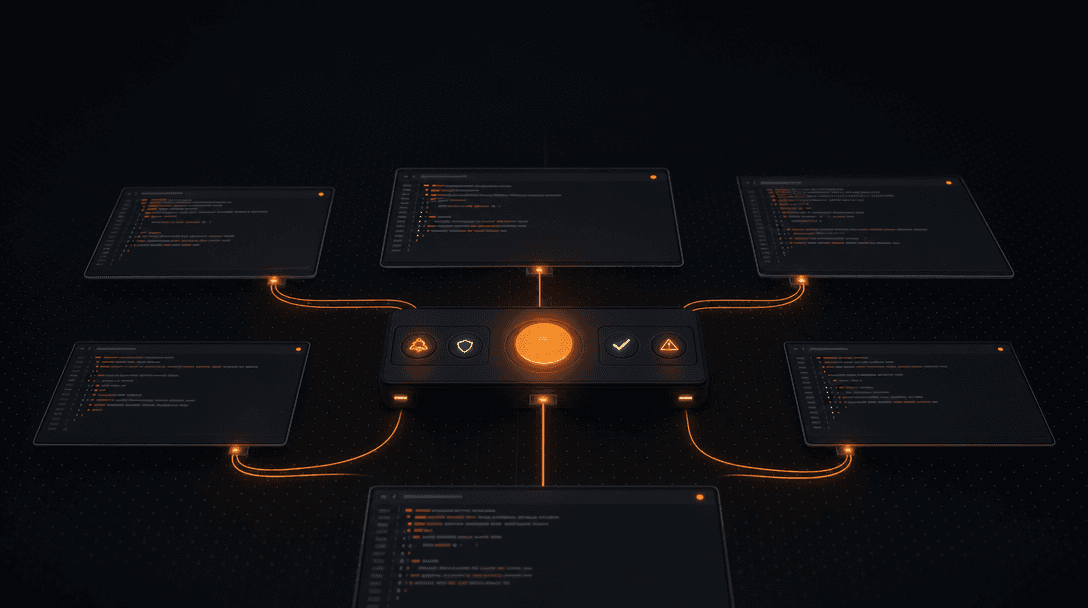
You can tell at a glance because every pane carries a live status indicator visible from anywhere on the canvas. CodeGrid exposes four pane states — running, waiting, idle, and error — and renders them on each pane even when you're zoomed out across the full workspace.
This is the core anti-stall mechanism. The reason parallel agent work silently breaks is not that agents fail; it's that they wait, and you don't notice. A Claude-style CLI sitting on a confirmation prompt looks exactly like one mid-generation if all you have is a tab title. Minutes pass. Then you find five agents all waiting on the same question you could have answered in seconds.
With per-pane status visible at zoom-out, triage becomes a visual scan instead of a manual sweep:
- Red/error panes — investigate first; something crashed or the agent rejected the task.
- Yellow/waiting panes — answer the prompt; the agent is blocked on you.
- Green/running panes — leave alone; work is progressing.
- Idle panes — either finished or ready for the next instruction.
The shift is from polling each session to monitoring the whole canvas, which is the difference between supervising one agent and orchestrating ten. That's the same model dispatchers and SRE consoles use — make state visible, intervene where state demands it.
When should you broadcast a command instead of retyping it?
Broadcast when the command is identical and safe across every targeted pane. CodeGrid binds Cmd+B to broadcast input across selected terminals, so a single keystroke runs the same instruction in every pane at once instead of cycling through them.
Good broadcast cases:
- Pulling latest across every repo:
git pullin a row of panes each pointed at a different project. - Running the same test suite in parallel across services:
npm testorpytest. - Installing or updating dependencies after a shared lockfile change.
- Sending the same prompt to several agent sessions to compare outputs.
- Kicking off a linter or formatter across a monorepo's worktrees.
Risky cases where broadcast can hurt:
- Destructive commands (
rm -rf,git reset --hard,DROP TABLE). One wrong pane and the blast radius multiplies. - Panes in different repos with different conventions. A
make buildthat works in three projects may corrupt state in the fourth. - Sessions waiting on different inputs. Broadcasting "yes" to all of them assumes every agent is asking the same question. It usually isn't.
- Mixed shells and agents. Sending an agent prompt to a plain shell session just dumps text into bash.
For the broader pattern, see Broadcast One Prompt to Every Agent.
How does CodeGrid work with existing AI CLIs, Git, GitHub, and editors?
CodeGrid is an orchestration workspace, not an IDE replacement. Every agent pane is a real PTY, which means any terminal-based AI coding CLI, plain shell, REPL, or build tool that you already run in a terminal runs in CodeGrid unchanged. You bring your existing CLI tooling; CodeGrid gives it a home.
Around those PTY sessions, CodeGrid bundles the context most developers normally chase across separate apps:
- Built-in Git UI — stage, diff, commit, and branch without leaving the canvas. The Git pane sits next to the agent pane that's editing the repo.
- File explorer and built-in code editor — open, inspect, and edit files when you need to verify what an agent produced, without alt-tabbing to a separate editor.
- Interactive dependency graph — visualize how modules connect, useful when an agent is refactoring across files.
- Browser panes — keep docs, dashboards, or a local dev server visible on the canvas itself instead of in a separate browser window.
- GitHub repo browser — explore repos without leaving the workspace.
- Workspace switching — flip between per-project canvases, each with its own layout, panes, and directories.
- Command palette (
Cmd+K) — keyboard-first access to actions, panes, and workspaces.
The design intent is to fold the surrounding tooling — Git, file browsing, docs, repo navigation — into the same surface where your agents are running, so context-switching collapses without forcing you to abandon your editor of choice. Keep using whatever you already use to write code. CodeGrid handles the orchestration layer above it.
Canvas workspace vs alternatives: which is right for you?
Not everyone needs a canvas. If you run one agent at a time in one repo, terminal tabs are fine. If you live in two or three panes and rarely lose track, tmux is fine. The canvas model earns its place when session count, repo count, and agent concurrency outgrow what a linear interface can show you.
| Approach | Best for | Falls apart when |
|---|---|---|
| Terminal tabs | 1–3 sessions, single repo | Status is invisible; tabs hide PTYs |
| tmux | Keyboard-driven, single-window users | Many agents across many repos; no live status |
| Single editor window | Solo coding, no agent orchestration | Parallel agents need attention |
| 2D canvas (CodeGrid) | Many concurrent agents across repos | Overkill for one-session workflows |
The trade-offs are modest. CodeGrid is a native macOS app built with Tauri and Rust rather than Electron, weighing roughly 10 MB and launching in under a second — closer to a system utility than a desktop suite. It's local-first, collects nothing, and is open source under the MIT License, which matters for developers wary of proprietary tooling that phones home.
Time-to-value is short: install, open a directory, drop agent sessions onto the canvas. The learning curve is mostly the layout decisions in the step-by-step section above — there's no new query language, no config DSL, and no required setup beyond the panes you want.
What state is restored when you reopen the workspace?
When you reopen CodeGrid, your sessions, directories, and layout are restored — the same panes in the same positions, pointed at the same working directories they were in when you closed the app. You don't rebuild the workspace; you resume it.
This matters more than it sounds. For agency developers switching between client repos, the cost of closing the app is normally an hour of re-creating the layout: re-opening terminals, re-cd-ing into the right worktrees, re-launching agents, re-positioning windows. Multiply that across five clients and you simply stop quitting the app, which leads to memory bloat and bad habits.
Persistent layout restores spatial memory after every restart, which is the difference between a workspace and a session. For indie hackers running several projects, it means the Tuesday-morning project picks up where the Monday-night project left off, with no manual reconstruction. Combined with per-project workspace switching, you get a stable mental map across all your work — see How to Run Claude Code Sessions Without Tab Sprawl for a deeper walkthrough.
How do MCP, automation, and the local Unix API fit in?
Two power-user surfaces sit on top of the canvas: a visual MCP server manager and an external control API over a local Unix socket. Both are optional, and most workflows don't need them on day one.
The MCP server manager replaces hand-editing MCP configuration files. Instead of opening a JSON file in your editor to add a new server, you configure it through a UI inside the workspace. For developers who run several MCP servers across projects, the config-file approach gets brittle quickly; a visual manager keeps it auditable.
The external control API exposes CodeGrid over a local Unix socket, which means scripts and external tools can drive it. Practical uses include Alfred workflows that spawn a project workspace with one keystroke, IDE extensions that focus a specific pane, or shell scripts that automate canvas setup for a new client repo.
Neither feature is required to benefit from the canvas, but together they make CodeGrid scriptable for the kind of keyboard-first developer who already automates everything else on their machine.
Who benefits most from a canvas-based agent workflow?
The canvas pays off for anyone whose day involves more than one active agent session at a time:
- AI-native power developers orchestrating Claude-style CLIs, Codex-style tools, and other terminal agents across multiple repos.
- Indie hackers and solo founders running several side projects in parallel without losing context between them.
- Agency and freelance developers who need isolated per-client workspaces with their own layouts, directories, and Git context.
- Engineering leads evaluating local-first, open-source tooling for agent-driven workflows.
- Tinkerers and automation enthusiasts who want to script their workspace via the local Unix API and live in
Cmd+K.
If you're in any of those camps, the fastest way to see whether the canvas model fits your work is to try it on a real project for an afternoon — Download CodeGrid for macOS and open it against the repos you're already working in. The source is on GitHub if you'd rather read it first.
Frequently asked questions
Does CodeGrid replace my existing terminal or editor?
No — every pane is a real PTY, so any CLI tool, shell, or REPL you already use runs inside it unchanged. CodeGrid adds a canvas layer for orchestration and visibility; it doesn't replace the tools running inside the panes.
How large is CodeGrid and how fast does it launch?
The app weighs roughly 10 MB and launches in under a second. It's built with Tauri and Rust instead of Electron, so it behaves more like a system utility than a desktop suite.
Does CodeGrid collect telemetry or require a cloud account?
It collects nothing and has no cloud dependency for core usage. The app is local-first, open source under the MIT License, and all session data stays on your machine.
What gets restored when I reopen a workspace?
Pane positions, working directories, and layout are all restored exactly as you left them — no manual re-cd or agent relaunch required. Per-project workspace switching means each repo or client gets its own persistent layout.
Can I automate or script CodeGrid from outside the app?
Yes — an external control API is exposed over a local Unix socket, so shell scripts, Alfred workflows, or IDE extensions can spawn workspaces, focus panes, or automate canvas setup without touching the GUI.
Is CodeGrid useful if I only run one or two agent sessions at a time?
For a single session or two sessions in one repo, terminal tabs are perfectly adequate and a canvas adds little value. CodeGrid earns its place once session count, repo count, or agent concurrency makes a linear tab interface hard to triage at a glance.