Terminal Tabs vs a 2D Canvas for AI Coding Work
Compare terminal tabs vs canvas for AI coding work and see how CodeGrid keeps many agent sessions visible, grouped, and easier to monitor.
What Is Terminal Tabs vs Canvas for AI Coding Work?
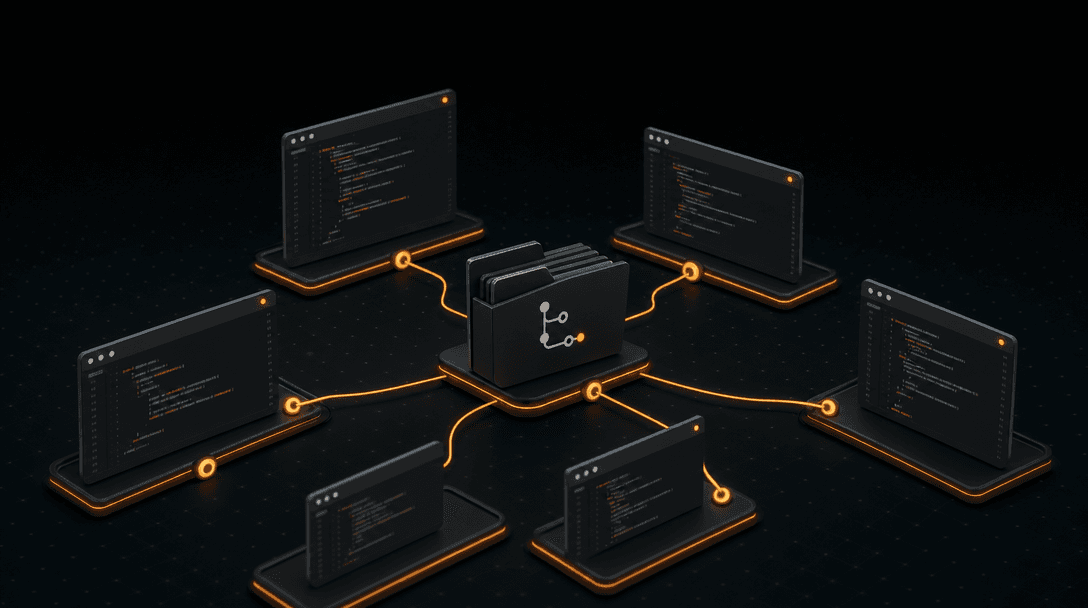
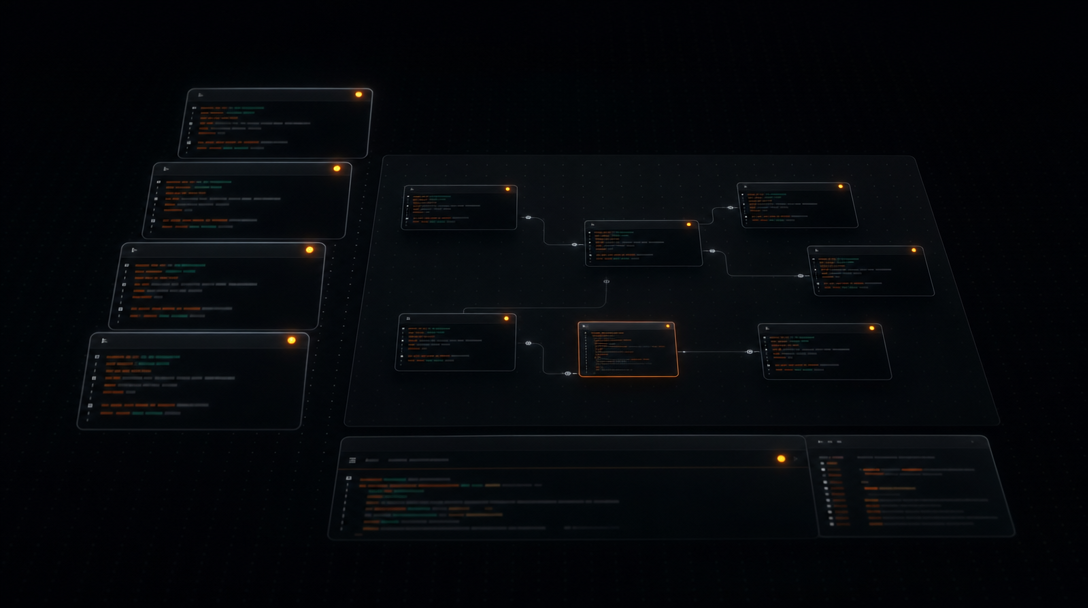
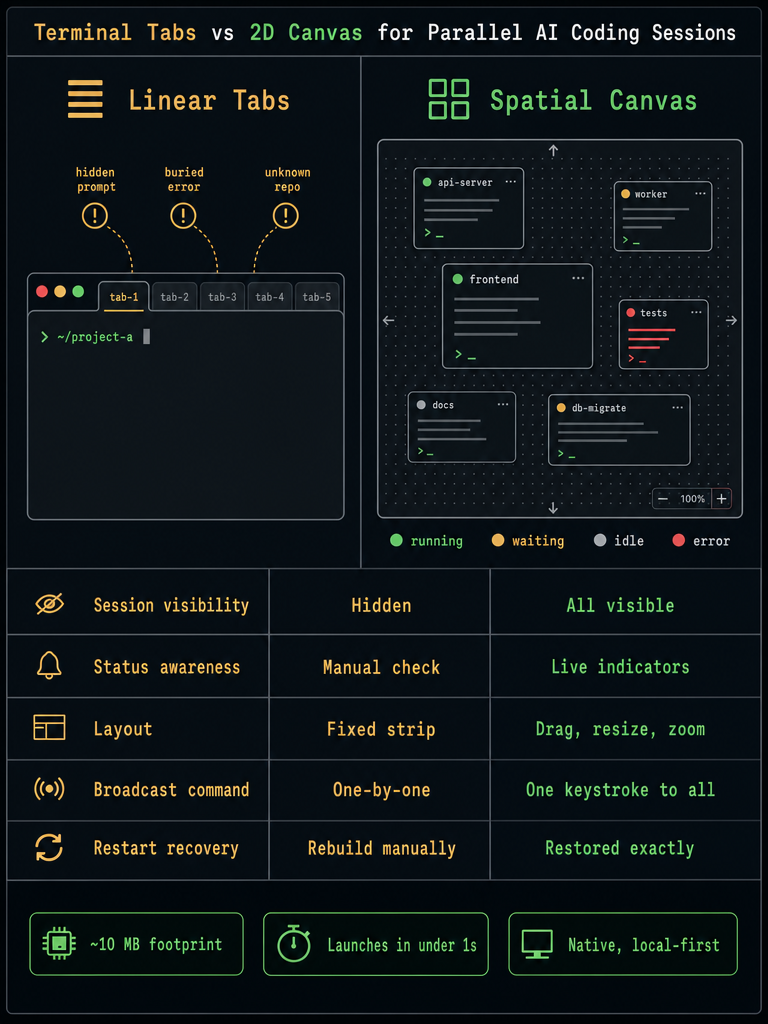
Terminal tabs hide many PTY sessions behind a linear list — one visible shell at a time, the rest invisible until you click through them. A 2D canvas makes those same sessions spatial: every agent, every repo, every long-running build sits in its own draggable pane on an infinite plane you can zoom and pan. For AI coding work, the difference is whether you can see what your agents are doing without hunting for them.
This matters because the workflow has changed. A developer running Claude-style coding agents across four client repos isn't managing four shells — they're supervising four autonomous processes that pause for input, occasionally error, and sit idle between turns. Tabs were designed for an era when a terminal was a thing you typed into. Canvases are designed for an era when terminals are things you watch.
CodeGrid is a native macOS workspace built around this shift. It's not an IDE replacement and it doesn't replace your shell, your editor, or the agents themselves — it orchestrates them. Each session runs as a real PTY in its own pane. You keep using whatever terminal-based AI coding tools you already use; CodeGrid gives them a workspace where you can actually see all of them at once, broadcast commands across them, and stop losing track of which one is waiting on you.
Why Don't Terminal Tabs and tmux Scale for Running Many AI Coding Agents?
Terminal tabs fail at scale because they serialize attention: only the active tab is visible, so any agent in any other tab might be waiting, errored, or finished — and you won't know until you click. The core problem is that AI coding agents produce events you need to notice, not just output you need to read.
tmux is a real upgrade — true splits, persistent sessions, keyboard navigation — but it inherits the same fundamental constraint. A 2x2 grid in tmux works well. A 3x4 grid is unreadable. And tmux gives you no visual difference between a pane that's actively streaming tokens, a pane that's paused awaiting a y/n, and a pane that crashed twenty minutes ago. They're all just text.
The failure modes compound fast:
- Tab-name drift. "zsh — node" tells you nothing about which repo, which branch, or which agent.
- Buried prompts. An agent asks "should I proceed?" in tab 7 of 12. You don't notice for an hour.
- Lost worktree context. You have three worktrees of the same repo open. Which tab is which?
- Mental bookkeeping. You're tracking the state of a dozen sessions in your head because the UI won't.
- Silent stalls. A pane that's idle looks identical to one that's working. Work stops and you don't see it.
None of this is a problem with tmux's design — it's a problem with applying any linear or tiled-grid abstraction to a workload that's inherently parallel and event-driven. When the bottleneck shifts from "what should I type" to "which agent needs me next," you need a UI that answers the second question at a glance.
How Does a 2D Canvas Help You Track Agent Status and Avoid Missed Prompts?
A 2D canvas helps because it gives every session a fixed spatial position and a visible status indicator, so "which agent needs me" becomes a glance instead of a search. You stop context-switching to find work and start context-switching only when there's actual work to do.
In CodeGrid, every PTY session lives in its own pane on a free-form canvas. You can:
- Drag and resize panes to give the busy ones more screen real estate and shrink the idle ones.
- Zoom out to see the whole workspace — all dozen agents at once — with status indicators still readable.
- Pan across the canvas the way you'd pan a map, instead of cycling through tabs.
- Group spatially by repo, by task, or by model. The frontend agents live top-left; the backend agents live bottom-right.
The status indicators are the part that actually changes the workflow. Each pane shows whether its session is running, waiting for input, idle, or in an error state — and those indicators remain visible when zoomed out, so a wall of twelve agents tells you at a glance that three are waiting on you and one has errored. You don't need to read terminal output to know where to look next.
| Linear UI (tabs / tmux) | 2D canvas |
|---|---|
| One active session visible | All sessions visible simultaneously |
| Status known only when focused | Status visible from zoomed-out view |
| Find work by clicking through | Find work by glancing at indicators |
| Layout reflows on resize | Spatial position is stable |
| Identity = tab name | Identity = position + content + status |
The practical outcome is fewer missed prompts and fewer silently-stalled agents. If you've ever come back to a tmux window after lunch to find an agent has been waiting for your y for forty minutes, the canvas model is solving exactly that.
Run a dozen agents without losing track of any of them — Download CodeGrid for macOS.
How to Move from Tabs to a Canvas Workspace Step by Step
Migrating from tabs to a canvas isn't a rebuild — it's a re-layout. Move one project at a time, and don't try to recreate your tab strip on the canvas.
- Inventory your active sessions. List every repo, worktree, and agent you currently keep open. Note which model each agent uses and what role it plays (frontend, backend, tests, docs).
- Open one pane per session. In CodeGrid, spawn a PTY pane for each one. Keep each pane's working directory pinned to its repo or worktree root — no more
cd-ing between contexts inside a shared shell. - Group spatially by project. Put all panes for Project A in one region of the canvas, Project B in another. Use the canvas's zoom to make project boundaries obvious. This is the move that pays off most: spatial grouping replaces the mental work of remembering which tab belongs to which repo.
- Add context panes around the agents. Open the built-in Git UI alongside the agent that's editing that repo. Add a file explorer pane. If you're testing a web app, drop a browser pane next to the dev server's PTY.
- Use per-project workspaces. Don't put every client on one canvas. CodeGrid supports multiple per-project workspaces — switch between them the same way you'd switch between virtual desktops.
- Verify restart recovery. Quit the app and reopen it. Confirm that panes, working directories, and layout are restored exactly. If they're not, your workflow isn't durable yet.
- Bind frequent actions to the command palette. Use
Cmd+Kfor everything you currently muscle-memory through tab cycling.
How Does Broadcast Input Work Across Multiple Terminal Sessions?
Broadcast input sends a single command to multiple PTY panes at once, so you type once and every selected terminal receives the same keystrokes. In CodeGrid, Cmd+B toggles broadcast mode — useful for fan-out commands, dangerous for anything destructive.
Good use cases:
- Status checks across repos.
git status,git pull,npm outdated— run it everywhere, see results in parallel. - Dependency updates.
pnpm installacross every project after pulling main. - Agent prompts. Sending the same instruction ("summarize the current diff") to every coding agent at once.
- Environment setup.
export FOO=baracross every shell after rotating a key.
Safety rules that matter:
- Never broadcast destructive commands (
rm -rf,git reset --hard,DROP TABLE) without confirming exactly which panes are selected. - Watch for mixed repos. If your selected panes span a client repo and your own repo, a
git pushis going to two different remotes. - Disable broadcast immediately after use. The most common accident is forgetting it's on and typing your next unrelated command into ten terminals.
- Prefer broadcast for read-only commands first. Build the habit on safe commands before fanning out writes.
Can a Canvas Workspace Restore Sessions, Directories, and Layout After Restart?
Yes — and this is the feature most developers underestimate until they lose a layout. CodeGrid restores sessions, working directories, and spatial layout exactly on restart, so reopening the app puts every pane back where it was.
Why it matters: a multi-agent canvas isn't just a window arrangement. It's an investment of attention. You've decided that the auth-service agent goes top-left, the design system agent goes top-right, the integration tests pane goes bottom-center. Losing that on every restart means rebuilding the mental map every morning.
Generic window persistence isn't enough. What needs to come back:
- The PTY processes themselves where possible, or at least shells re-spawned in their original working directories.
- The exact canvas position, size, and zoom of every pane.
- The per-project workspace you were last in, plus any others you'd opened.
- Git UI, file explorer, and browser panes in their original positions.
If your workspace doesn't survive a restart, your team will treat it as scratch space and never commit to a real layout. Durability is what makes spatial organization worth doing.
Terminal Tabs vs Canvas vs Alternatives: Which Is Right for You?
The right tool depends on session count, repo count, and how often you miss prompts. Use tabs for one or two shells, tmux for compact keyboard-driven terminal work, and a canvas when agent supervision is the bottleneck.
| Workflow | Best fit | Where it breaks |
|---|---|---|
| Native terminal tabs | 1–3 shells, single repo, no long-running agents | Hidden prompts, no status visibility, tab-name drift |
| tmux splits / sessions | Keyboard-first users, remote work over SSH, compact 2x2 grids | Status indistinguishable across panes, grids over 4 panes become unreadable |
| 2D canvas workspace | 4+ concurrent agents, multiple repos or worktrees, prompt monitoring is the bottleneck | Overkill for a single shell; requires a desktop display |
| IDE built-in terminal | Quick commands tied to the file you're editing | Not designed for many parallel long-running sessions |
A canvas isn't a replacement for any of these — it's an orchestration layer over them. You still use your shell. You still use your AI coding tools. You just stop using the tab strip as the primary navigation metaphor.
What pushes the decision toward a canvas, specifically:
- You run four or more concurrent agent sessions regularly.
- You work across multiple repos or worktrees in a single day.
- You've missed a prompt in the last week and didn't notice for more than ten minutes.
- You spend real time rebuilding your layout after a restart.
- You're context-switching between terminal, git GUI, file browser, and browser constantly.
CodeGrid reduces that last one by folding the surrounding tools into the same workspace: a built-in Git UI sits next to the agent that's making the commits, a GitHub repo browser is one pane away, file browsing and browser panes live on the same canvas. None of those replace your existing tools — they just stop you from alt-tabbing away from the agents you're supposed to be supervising.
Is a 2D Canvas Terminal Workspace Local-First and Open Source?
The right ones are. CodeGrid is built with Tauri and Rust instead of Electron, weighs roughly 10 MB, launches in under a second, collects nothing, and is open source under the MIT license.
Why this combination matters for a tool that sits on top of your terminal sessions:
- Native macOS, not Electron. Tauri-based apps use the system webview and a Rust core, so memory and CPU footprints are far smaller than the Electron alternatives. A workspace you keep open all day shouldn't cost you a gigabyte of RAM.
- Local-first. Your PTYs, your repos, and your agent output never leave your machine for CodeGrid to function. There's no cloud sync requirement for core usage.
- No telemetry. A terminal workspace sees everything you type. The only acceptable amount of phoning-home is zero.
- MIT-licensed and open source. You can read the code, audit what it does with your sessions, and fork it if you need to.
- MCP server manager built in. Instead of hand-editing config files to register Model Context Protocol servers, manage them visually.
- External control API over a local Unix socket. Drive CodeGrid from Alfred workflows, scripts, or IDE extensions. Open panes, switch workspaces, broadcast commands — all from your existing automation.
For developers who already care about keeping their toolchain auditable and fast, these aren't nice-to-haves. They're the reason a workspace tool is something you'll actually trust to wrap every coding session you run.
If terminal sprawl across AI coding agents is the bottleneck slowing your day down, the fix is a workspace that makes every session visible at once. Download CodeGrid for macOS and try moving one project onto the canvas — keep the tabs for everything else until you're convinced.
Frequently asked questions
Does a 2D canvas terminal workspace work with tmux or replace it?
A canvas workspace sits above tmux rather than replacing it — you can still run tmux sessions inside individual panes if you prefer. The canvas adds spatial layout, per-pane status indicators, and session persistence on top of whatever shell environment you already use.
How many terminal sessions is too many for tmux before a canvas makes more sense?
tmux handles compact grids well up to around four panes before layouts become hard to read and status differences disappear. Once you're running four or more concurrent agent sessions across multiple repos, a canvas workspace pays off because you can zoom out and see all session states at once instead of cycling through splits.
Does broadcast mode send input to all panes or just selected ones?
In CodeGrid, broadcast targets the panes you have selected, not every pane on the canvas — so you can limit fan-out to a specific project group. The standard safety practice is to disable broadcast immediately after use, since a mode left on will send your next unrelated command to every selected terminal.
What happens to running agent processes when you quit and reopen the workspace?
CodeGrid restores pane positions, sizes, zoom level, and working directories on restart. Long-running agent processes that were active when you quit will need to be relaunched, but shells re-spawn in their original directories so you're not rebuilding context from scratch.
Is there a way to script or automate a 2D canvas workspace from outside the app?
CodeGrid exposes an external control API over a local Unix socket, so you can open panes, switch workspaces, and broadcast commands from shell scripts, Alfred workflows, or IDE extensions without touching the GUI.