Why tmux and iTerm2 Break Down When You're Managing AI Agents
See why tmux and iTerm2 break down for AI agents, and how a 2D canvas workspace with session awareness keeps repos, prompts, and layouts in sync.
Why do tmux and iTerm2 break down when you're managing AI agents?
tmux and iTerm2 are still excellent terminals — they break down because their tab and split-pane models were never designed for a dozen long-lived AI-agent PTYs running in parallel across multiple repos. Once you're orchestrating Claude-style, Codex-style, or shell-based agents at scale, the bottleneck stops being the terminal itself and starts being everything around it: which pane is waiting on you, which repo it's pointed at, which branch is checked out, and whether your layout will survive the next restart.
The failure isn't terminal performance — it's session awareness, spatial memory, broadcast input, and persistence across many concurrent agent sessions.
This article walks the failure modes one by one:
- Visibility into which agent is running, waiting, idle, or errored
- Spatial memory for which pane belongs to which repo
- Broadcasting a single command across many sessions
- Restoring layouts, directories, and sessions after restart
- Keeping Git context, files, and browser panes near the terminals that need them
Where helpful, we'll point to how CodeGrid — a native macOS workspace built around a free-form 2D canvas for terminal-based agent sessions — handles each gap. The goal isn't to replace tmux or iTerm2. It's to be honest about where they stop scaling and what to reach for when they do.
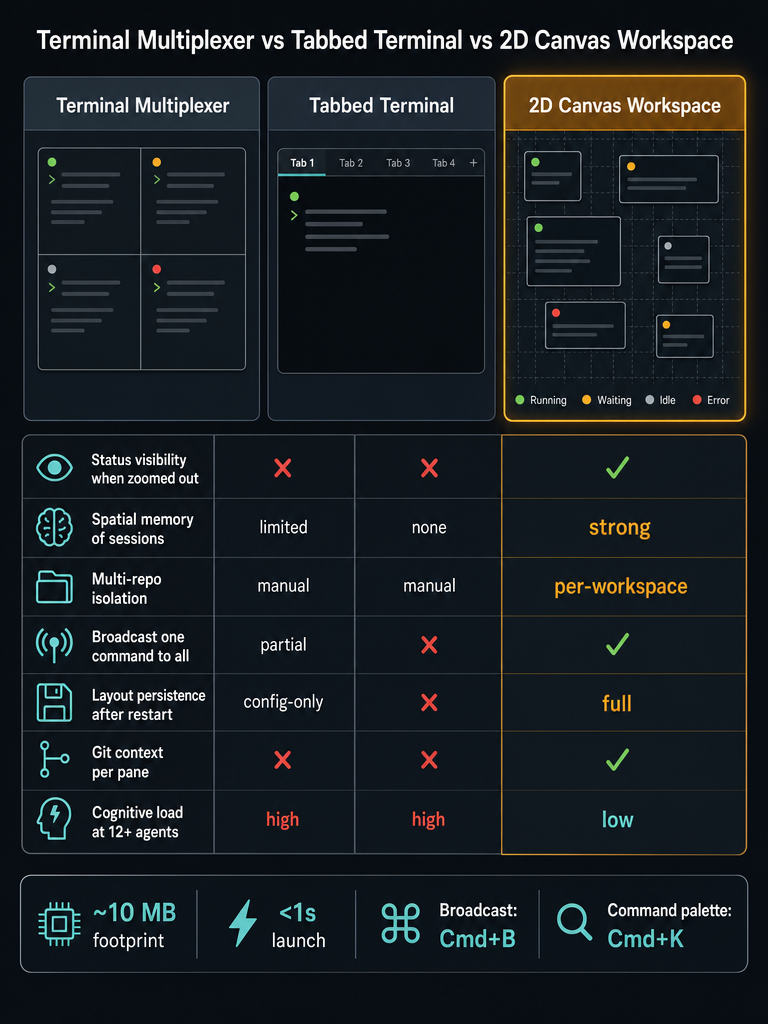
What problems does terminal sprawl create in multi-repo agent workflows?
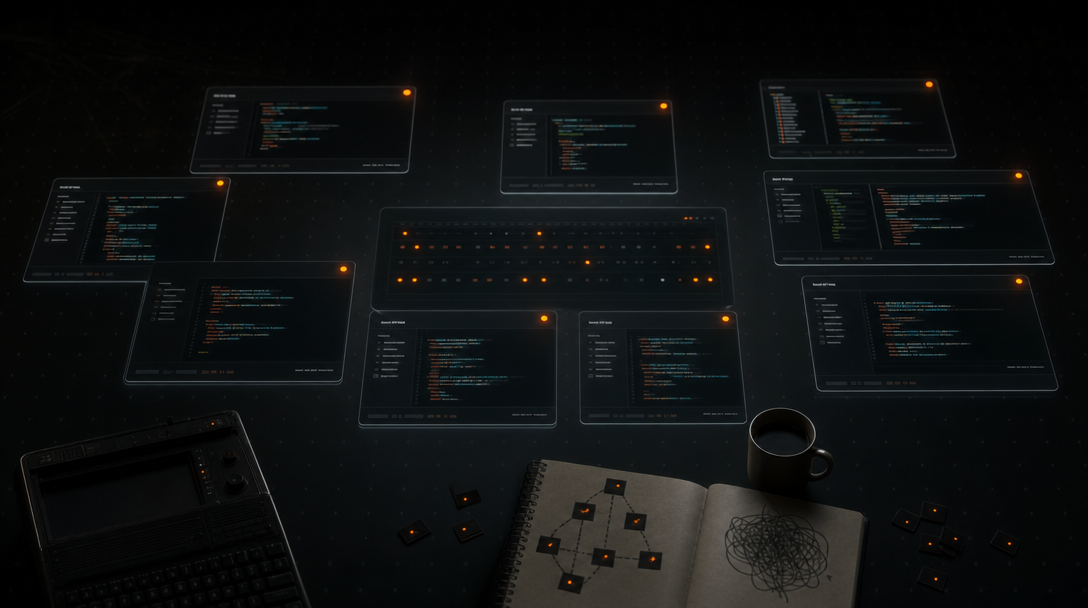
Terminal sprawl is what happens when the number of active PTYs exceeds the number you can hold in your head. With three agents in one repo, tabs are fine. With twelve agents across five client repos, you're guessing.
The concrete symptoms:
- Hidden tabs. An agent in tab nine is waiting for input you can't see from tab two. Work stalls silently.
- Crowded panes. tmux splits shrink until output wraps every few characters, making review impractical.
- Duplicated setup. You retype the same agent startup or
git pull && npm installacross eight panes by hand. - Unclear working directory. You run a destructive command in the pane you thought was the staging repo. It wasn't.
- Stale Git context. Which pane is on
main? Which is on a feature worktree? You check by typinggit statusin each one. - Client confusion. Agency work compounds this — Client A's terminal and Client B's terminal look identical until you read the prompt carefully.
The root cause is that tabs and splits give you terminal capacity but not spatial identity. Each session needs to live somewhere your eye can find it, with enough surrounding context — repo name, branch, status — to keep coordination cheap.
How do you avoid missed prompts when agents are waiting for input?
You make the waiting state impossible to miss. The failure mode of tab- and pane-based setups is that an agent's status is only visible when that pane is focused — so a paused agent in a background tab can sit idle for ten minutes before you notice.
A workable solution has three properties:
- Every session is visible at once, not hidden behind a tab bar.
- Each session has a status indicator — running, waiting, idle, error — that you can read at a glance.
- Status remains legible when zoomed out, so a 12-pane workspace still tells you which one needs attention.
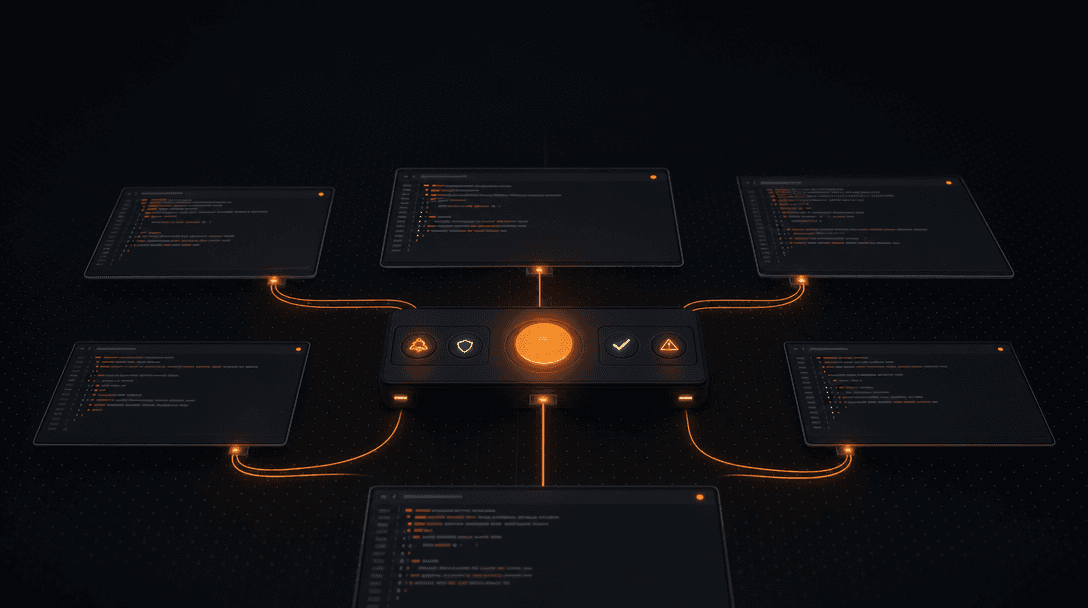
This is exactly what CodeGrid's 2D canvas is built around: every PTY lives in its own draggable pane on a single free-form canvas, and each pane carries a live status indicator that stays visible even when you zoom out to see the whole workspace. You stop scanning tab bars and start glancing at the canvas the way you'd glance at a dashboard.
The point isn't prettier terminals — it's that an agent waiting on input should announce itself, not hide. Once status is visible, the cost of running ten parallel agents drops to roughly the cost of running two.
tmux vs iTerm2 vs a 2D canvas: which is right for you?
Each tool is good at what it was built for. The question is which model fits dense, long-lived, multi-repo agent work.
| Capability | tmux | iTerm2 | 2D canvas workspace |
|---|---|---|---|
| Many visible sessions at once | Splits only, cramped past 4–6 | Tabs + splits, mostly serial | Yes — free-form pane layout |
| Per-pane status (waiting/idle/error) | Manual via scripts | None native | Live indicators, visible when zoomed out |
| Spatial memory for repos | Window names only | Tab titles | Pane position is the identity |
| Broadcast input | setw synchronize-panes per window | Limited (Shell Broadcast) | One shortcut across all panes |
| Layout persistence | Via tmux-resurrect plugin | Window restore, partial | Sessions + directories + layout restored |
| Built-in Git context | None | None | Git manager + file explorer in-workspace |
| SSH / remote use | Excellent | Excellent | Local-first (macOS) |
| Resource footprint | Minimal | Minimal | ~10 MB, launches in under a second |
A quick way to choose:
- Stick with tmux when you're on a remote server, working over flaky SSH, or you need a small number of persistent panes you can detach and reattach.
- Stick with iTerm2 for everyday single-session terminal work — quick scripts, occasional REPLs, one or two long-running shells.
- Move to a 2D canvas when the bottleneck is coordinating many agent sessions at once: you're running parallel agent PTYs across several repos and the cost is missed prompts, retyped commands, and rebuilt layouts.
How do you run the same command across many terminal sessions?
You broadcast it. Running git pull, npm install, or an agent startup command pane-by-pane across ten repos is a tax you shouldn't be paying.
A safe broadcast workflow looks like this:
- Confirm targets. Glance at the canvas and verify each pane's working directory matches what you expect. This is the step tabs make hard.
- Confirm scope. Decide whether you're broadcasting to all panes or a subset (e.g., only the panes in one project workspace).
- Broadcast once. In CodeGrid,
Cmd+Bsends a single command to every terminal at once. - Monitor status. Watch the per-pane indicators — running → idle for success, anything red for an error you need to handle individually.
- Follow up. Use
Cmd+Kto open the command palette for anything that needs a one-off action in a single pane.
For automation beyond keystrokes, CodeGrid exposes an external control API over a local Unix socket. That means Alfred workflows, scripts, or IDE extensions can drive the workspace — spawn panes, send input, switch workspaces — without you touching the keyboard.
Run many agents on a single canvas with broadcast input, live status, and layout restore — Download CodeGrid for macOS.
The win isn't typing speed; it's eliminating the per-pane repetition that scales linearly with the number of agents you run.
How do you restore terminal sessions, directories, and layouts after restart?
You restore them by using a workspace that persists sessions, working directories, pane positions, and project context together — not just by reopening a terminal. After a restart or a machine reboot, each session should come back in its directory, each pane in its position, and each project workspace ready to resume.
A useful persistence model covers four layers:
- Sessions. Each PTY restarts with its prior shell and working directory.
- Spatial layout. Pane positions on the canvas are preserved, not auto-arranged.
- Project workspaces. Per-project groupings of panes, files, and Git state come back together.
- Surrounding context. Open Git views, file explorer state, and browser panes restore alongside the terminals.
CodeGrid restores all of this on relaunch, which is the difference between resuming work and rebuilding work. tmux can persist sessions with tmux-resurrect, but it won't restore your editor pane, your Git GUI, your browser tab, or the spatial relationship between them — because those things live in other apps.
What should replace terminal tabs and tmux panes for many parallel agent sessions?
A workspace, not a bigger terminal. The capabilities a plain multiplexer doesn't cover, and that agent orchestration actually needs:
- Free-form 2D canvas with draggable, resizable, zoomable panes
- Per-pane status indicators visible at any zoom level
- Per-project workspace switching — distinct canvases for distinct repos or clients
- Broadcast input across selected panes
- Built-in Git UI so branch and status checks don't require a terminal round-trip
- GitHub repo browser for fast navigation between projects
- File explorer anchored to each workspace
- Browser panes for docs, dashboards, and previews next to the agent that needs them
- Lightweight code editor for quick edits without leaving the canvas
- Interactive dependency graph to keep mental models of the codebase nearby
- MCP server manager for visual configuration instead of hand-editing config files
- Command palette (
Cmd+K) and external control API over a local Unix socket for keyboard-first and scripted control
This is an orchestration workspace for terminal-based agents — not an IDE replacement. Your agents still run in real PTYs. Your existing CLI tools, shell aliases, and dotfiles work unchanged. What changes is the surface that surrounds them.
How do you migrate from tabs and panes to a canvas workflow step by step?
The migration is mechanical. Do it once per project, then it sticks.
- Inventory active repos. List every repo where you currently run agent sessions or long-lived shells.
- Group sessions by project. For each repo, decide which panes belong together — typically one agent, one shell, one Git view, one file explorer.
- Create a workspace per project. In CodeGrid, each project gets its own canvas; in other setups, mirror this with named tmux sessions or iTerm2 windows.
- Assign directories. Pin each pane to its working directory so restart restores the right shell location.
- Add surrounding context. Drop in Git, browser, and file panes where they actually help — not everywhere.
- Test broadcast. Send a harmless command (
pwd,git status) across panes to confirm targets before you trust it withnpm install. - Save and restart. Quit the app. Reopen. Confirm sessions, directories, and layout came back.
- Iterate weekly. Prune panes you stopped using. The point of spatial memory is that unused space is wasted.
When should you keep using tmux or iTerm2 instead?
Keep them. They're not the wrong tools — they're the wrong tools for this specific workload.
Stay with tmux when:
- You're working over SSH on a remote server.
- You need detach/reattach semantics across network drops.
- You have a small, stable set of panes (2–4) you want to multiplex in one terminal window.
Stay with iTerm2 when:
- You mostly run one or two shells at a time.
- Your workflow is single-repo, single-agent, or interactive REPL work.
- You value tight macOS-native terminal features and don't have a coordination problem.
Reach for a canvas-first workspace when the bottleneck has shifted: not what your terminal can do, but how many agents, prompts, repos, and layouts you're juggling at once. The threshold is roughly when you stop being able to name every active session from memory.
Frequently asked questions
Does tmux-resurrect solve the layout persistence problem for agent workflows?
tmux-resurrect restores shell sessions and working directories, but it won't bring back your Git UI, file explorer, browser panes, or the spatial relationship between them — because those live in separate apps. For pure shell multiplexing across a small number of panes it helps, but it doesn't cover the surrounding context that multi-repo agent work depends on.
How do you know when you have too many terminal panes to manage manually?
A practical threshold: when you can no longer name every active session from memory, or when you've run a command in the wrong repo because two panes looked identical. At that point, tab titles and window names are no longer enough — you need spatial identity and per-session status that's visible without focusing each pane.
Can you use the external control API to script terminal actions from Alfred or a shell script?
Yes — CodeGrid exposes an external control API over a local Unix socket, so Alfred workflows, shell scripts, or IDE extensions can spawn panes, send input, and switch workspaces without manual interaction. This is the same mechanism that lets keyboard-first users drive the workspace programmatically rather than clicking through a GUI.
What's the actual resource footprint compared to Electron-based terminal apps?
CodeGrid is roughly 10 MB and launches in under a second, built on Tauri and Rust rather than Electron. Most Electron-based terminal or workspace apps load several hundred megabytes and have measurably longer startup times — relevant when you're switching between workspaces dozens of times a day.
Does switching to a canvas-based workspace mean giving up existing shell config, aliases, and dotfiles?
No — each pane is a real PTY that starts your existing shell, so dotfiles, aliases, and CLI tools work unchanged. The canvas is the coordination layer around your terminals, not a replacement for the shell environment inside them.