You Don't Have to Pick One AI Coding Agent — Run Them Side by Side
Run multiple AI coding agents in parallel with CodeGrid. Use a 2D canvas, live session status, and broadcast commands to avoid terminal sprawl.
What Does "You Don't Have to Pick One AI Coding Agent" Mean?
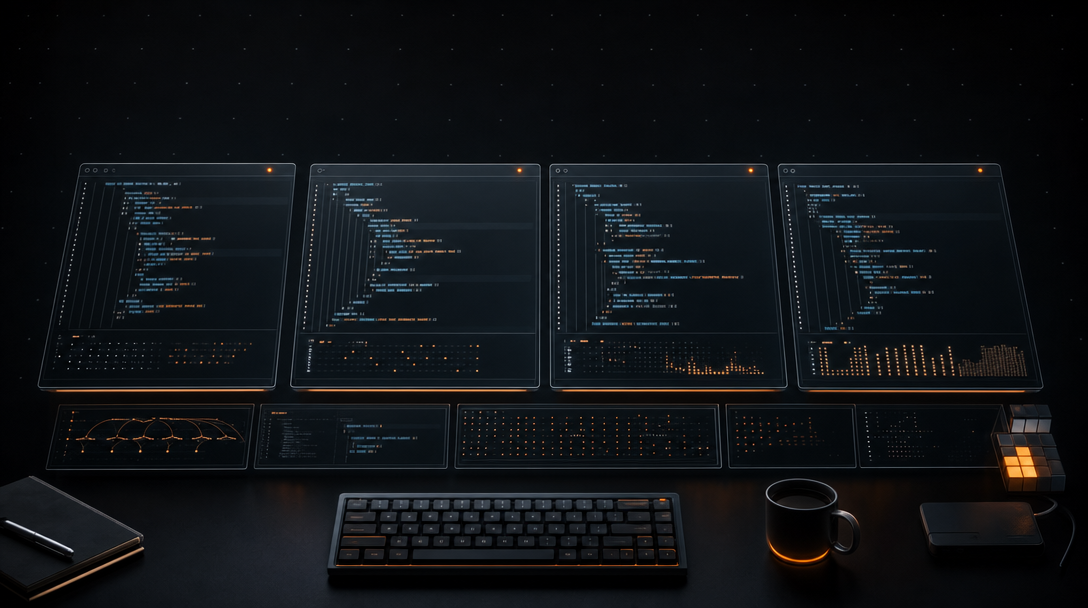
You don't have to standardize on a single AI coding agent — terminal-based agents are just processes attached to PTYs, so multiple agents and plain shells can run side by side in isolated sessions on the same machine, against the same repo, or across different worktrees. The real constraint isn't model choice; it's whether your workspace can keep every session visible and addressable at once.
That last part is where most setups break. Tabs, splits, and tmux windows were designed for a handful of shells, not a dozen long-running agents that each need their own working directory, branch, and attention budget. Once you have six or eight agent sessions going, the question stops being "which model is best" and starts being "which session is waiting on me right now."
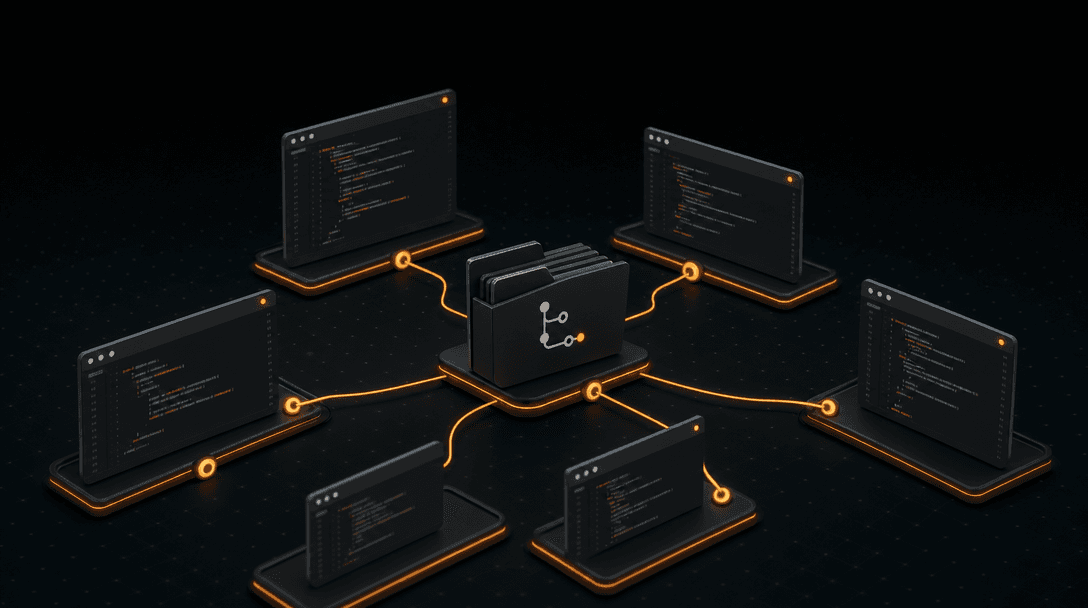
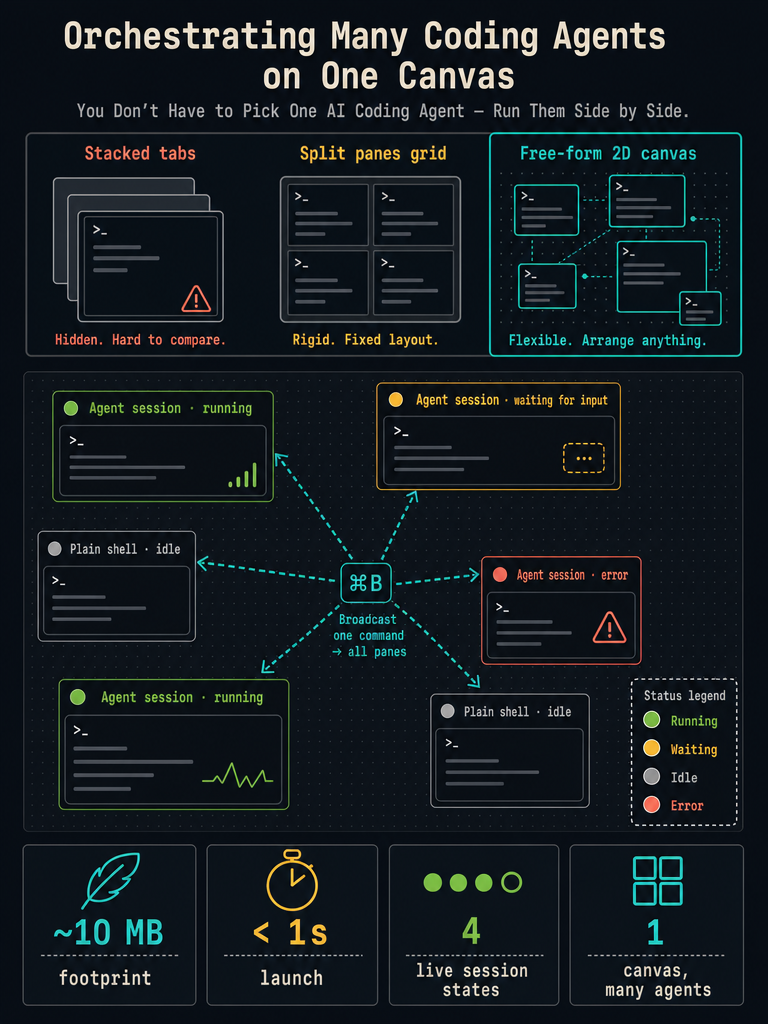
CodeGrid is a native macOS workspace for running many AI coding agents and plain shells in parallel on a single free-form 2D canvas. According to CodeGrid's product documentation, each session gets a draggable, resizable, zoomable PTY pane instead of a hidden tab. It is not an IDE replacement and it does not replace any agent — it sits underneath them, giving you a spatial layout for orchestrating sessions you already run.
This matters when you want to compare outputs from two agents on the same task, split work across repos without losing track of any of it, or quietly avoid the terminal sprawl that turns "I'll run a few agents in parallel" into stalled work you only notice an hour later.
How Do You Run Many AI Coding Agents in Parallel Without Terminal Sprawl?
Run one agent or shell per pane, point each pane at the correct repo or worktree, and arrange them spatially so the layout itself encodes what each session is doing. The work is the same as before — you're still typing claude or codex or git into a PTY — but you stop relying on memory to remember which tab is which.
A practical setup for parallel agent work in CodeGrid looks like this:
- Open a workspace for the project (or client, or repo group) you're about to work on.
- Spawn a new pane and
cdinto the first repo or worktree. Start the agent there. - Spawn additional panes for each parallel session. Drop each one into its own working directory — typically a separate Git worktree if they touch overlapping files.
- Arrange panes spatially: agents working on related files near each other, shells for tests or logs along an edge, the Git UI close to whichever agent is editing most aggressively.
- Zoom out to see the whole canvas. Zoom in on the pane that needs you. Pan between clusters instead of cycling tabs.
- Use workspace switching when you move between unrelated projects so each context keeps its own layout.
The key shift is that the canvas becomes the index. Instead of Cmd+1 through Cmd+9 and hoping you remember which number was the staging worktree, you look at the screen and see it. Related work clusters; unrelated work lives somewhere else on the plane.
If you're coming from tabs or tmux, the adjustment is mostly unlearning the instinct to hide things. For a deeper walkthrough of the multi-repo case, see One Workspace for Every Repo and How to Run Claude Code Sessions Without Tab Sprawl.
"You Don't Have To" vs Alternatives: When Is a 2D Canvas Better Than Tabs, tmux, or IDE Terminals?
Use a 2D canvas when you have more concurrent agent sessions than you can hold in your head, and stick with tabs or splits when you don't. The honest answer is that tabs are fine for three or four shells. They start failing somewhere around session number six, when state lives behind a keyboard shortcut and you can no longer scan everything at once.
Here is how the layout models actually compare for dense agent work:
| Layout model | Strength | Where it breaks for multi-agent work |
|---|---|---|
| Terminal tabs | Familiar, fast for 2–4 shells | State is hidden; no way to see all sessions at once |
| tmux panes / windows | Scriptable, persistent across SSH | Nested splits get cramped; status is text-only; layout is grid-locked |
| IDE-integrated terminal | One window for code + shell | Usually one or two panes; not built for many long-running agents |
| 2D canvas (PTYs) | Every session visible, draggable, status-aware | Overkill for a single shell or quick one-off commands |
The deciding variable is visibility. tmux can run twelve agents — it just can't show you which one is waiting on input without you cycling through panes. Tabs can host twelve sessions too, and bury eleven of them. A canvas-first workspace trades some screen real estate for the ability to see state across the whole set.
If you're orchestrating more than four or five terminal-based agents at once, the bottleneck is no longer your shell — it's your ability to see what each session is doing. That's the moment a canvas pays for itself.
For the longer comparison, see Terminal Tabs vs a 2D Canvas for AI Coding Work and Why tmux and iTerm2 Break Down When You're Managing AI Agents.
How Do You Avoid Missing Prompts When an Agent Is Waiting or Has Errored?
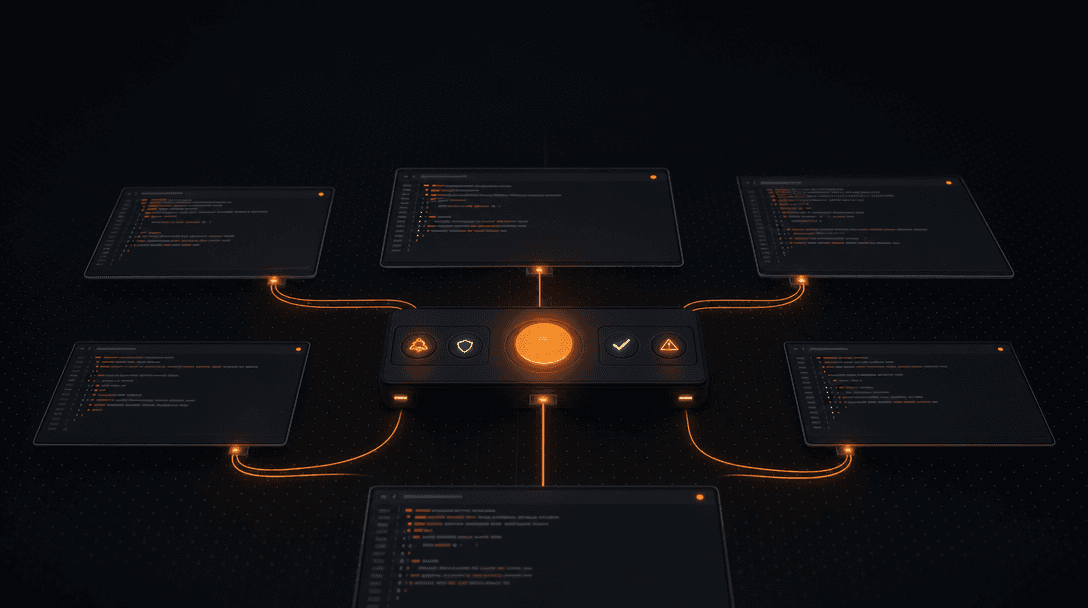
Make session state a visible property of the pane itself, not something you have to click into a tab to discover. According to CodeGrid's feature documentation, each pane exposes four live status states — running, waiting, idle, and error — and they remain legible even when you're zoomed out on the canvas.
In practice that means you can scan the workspace the way you'd scan a dashboard. A pane in the "waiting" state is an agent asking for input. A pane in "error" is a session that bailed out and stopped consuming tokens. A pane in "running" is doing the work you asked for. A pane in "idle" is done and waiting for the next instruction.
The operational difference is small to describe and large in practice: you stop discovering twenty minutes later that an agent has been stuck on a confirmation prompt the whole time. The cost of a missed prompt isn't just the lost minutes — it's that the agent's context goes stale, and you end up re-explaining what it was doing.
This is the single biggest reason developers move dense agent work onto a canvas: the workflow stops requiring active polling. For more on this pattern, see Best Mac App to Run Multiple AI Coding Agents Locally.
How Do You Broadcast the Same Command to Every Terminal Safely?
Use Cmd+B to send one command to every selected terminal pane at once, instead of retyping it pane by pane. This is most useful when you want several sessions to do the same thing in parallel — across worktrees, across repos, or across agents working on different parts of the same problem.
Good uses for broadcast:
- Running
git statusorgit fetchacross every repo on the canvas to get a snapshot of where things stand. - Asking several agents the same diagnostic question, like "look at the failing test in
auth/and tell me what you'd change," and comparing the answers. - Kicking off equivalent checks —
pnpm test,cargo check,pytest -x— across many worktrees simultaneously. - Switching every agent session to a new branch after a rebase.
Bad uses for broadcast — and these are the ones that bite:
- Destructive commands like
rm -rf,git reset --hard, orgit push --forcesent to every pane at once. - Anything that depends on the current directory being a specific repo when half your panes are in different repos.
- Long prompts that assume context from a specific agent — they'll confuse the others and waste a round of tokens.
Before broadcasting, glance at the Git UI for each pane and confirm the branch and working directory. The broadcast itself is one keystroke; the verification is the part that prevents regret.
For a longer treatment of the broadcast pattern, see Broadcast One Prompt to Every Agent.
How Do You Keep Git Context Visible While Multiple Agents Edit Files?
Pin the Git UI, file explorer, and code editor near the agent panes that are doing the most editing, so you can watch diffs as they accumulate instead of discovering them at commit time. Multi-agent work falls apart when Git becomes an afterthought — two agents touching the same file, an agent committing on the wrong branch, a rebase that nobody noticed.
CodeGrid bundles a Git manager, file explorer, built-in code editor, interactive dependency graph, and GitHub repo browser, all addressable from the same canvas. The practical workflow is to keep them close to whichever pane is editing aggressively:
- Watch the diff view as the agent works. If output looks wrong, you can stop the session before it goes further.
- Use the file explorer to confirm the agent is touching the files you expected — not config files, not lockfiles, not something in
node_modules. - Check the branch indicator before accepting any agent suggestion. Worktrees keep this honest, but only if you actually look.
- Use the interactive dependency graph when an agent proposes a change that "looks small" but might ripple. If the changed file has fan-out, treat the review as bigger.
The underlying principle is the same one experienced developers already apply to pull requests: never accept agent output you haven't read in diff form against a branch you've verified. The agents get faster; the review discipline shouldn't.
When Should You Use Separate Workspaces for Repos, Clients, or Worktrees?
Use separate workspaces when contexts shouldn't share state — different clients, unrelated repos, or a personal project versus paid work. Use one workspace with grouped panes when the work is related enough that you'll genuinely want to see it together.
A rough decision guide:
| Scenario | Recommended setup |
|---|---|
| Two clients with distinct codebases | Separate workspaces, one per client |
| One product spanning frontend, backend, infra | One workspace, grouped panes per service |
| Parallel agents on the same repo via worktrees | One workspace, panes clustered by feature |
| Personal experiments + day-job code | Separate workspaces, no exceptions |
According to CodeGrid's documentation, the app restores sessions, directories, and layout when you reopen a workspace, so the cost of splitting work across multiple workspaces is essentially zero. You're not rebuilding panes by hand each morning — the workspace comes back the way you left it, PTYs reattached to the same directories, layout preserved.
The most common mistake is dumping every project into one workspace because it feels simpler. It isn't — it just defers the cost to every time you need to find something.
How Can MCP Servers, Automation, and Privacy Stay Local-First?
CodeGrid keeps the workspace itself local: it's a native macOS app, open source under the MIT license, collects nothing, and doesn't need cloud state to run. The agents you use through it still talk to whichever providers they talk to — that's their concern — but the orchestration layer doesn't add another telemetry channel on top.
A few practical pieces worth knowing:
- MCP server manager. Instead of hand-editing JSON config files to add or update MCP servers, the visual manager lets you add, configure, and toggle them from the UI. Useful when you're testing several servers and don't want to lose track of which agent has which tools.
- Command palette (
Cmd+K). Most workspace actions — spawning panes, switching workspaces, jumping to a repo — are reachable from the palette without leaving the keyboard. - External control API. CodeGrid exposes a local Unix socket for scripted control, which is what makes Alfred workflows, IDE extensions, and custom automation possible. You can script "open this repo in a new pane and start an agent" from outside the app.
- Tauri + Rust, ~10 MB, launches in under a second. According to CodeGrid's published specs, the app weighs in at roughly 10 MB and launches in under a second — worth mentioning only because it's the difference between opening the workspace when you need it and avoiding it because it's slow.
The local-first stance matters most when you're working in repos you can't afford to leak — client code, pre-release work, anything covered by an NDA. The orchestrator shouldn't be the weak link in that chain.
Download CodeGrid for macOS at codegrid.app to try the canvas with your own agents. It's free, open source, and small enough that uninstalling it later costs nothing if it isn't the right fit.
Frequently asked questions
Do I need to use Git worktrees when running multiple agents against the same repo?
You don't strictly need them, but worktrees are the cleanest solution when agents touch overlapping files — each gets its own checked-out directory, so they can't stomp each other's working tree. Without worktrees, two agents editing the same files will produce conflicts you have to untangle manually.
Does CodeGrid replace my existing terminal or shell setup?
No — it sits underneath the agents and shells you already run. Each pane is a real PTY, so any command you'd type in iTerm2 or Terminal works identically here; the difference is spatial layout and per-pane status awareness, not a new shell environment.
How does session restore actually work after closing the app?
CodeGrid saves the full workspace state — pane layout, per-pane working directories, and active sessions — and reattaches them on next launch. A twelve-pane multi-repo layout comes back in roughly the time the app takes to start, without any manual reconstruction.
Is the external control API hard to set up for scripting or Alfred workflows?
It's a local Unix socket, so any script that can write to a socket can drive it — no auth tokens, no cloud relay. The main setup step is knowing the socket path; from there you can script actions like opening a repo in a new pane from Alfred, a shell alias, or an IDE extension.
What's the real cost of missing an agent prompt during a long session?
Beyond the lost time, the agent's context goes stale while it waits — when you finally respond, it may no longer have a clear picture of what it was doing, so you end up re-explaining the task. Visible status indicators reduce this by letting you spot a 'waiting' pane on the canvas before the delay compounds.